 Microsoft SQL Server Integration Guide
Connect MaestroHub pipelines to Microsoft SQL Server instances for enterprise-grade data ingestion and orchestration. This guide highlights SQL Server specifics such as T-SQL, encryption policies, and authentication modes so you can configure pipelines with confidence.
Overview
The Microsoft SQL Server connector unlocks relational workloads with:
- Bidirectional data flows for reading and writing T-SQL queries
- Stored procedure execution with parameter binding and output handling
- Secure connectivity with TLS encryption and granular connection tuning
The connector is validated with Microsoft SQL Server 2012 and later.
Connection Configuration
Creating a Microsoft SQL Server Connection
Open Connections → New Connection → MSSQL and provide the following details:
MSSQL (Microsoft SQL Server) Connection Creation Fields
1. Profile Information
| Field | Default | Description |
|---|---|---|
| Profile Name | - | A descriptive name for this connection profile (required, max 100 characters) |
| Description | - | Optional description for this MSSQL connection |
2. Database Configuration
| Field | Default | Description |
|---|---|---|
| Host | localhost | Server hostname or IP address (required) |
| Port | 1433 | SQL Server port number (0-65535). Use 0 with instance name for auto-discovery via SQL Browser |
| Instance Name | - | Named instance (e.g., SQL2019, DEV, SQLEXPRESS). Leave empty for default instance (MSSQLSERVER) |
| Database | - | Initial database name to connect to (required, e.g., master) |
| Connect Timeout (sec) | 30 | Connection timeout in seconds (0-600) - required |
- Supported SQL Server Versions: 2012 and newer
- Instance Name: Used for named instances. If using default instance (MSSQLSERVER), leave empty
- Port 0: When port is set to 0, SQL Browser service will be used to discover the port based on instance name
3. Basic Authentication
| Field | Default | Description |
|---|---|---|
| Username | - | SQL Server database username (required, e.g., sa) |
| Password | - | SQL Server user password (required) |
4. Encryption Settings
4a. Encryption Configuration
| Field | Default | Description |
|---|---|---|
| Encryption Mode | disable | Connection encryption level (disable / true / strict) |
| Trust Server Certificate | true | Accept self-signed or untrusted certificates. Enable for development, disable for production with valid CA certificates |
Encryption Mode Options
- disable: No encryption - Data transmitted in plain text
- true: TLS encryption enabled - Secure connection with TLS
- strict: Mandatory TLS (SQL Server 2022+ only) - Enforces strict TLS encryption
4b. Certificate Verification
(Only displayed when Encryption Mode is NOT "disable" AND Trust Server Certificate is disabled)
| Field | Default | Description |
|---|---|---|
| CA Certificate | - | CA certificate for server verification (PEM format). Only required for self-signed or private CA certificates. Leave empty if using public CAs (Let's Encrypt, DigiCert, etc.) |
5. Connection Pool Settings
| Field | Default | Description |
|---|---|---|
| Max Open Connections | 100 | Maximum number of simultaneous database connections (1-1000). Higher values increase concurrency but add DB load |
| Max Idle Connections | 25 | Idle connections kept ready for reuse to reduce latency (0-1000). Set 0 to close idle connections immediately |
| Connection Max Lifetime (sec) | 900 | Maximum age of a connection before it is recycled (0-86400 sec, 0 = keep indefinitely) |
| Connection Max Idle Time (sec) | 300 | How long an idle connection may remain unused before being closed (0-86400 sec, 0 = disable idle timeout) |
Connection Pool Best Practices
- Max Open Connections: Balance between concurrency and database load. Default 100 is suitable for most applications
- Max Idle Connections: Keeping idle connections reduces connection establishment latency
- Max Lifetime: Prevents connection leaks and helps with database maintenance windows (default 900 sec = 15 minutes)
- Max Idle Time: Closes unused connections to free up database resources (default 300 sec = 5 minutes)
6. Retry Configuration
| Field | Default | Description |
|---|---|---|
| Retries | 3 | Number of connection retry attempts (0-10). 0 means no retry |
| Retry Delay (ms) | 200 | Initial delay between retry attempts in milliseconds (0-3,600,000 ms = 1 hour max) |
| Retry Backoff Multiplier | 2 | Exponential factor for retry delay growth (1.0-10.0, e.g., 2 means delay doubles each retry) |
Retry Behavior Example
- 1st retry: wait 200ms
- 2nd retry: wait 400ms (200 × 2)
- 3rd retry: wait 800ms (400 × 2)
7. Connection Labels
| Field | Default | Description |
|---|---|---|
| Labels | - | Key-value pairs to categorize and organize this MSSQL connection (max 10 labels) |
Example Labels
env: prod- Environment (production, staging, development)team: data- Responsible teamregion: us-east- Geographical regionapplication: erp- Associated application
- SQL Server Version Support: This connector supports Microsoft SQL Server 2012 and newer versions
- Named Instances: SQL Server supports multiple instances on the same server. Use Instance Name for non-default instances
- Encryption Recommendations: Development: Use encrypt: disable or trustServerCertificate: true for convenience. Production: Use encrypt: true or encrypt: strict with trustServerCertificate: false and valid CA certificates
- Connection Pooling: The driver uses Go's database/sql connection pool, which efficiently manages connections
- Retry Strategy: Implements exponential backoff for connection failures to handle transient network issues
- Fields marked as required must be filled out before creating/saving the connection
- All timeout values are in seconds unless otherwise specified (Retry Delay is in milliseconds)
Function Builder
Creating MSSQL Functions
After the connection is saved, create reusable functions for different operation types:
- Navigate to Functions → New Function
- Select one of the MSSQL function types: Query, Execute, or Write
- Select the SQL Server connection you configured
- Configure the function parameters
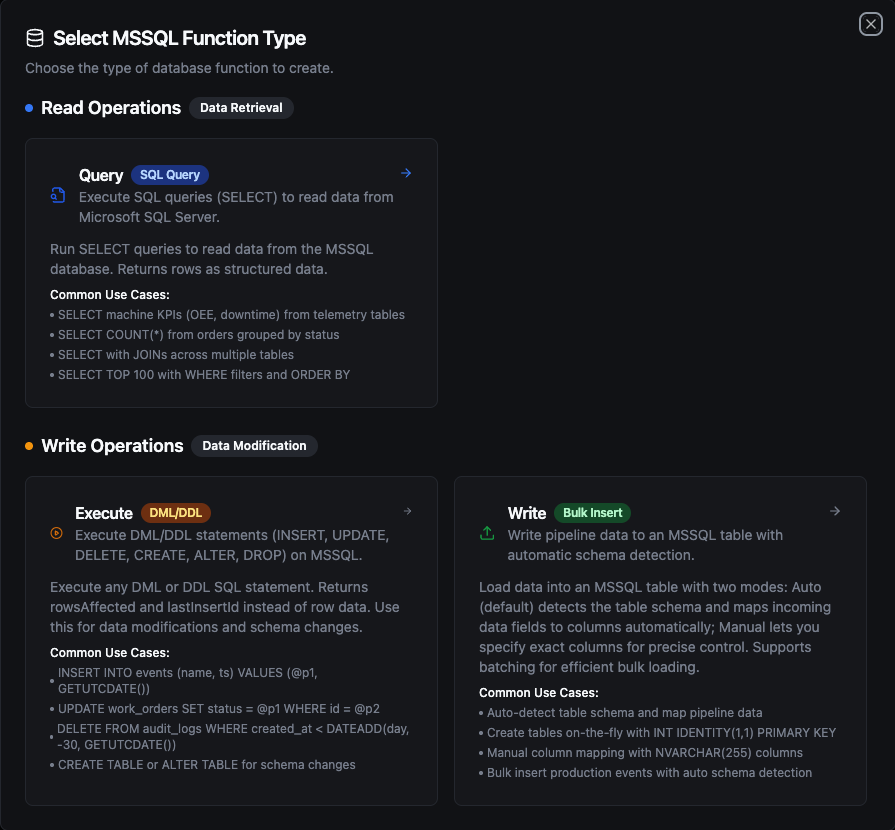
MSSQL function creation interface showing available function types: Query, Execute, and Write
Query Function
Purpose: Execute SQL queries (SELECT) to read data from Microsoft SQL Server. Returns rows as structured data.
Configuration Fields
| Field | Type | Required | Default | Description |
|---|---|---|---|---|
| SQL Query | String | Yes | - | SQL SELECT statement to execute. Supports parameterized queries with ((param)) syntax. |
| Timeout (seconds) | Number | No | 0 | Per-execution timeout in seconds (0 = no limit). |
Use Cases:
- SELECT machine KPIs (OEE, downtime) from telemetry tables
- SELECT COUNT(*) from orders grouped by status
- SELECT with JOINs across multiple tables
- SELECT TOP 100 with WHERE filters and ORDER BY
Execute Function
Purpose: Execute DML/DDL statements (INSERT, UPDATE, DELETE, CREATE, ALTER, DROP) on MSSQL. Returns rowsAffected instead of row data. Use this for data modifications and schema changes.
Configuration Fields
| Field | Type | Required | Default | Description |
|---|---|---|---|---|
| SQL Statement | String | Yes | - | DML/DDL SQL statement to execute. Supports parameterized queries with ((param)) syntax. |
| Timeout (seconds) | Number | No | 0 | Per-execution timeout in seconds (0 = no limit). |
Use Cases:
- INSERT INTO events (name, ts) VALUES (@p1, GETUTCDATE())
- UPDATE work_orders SET status = @p1 WHERE id = @p2
- DELETE FROM audit_logs WHERE created_at < DATEADD(day, -30, GETUTCDATE())
- CREATE TABLE or ALTER TABLE for schema changes
Write Function
Purpose: Write pipeline data to an MSSQL table with automatic schema detection. This is not a SQL editor — it loads structured data (rows/objects) from your pipeline into a target table.
Load data into an MSSQL table with two modes: Auto (default) detects the table schema and maps incoming data fields to columns automatically; Manual lets you specify exact columns for precise control. Supports batching for efficient bulk loading.
Configuration Fields
| Field | Type | Required | Default | Description |
|---|---|---|---|---|
| Table Name | String | Yes | - | Target table to insert data into. |
| Write Mode | String | No | auto | auto = detect schema and map fields automatically, manual = specify exact columns. |
| Columns | Array | No | - | Column names to insert into (manual mode only). |
| Create Table If Not Exists | Boolean | No | false | Auto-create the table if it does not exist (auto mode only). When enabled, also performs schema evolution — adds missing columns and widens types as needed. |
| Batch Size | Number | No | 100 | Number of rows per INSERT batch (1–1,000). SQL Server limits each INSERT to 1,000 rows. |
| Timeout (seconds) | Number | No | 0 | Per-execution timeout in seconds (0 = no limit). |
Use Cases:
- Auto-detect table schema and map pipeline data
- Create tables on-the-fly with
INT IDENTITY(1,1) PRIMARY KEY - Manual column mapping with
NVARCHAR(255)columns - Bulk insert production events with auto schema detection
How Write Works Step by Step
1. Batching
Each batch generates a single INSERT INTO [table] ([col1], [col2]) VALUES (@p1, @p2), (@p3, @p4) statement with multiple value tuples. If your pipeline sends 10 rows and Batch Size is 5, exactly 2 INSERT statements are executed (2 batches of 5 rows). If it sends 13 rows, 3 INSERT statements are executed (5 + 5 + 3).
SQL Server has a per-query limit of 2,100 parameters. For wide tables, the effective batch size may be automatically reduced to stay within this limit. For example, a table with 21 columns can insert at most 100 rows per batch (21 × 100 = 2,100 parameters). This is handled transparently — the total number of inserted rows remains the same.
2. Column Matching
Write uses case-insensitive matching between incoming data field names and table column names. For example, a data field named deviceId will match a table column DeviceID or deviceid. The original column casing from the database is preserved in the generated INSERT statement.
3. Table Exists — Normal Flow
- The function first queries
INFORMATION_SCHEMAto check if the target table exists - If the table exists, it fetches all column metadata (name, type, nullability)
- It matches incoming data fields to table columns (case-insensitive)
- Fields in data that don't match any column are silently skipped — they are tracked and returned in the response metadata as
skippedFields - Batch INSERT statements are generated and executed using only the matched columns
4. Table Does Not Exist
| Create Table If Not Exists | Behavior |
|---|---|
| Disabled (default) | Returns an error immediately: "table 'X' does not exist. Enable 'Create table if not exists' or create it manually". No insert is attempted. |
| Enabled, no schema provided | Types are inferred from the first row of data using the rules below. A CREATE TABLE is executed, then all rows (including the first) are inserted — no data loss. |
| Enabled, with schema | The provided schema is used for CREATE TABLE with full column definitions (types, primary keys, IDENTITY columns, indexes). After creation, all rows are inserted. |
Data Type Inference — When no schema is provided, the Write function infers column types from the first row of data:
| Data Value | Inferred Type | Notes |
|---|---|---|
true / false | BIT | JSON boolean values |
42, -7, 1000 | BIGINT | Whole numbers (no fractional part) |
3.14, 0.5 | FLOAT | Numbers with fractional part |
"2024-01-15T10:30:00Z" | DATETIME2 | Strings matching ISO 8601 / RFC 3339 and other common timestamp formats are automatically detected |
"hello", "sensor-01" | NVARCHAR(MAX) | All other strings |
null | NVARCHAR(MAX) | Null values default to text |
Integer vs. decimal distinction is based on whether the number has a fractional part: 55 → BIGINT, 55.0 → FLOAT. If you need a specific numeric type (e.g., DECIMAL, INT), define it in the schema using the Visual Editor.
5. Schema Evolution (Table Exists + Create Table If Not Exists Enabled)
When Create Table If Not Exists is enabled and the table already exists, the function performs schema evolution before inserting:
- New columns: If data contains fields not present in the table,
ALTER TABLE ADDis executed for each missing field. If a schema is defined in the Visual Editor, the specified type is used; otherwise, the type is inferred from the first row of data values. - Type widening: If an existing column's type is too narrow for the incoming data, it is safely widened using the rules below.
- After schema evolution completes, column metadata is re-fetched from the database to ensure accuracy, then all rows are inserted with the updated column set.
Schema evolution only widens types — it never narrows or changes types across incompatible categories. The following rules apply:
| Rule | Direction | Examples |
|---|---|---|
| Same category, higher rank | TINYINT → SMALLINT → INT → BIGINT | Integer grows to hold larger values |
| Same category, higher rank | VARCHAR → NVARCHAR / NVARCHAR(MAX) | String grows to hold larger content |
| Cross-category (boolean → integer) | BIT → INT | Boolean promoted to integer |
| Cross-category (integer → float) | BIGINT → FLOAT | Integer promoted to float |
The following changes are not supported by schema evolution and require manual ALTER TABLE statements:
- Narrowing types (e.g.,
BIGINT→INT,NVARCHAR(MAX)→VARCHAR) - Incompatible category changes (e.g.,
NVARCHAR(MAX)→DECIMAL,FLOAT→BIT,DATETIME2→INT) - Changing an already-created column's type by updating the Visual Editor schema alone — the schema definition only affects new columns being added
- Dropping columns — removing a column from the Visual Editor schema does not delete it from the database table. The column remains in the table and receives
NULL(or its default value) for new inserts.
If you need to change an existing column's type or drop a column, use the Execute function to run ALTER TABLE ... ALTER COLUMN ... or ALTER TABLE ... DROP COLUMN ... manually.
If Create Table If Not Exists is disabled and data has extra columns, those fields are silently skipped — no error, no schema change.
6. Partial Failure
Each batch executes independently — there is no transaction wrapping all batches. If batch 3 of 5 fails, batches 1 and 2 have already been committed. The error response still includes rowsInserted showing how many rows succeeded before the failure.
Response Metadata
On success, the response includes:
| Field | Description |
|---|---|
rowsInserted | Total number of rows successfully inserted |
matchedColumns | Column names that had matching data fields |
skippedFields | Data fields that didn't match any table column (if any) |
schemaEvolution | ALTER TABLE actions performed — add or widen (if any) |
tableCreated | true if the table was created during this call |
batchSize | Batch size used |
totalRows | Total number of input rows |
Using Parameters
MaestroHub detects the ((parameterName)) syntax and exposes each parameter for validation and runtime binding for Query and Execute functions.
| Configuration | Description | Example |
|---|---|---|
| Type | Enforce data types for incoming values | string, number, boolean, datetime, array |
| Required | Mark parameters as mandatory or optional | Required / Optional |
| Default Value | Fallback value applied when callers omit a parameter | SYSDATETIMEOFFSET(), 0, 'Active' |
| Description | Add guidance for downstream users | "UTC start time for the query window" |
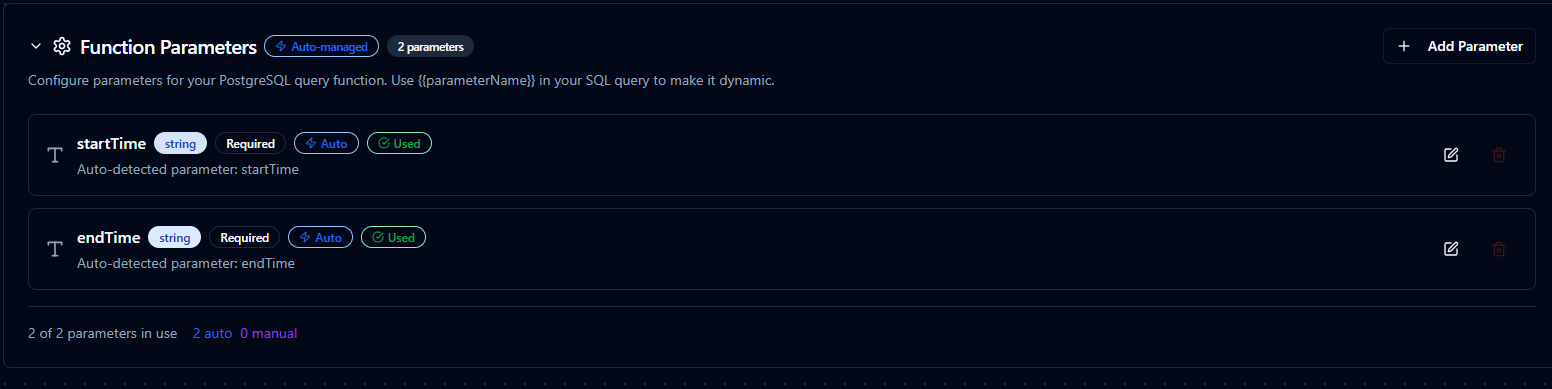
Parameter configuration with validation rules and helper text
Pipeline Integration
Use the Microsoft SQL Server functions you publish here as nodes inside the Pipeline Designer to keep plant-floor activity aligned with enterprise data. Drag the appropriate node type into your flow, bind parameters to upstream outputs or constants, and adjust error handling or retry behavior directly on the canvas.
Each function type maps to a dedicated pipeline node — Query, Execute, and Write — so you can clearly separate read, write, and data-loading operations in your flows.
When orchestrating larger workflows, visit the Connector Nodes page for guidance on where SQL Server nodes fit within multi-system automation patterns.
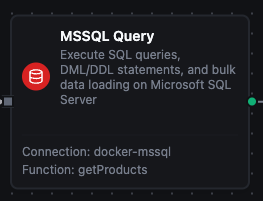
SQL Server Query node in the pipeline designer
Common Use Cases
Query: Hourly Production Metrics
Scenario: Build hourly OEE dashboards pulling data from MES tables.
WITH Hourly AS (
    SELECT
        DATEADD(hour, DATEDIFF(hour, 0, event_time), 0) AS hour_bucket,
        line_id,
        SUM(runtime_minutes) AS runtime_minutes,
        SUM(planned_minutes) AS planned_minutes,
        SUM(good_units) AS good_units,
        SUM(reject_units) AS reject_units
    FROM dbo.OEEEvents
    WHERE event_time BETWEEN ((startTime)) AND ((endTime))
    GROUP BY DATEADD(hour, DATEDIFF(hour, 0, event_time), 0), line_id
)
SELECT
    hour_bucket,
    line_id,
    CAST((good_units * 1.0) / NULLIF(good_units + reject_units, 0) * 100 AS DECIMAL(5,2)) AS quality_pct,
    CAST(runtime_minutes / NULLIF(planned_minutes, 0) * 100 AS DECIMAL(5,2)) AS availability_pct
FROM Hourly
ORDER BY hour_bucket DESC, line_id;
Pipeline Integration: Populate BI datasets, KPI dashboards, or notify teams when efficiency dips.
Execute: Updating Work Order Progress
Scenario: Update work order completion details from barcode scanners or PLC events.
UPDATE dbo.WorkOrders
SET
    completed_quantity = ((completedQuantity)),
    scrap_quantity = ((scrapQuantity)),
    status = ((newStatus)),
    last_updated_at = SYSDATETIME(),
    last_updated_by = ((userId))
WHERE work_order_id = ((workOrderId))
OUTPUT inserted.work_order_id, inserted.status, inserted.completed_quantity;
Pipeline Integration: Trigger on event streams to keep ERP and MES systems synchronized in real time.
Execute: Data Archiving and Cleanup
Scenario: Offload historical sensor data into archive tables to maintain performance.
WITH Archived AS (
    DELETE TOP (10000) FROM dbo.SensorReadings
    OUTPUT deleted.*
    WHERE reading_time < DATEADD(day, -((retentionDays)), SYSUTCDATETIME())
)
INSERT INTO dbo.SensorReadingsArchive (
    sensor_id, reading_time, temperature, pressure, vibration, archived_at
)
SELECT
    sensor_id, reading_time, temperature, pressure, vibration, SYSUTCDATETIME()
FROM Archived;
Pipeline Integration: Schedule via cron triggers to run during maintenance windows or low-traffic periods.
Write: Bulk Loading Sensor Data
Scenario: Load real-time sensor readings from IoT devices into an MSSQL table.
Configure a Write function with:
- Table Name:
dbo.SensorReadings - Write Mode:
auto - Create Table If Not Exists: enabled
Connect it after data collection nodes (MQTT, OPC UA, Modbus, etc.) in your pipeline. The Write function automatically maps incoming fields (sensor_id, temperature, pressure, vibration) to table columns and inserts them in batches. If the table doesn't exist, it is created automatically with inferred types (BIGINT, FLOAT, NVARCHAR(MAX)).