Telemetry
MaestroHub can send an anonymous usage report that helps us decide what to build next. Nothing is sent unless an administrator agrees. This page explains what the report contains, when it is sent, and how to choose.
- Sends
- Counts, version and platform
- Never sends
- Hostnames, IPs, location, names, data
- Default
- Nothing, until an administrator agrees
- Change it
- Admin › Privacy & Telemetry
Your Choice
Nothing Before You Choose
A new installation sends nothing. The first administrator is asked once, at setup, with neither answer preselected.
No Identifying Data
No hostname, IP address, location, user names or emails, connection settings, topic names or data values. Ever.
Read It First
Every field is listed on this page, and you can read the exact report before you agree.
Stays On Your Network
No third-party lookups. When an installation shares, one HTTPS request goes to phonehome.maestrohub.com and nowhere else.
Where You Choose
- At setup. The page that creates the first administrator asks Help improve MaestroHub? with two answers, Share usage data and Don't share. Neither is preselected, and setup needs an answer. If you share, you can also tick You may contact me, which adds the email address you entered.
- In the app. Until someone answers (for example after upgrading from a version that did not ask), administrators see the same question above every page, with a third answer, Decide later.
- On the Privacy & Telemetry page, at any time. See below.
- In the configuration, for installations nobody sets up in a browser. See Choosing in the configuration.
An installation that shares is never asked again. One that does not share is asked again 90 days after a "no" and 7 days after "Decide later". If the report ever gains a field, every installation that shares is asked again before the new field is sent.
What the Report Contains
| Group | What it sends | When |
|---|---|---|
| Usage counts | Connection count and breakdown by protocol; total and enabled pipeline counts; node counts by type; UNS topic count, MQTT mode, MQTT client count and storage mode; workspace count; pipeline runs (total, succeeded, failed, success rate) and uptime; user count; active personal access tokens and MCP requests since the last start | Always, while sharing |
| Platform | MaestroHub version, operating system, CPU architecture, licence type (trial, active, expired) | Always, while sharing |
| Install ID | A random ID created when an administrator first agrees, so reports from one installation are counted once | Always, while sharing |
| Licence link | Licence ID, and the issue and expiry dates of an active licence | Only when Link to my licence is on |
| Contact | The email address an administrator typed in and agreed to be contacted at | Only when given |
Never sent, at any setting: hostnames, IP addresses, location, user names or account emails, connection settings or credentials, topic names, data values, and pipeline contents.
When Reports Are Sent
Only while the installation shares:
- Right after an administrator agrees, so they can see it go out
- Shortly after MaestroHub starts
- On licence change: when the licence state changes, for example when a trial ends or a licence is applied
- Hourly
Privacy & Telemetry Page
Platform administrators manage telemetry from Admin › Privacy & Telemetry. The page needs the telemetry:update permission, which platform administrators (System.Admin) hold; the menu entry is hidden from everyone else. The settings apply to the whole installation, not to one workspace.
- Anonymous usage data: shows whether this installation shares, has declined, or has not decided yet, and who chose and when. Share usage data, Don't share and Stop sharing change the answer at once.
- What the report contains: the fields from the table above.
- Optional, only while sharing: Link to my licence adds the licence fields; You may contact me adds an address you type in. Saving an empty address withdraws it, and declining clears both.
- View the report: shows the exact JSON this installation sends when it shares, also before anyone agrees. Opening it sends nothing.
- Send now: sends a report immediately, so you can confirm your network lets it through. Available only while sharing.
Every change is recorded in the audit log.
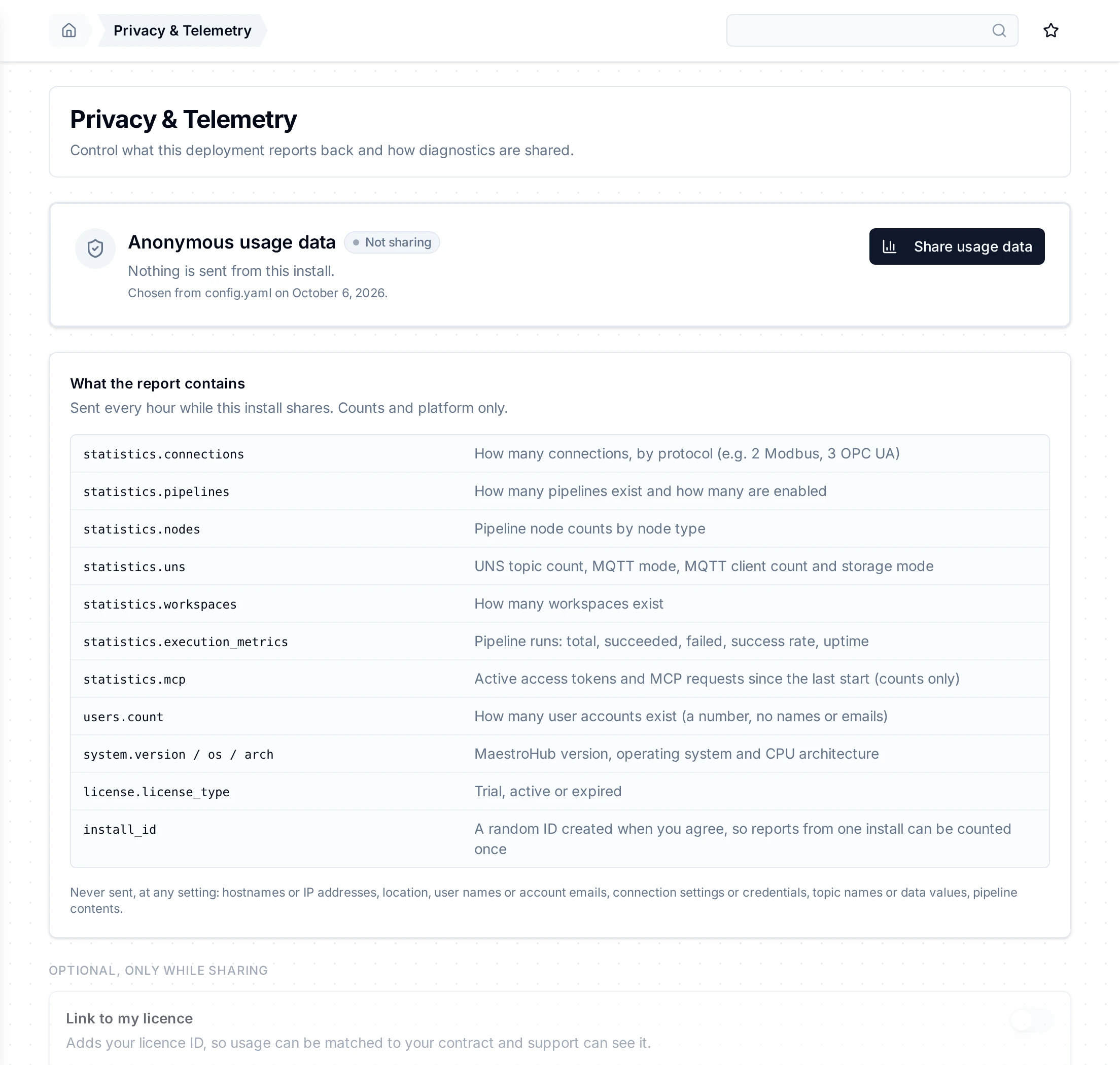
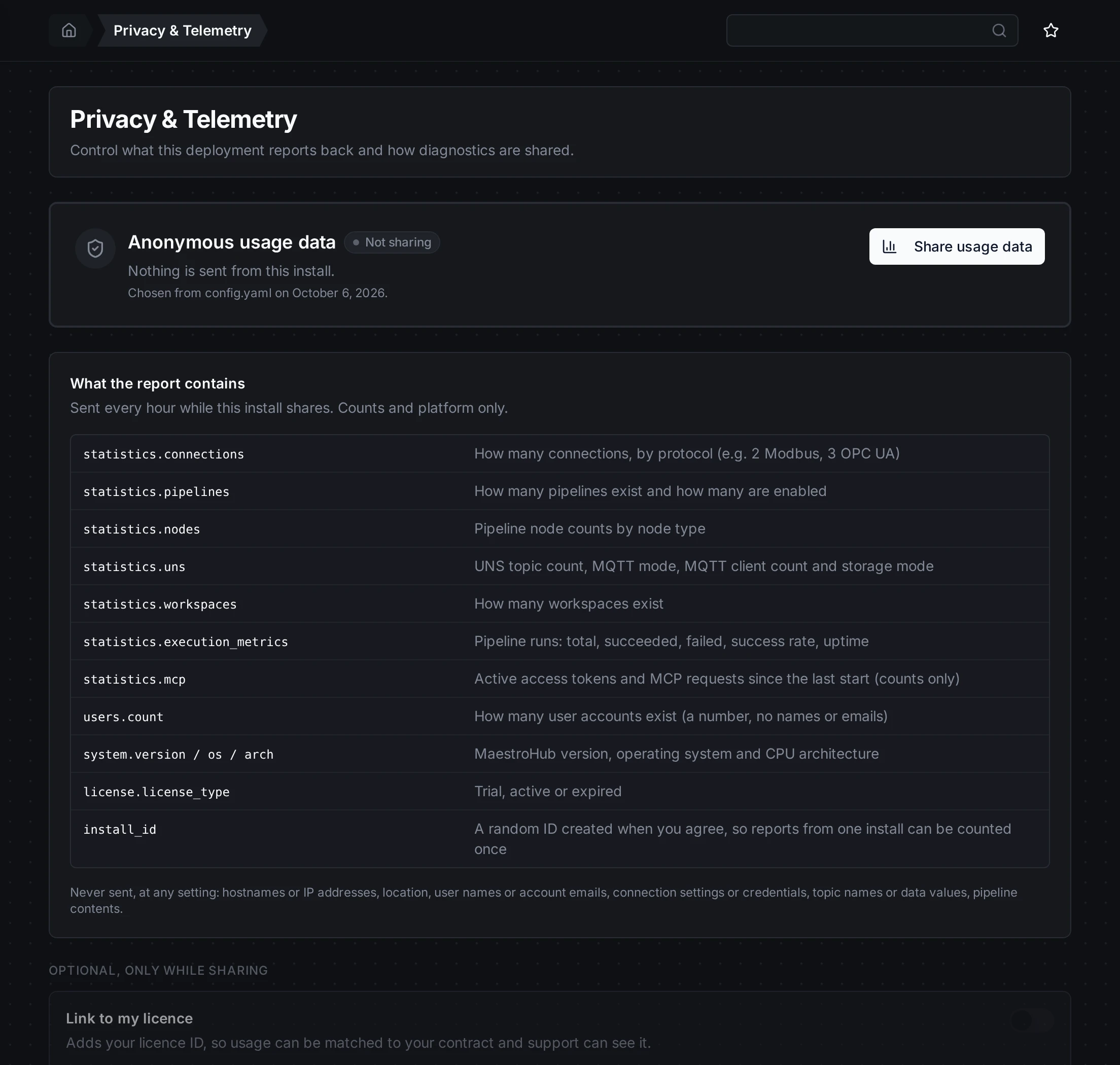
Admin › Privacy & Telemetry: the answer and who gave it, what the report contains, and the optional parts
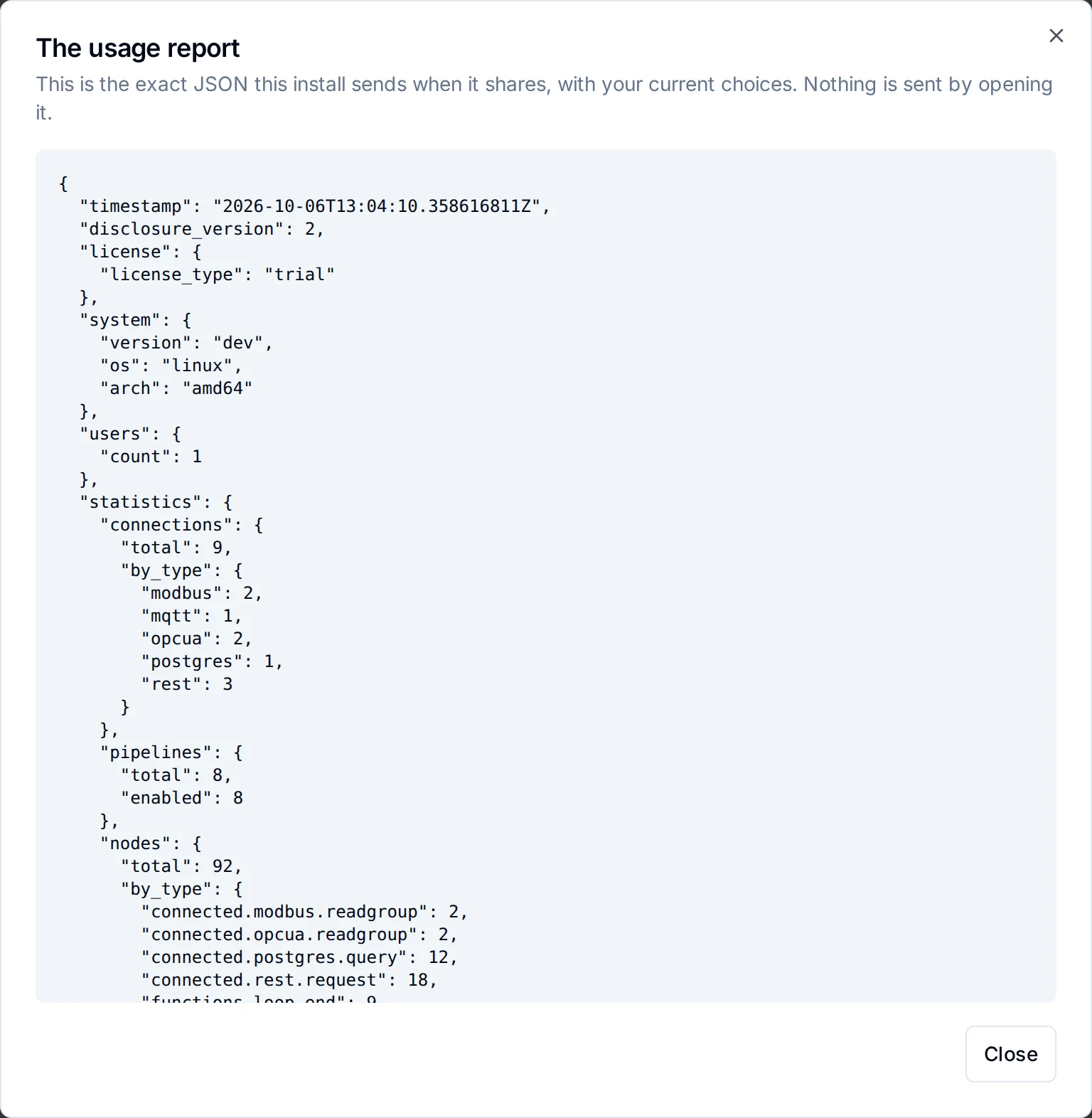
View the report shows the exact JSON an installation sends when it shares
Choosing in the configuration
For installations nobody sets up in a browser (Helm, scripts, fleets), answer the question in the configuration with consent: share or consent: decline. The answer is recorded only while the installation has not decided, so an administrator's own answer on the Privacy & Telemetry page always wins. With decline, administrators are not asked in the app.
- Binary
- Docker
- Kubernetes (Helm)
modules:
  phonehome:
    consent: decline
-e MAESTROHUB_MODULES_PHONEHOME_CONSENT=decline
phonehome:
  consent: decline
A script that creates the first administrator with POST /api/v1/auth/admin can also answer with PUT /api/v1/phonehome/preferences and the body {"decision": "decline"} (or "share"), using the token that call returns.
Disabling Telemetry
Nothing is sent unless an administrator agrees. To make sure telemetry can never be turned on from the UI (for example on an air-gapped site), disable it in the configuration as shown below.
The configuration setting wins over the page. When telemetry is disabled in the configuration, nothing is sent, and the Privacy & Telemetry page shows a Telemetry is disabled by configuration notice with every button read-only. To manage telemetry from the page again, set the value back to true and restart.
- Binary
- Docker
- Kubernetes (Helm)
Edit config.yaml in the MaestroHub directory:
modules:
  phonehome:
    enabled: false
Then restart MaestroHub.
Pass the setting as an environment variable:
docker run -d \
  --name maestrohub \
  -e MAESTROHUB_MODULES_PHONEHOME_ENABLED=false \
  -p 8080:8080 \
  -p 1883:1883 \
  -p 8083:8083 \
  -v maestrohub-data:/data \
  maestrohub/context-platform:latest
Set the value in your Helm values file:
phonehome:
  phonehomeEnabled: false
Then upgrade the release:
helm upgrade maestrohub ./maestrohub -f values.yaml
phonehome.phonehomeEnabled: false keeps the telemetry service deployed with sending switched off, so the Privacy & Telemetry page shows the notice above. phonehome.enabled: false removes the service from the release altogether.
To re-enable telemetry, set the value back to true and restart. The answer on the Privacy & Telemetry page then decides whether anything is sent.