 RabbitMQ Integration Guide
Publish messages to RabbitMQ exchanges and consume from queues over AMQP 0-9-1, with routing keys, persistence and TLS.
- Protocol
- AMQP 0-9-1 (AMQPS with TLS)
- Default port
- 5672 (AMQP) · 5671 (AMQPS)
- Authentication
- Username and password · mutual TLS
- Operations
- Publish · Consume
Use MaestroHub's RabbitMQ connector to exchange messages with enterprise applications, microservices, and IoT backends through AMQP 0-9-1. This guide explains how to configure connections, design publish, consume, receive and browse functions, and orchestrate pipelines.
Overview
The RabbitMQ connector delivers:
- AMQP 0-9-1 protocol support with advanced exchange routing (direct, topic, fanout, headers)
- Publish and consume functions for bidirectional messaging
- Receive and browse functions to pull messages from a queue when a pipeline asks, at a frequency you choose
- Message persistence and acknowledgments for reliable delivery
- TLS/SSL encryption (AMQPS) for secure connections
- Virtual host isolation for multi-tenant environments
- Competing consumers for automatic load balancing across pipeline instances
- Payload templating with dynamic
((parameter))syntax
Connection Configuration
Creating a RabbitMQ Connection
Navigate to Connections → New Connection → RabbitMQ and fill in these details:
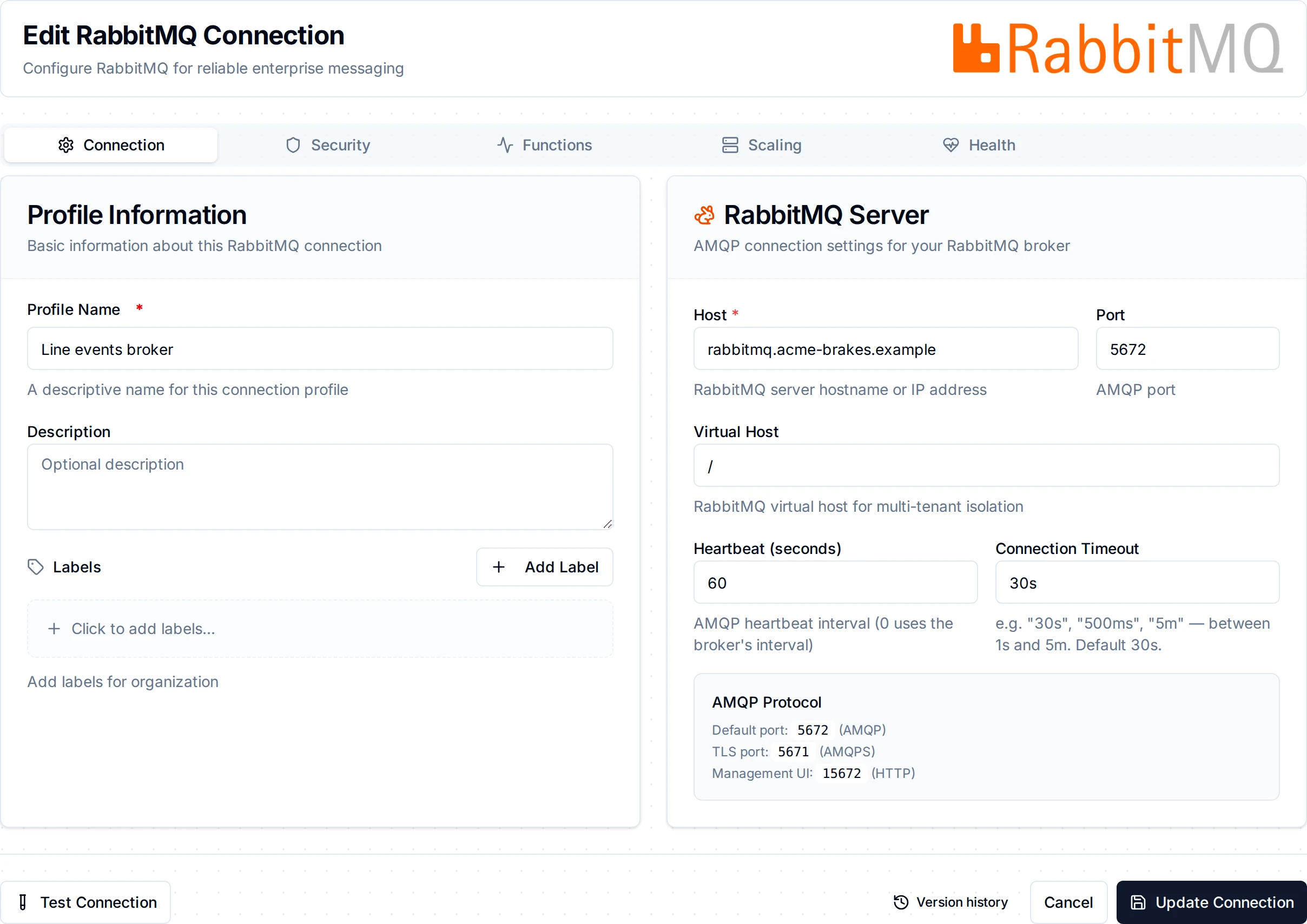
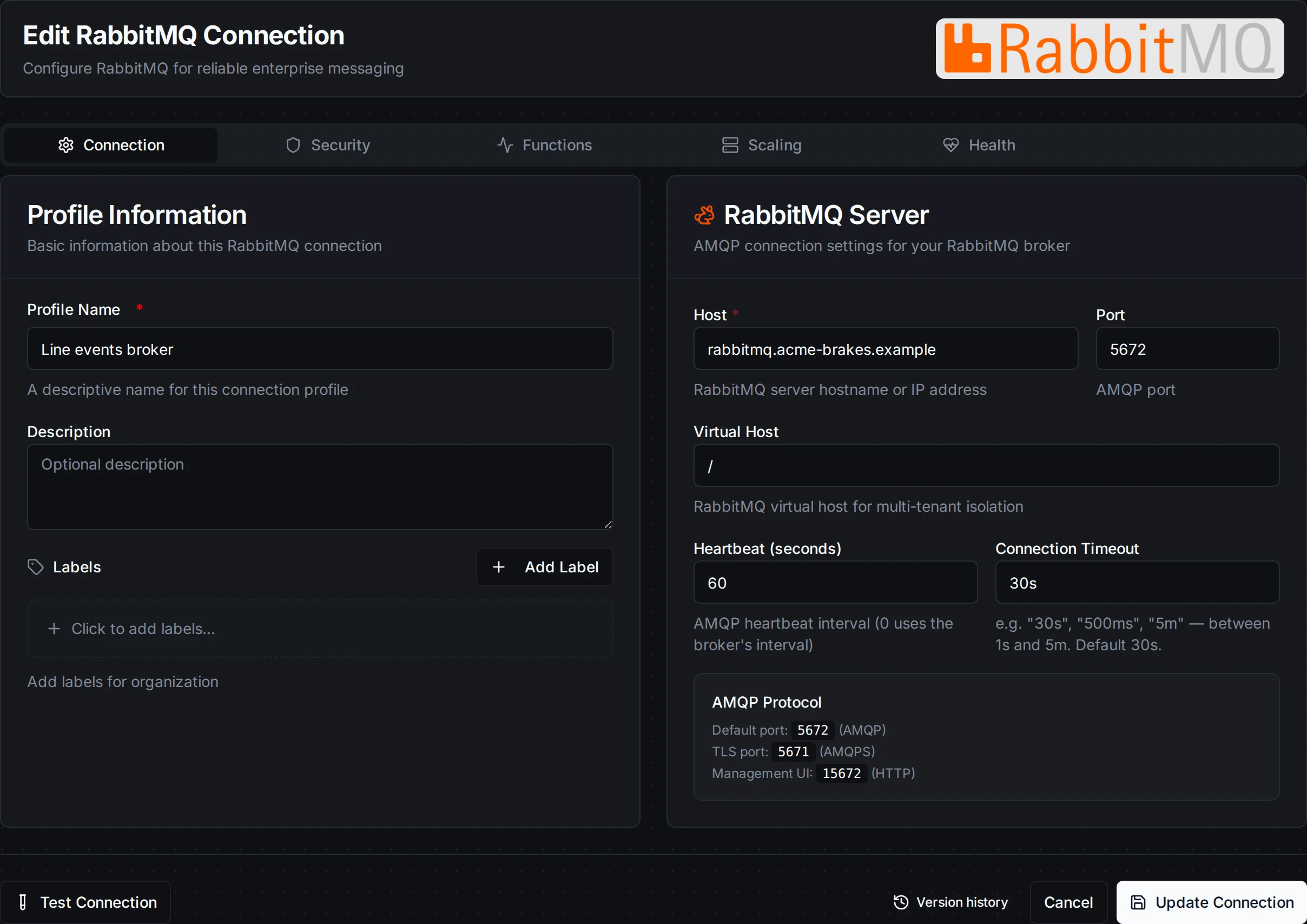
The Connection tab: the profile and the RabbitMQ server settings; credentials live on the Security tab
RabbitMQ Connection Creation Fields
1. Profile Information
| Field | Default | Description |
|---|---|---|
| Profile Name | - | A descriptive name for this connection profile (required, max 100 characters) |
| Description | - | Optional description for this RabbitMQ connection |
2. Broker Configuration
| Field | Type | Default | Required | Validation | Description |
|---|---|---|---|---|---|
| Host | String | localhost | Yes | Non-empty | RabbitMQ server hostname or IP address |
| Port | Number | 5672 | Yes | 1-65535 | AMQP port (5672 for AMQP, 5671 for AMQPS) |
| Virtual Host | String | / | No | - | RabbitMQ virtual host for multi-tenant isolation |
Port Defaults
5672: Standard AMQP (unencrypted)5671: AMQPS (TLS-encrypted)
3. Authentication
| Field | Type | Default | Required | Description |
|---|---|---|---|---|
| Username | String | - | No | Username for RabbitMQ authentication |
| Password | Password | - | No | Password for RabbitMQ authentication (stored encrypted) |
4. Advanced Settings
| Field | Type | Default | Required | Validation | Description |
|---|---|---|---|---|---|
| Heartbeat | Duration | 1m | No | 0s-1h, whole seconds | AMQP heartbeat interval for detecting dead connections (AMQP sends seconds). 0s uses the broker's interval; a client cannot disable heartbeats on its own. |
| Connection Timeout | Duration | 30s | No | 1s-300s | Maximum time to wait for a connection to be established |
5. TLS/SSL Settings
| Field | Type | Default | Description |
|---|---|---|---|
| Enable TLS | Boolean | false | Use TLS/SSL for secure connection (AMQPS) |
| Skip Certificate Verification | Boolean | false | Skip TLS certificate verification (not recommended for production) |
| Server Name (SNI) | Text | - | Server name for SNI and certificate verification. Defaults to the host |
| CA Certificate | PEM | - | CA certificate used to verify the broker's server certificate. Leave empty to verify against the system trust store. Use this for a broker with a private-CA certificate instead of skipping verification |
| Client Certificate | PEM | - | Client certificate for mutual TLS (stored as a secret) |
| Private Key | PEM | - | Client private key for mutual TLS (stored as a secret). Must be provided together with the client certificate |
The fields below Enable TLS are only displayed when Enable TLS is on.
6. Connection Labels
| Field | Default | Description |
|---|---|---|
| Labels | - | Key-value pairs to categorize and organize this RabbitMQ connection (max 10 labels) |
Example Labels
environment: production: Deployment environmentteam: backend: Responsible teamregion: us-east-1: Geographical region
- The default virtual host
/is used by most RabbitMQ installations. Change this only if your broker is configured with custom virtual hosts. A leading/is optional:/stagingandstagingboth open thestagingvhost. - A heartbeat of
0suses the broker's interval; the client and broker agree on the lower non-zero value, so a client cannot disable heartbeats on its own. A value of1m(the default) is recommended for most deployments. - When TLS is enabled, update the port to
5671(the standard AMQPS port). - The password field is stored encrypted and displayed as masked after saving.
Function Builder
Creating RabbitMQ Functions
After the connection is configured:
- Open the connection and go to its Functions tab → New Function
- Choose Publish, Consume, Receive or Browse as the function type
- Configure exchange, routing key, payload, or queue settings
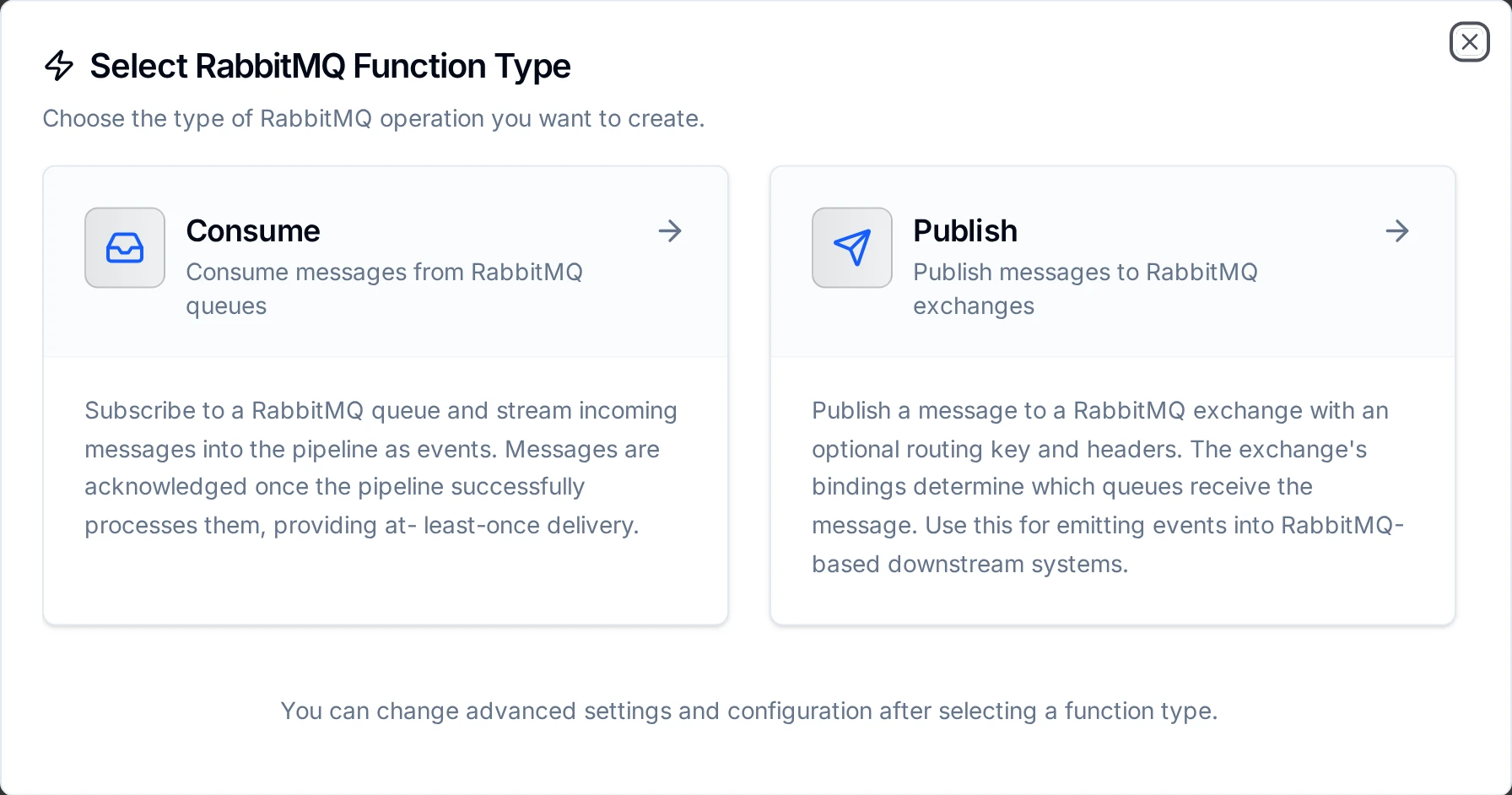
Design RabbitMQ publish or consume functions with exchange routing and payload templates
Publish Function
Purpose: Send messages to RabbitMQ exchanges with configurable routing keys, persistence, and custom headers.
Configuration Fields
| Field | Type | Required | Default | Description |
|---|---|---|---|---|
| Exchange | String | Yes | - | Exchange to publish to. Use an empty string for the default exchange (routes directly to a queue by routing key). Supports ((parameter)) syntax. |
| Routing Key | String | No | "" | Routing key for exchange binding. When using the default exchange, this is the queue name. Optional for fanout exchanges. Max 255 characters. Supports ((parameter)) syntax. |
| Payload | String | Yes | - | Message payload to publish. Supports ((parameter)) syntax for dynamic content. |
| Content Type | String | No | application/json | MIME type of the message payload (application/json, text/plain, application/xml, application/octet-stream) |
| Persistent | Boolean | No | true | Whether the message should survive broker restart (delivery mode 2) |
| Publisher Confirms | Boolean | No | true | Wait for the broker to accept the message before reporting success. Leave this on: with it off, the publish reports success as soon as the message is written to the socket, so a message the broker rejects (publishing to an exchange that does not exist, for example) is discarded without an error. |
| Mandatory | Boolean | No | false | Fail the publish if no queue is bound to the exchange with a matching routing key, instead of letting the broker discard the message. Requires Publisher Confirms. |
| Priority | Number | No | 0 | Message priority (0-9) for priority queues |
| Expiration | Duration | No | - | Per-message TTL, a duration in whole milliseconds (e.g. 30s, 500ms); sent as AMQP's expiration property in milliseconds. Empty = no TTL |
| Headers (JSON) | Object | No | - | Custom headers as a JSON object for headers exchange routing or message metadata. Supports ((parameter)) syntax. |
| Correlation ID | String | No | - | Correlation identifier for request/response patterns |
| Reply To | String | No | - | Reply-to queue name for RPC patterns |
Use Cases: Task queue publishing, event broadcasting via fanout exchange, topic-based routing, direct message delivery
Consume Function
Purpose: Receive messages from RabbitMQ queues. Messages are delivered as they arrive and acknowledged after processing. Supports competing consumers for load balancing.
Configuration Fields
| Field | Type | Required | Default | Validation | Description |
|---|---|---|---|---|---|
| Queue | String | Yes | - | 1-255 characters | Queue name to consume messages from |
| Auto Acknowledge | Boolean | No | false | - | Automatically acknowledge messages upon delivery. Disable for manual ack (safer for reliability). |
| Exclusive | Boolean | No | false | - | Only this consumer can access the queue |
| Prefetch Count | Number | No | 1 | 0-65535 | Number of unacknowledged messages to prefetch (controls throughput vs. memory trade-off) |
| Consumer Tag | String | No | - | - | Unique consumer identifier (auto-generated if empty) |
Use Cases: Task queue consumption, event processing, message routing, work distribution
Receive Function
Purpose: Take up to N messages from a queue each time a pipeline runs the function, and remove them. Use it from a Schedule Trigger to read a queue at a frequency you choose; messages not read yet stay in RabbitMQ. Consume, by contrast, takes every message as it arrives.
Configuration Fields
| Field | Type | Required | Default | Validation | Description |
|---|---|---|---|---|---|
| Queue | String | Yes | - | - | Queue to take messages from. Supports ((parameter)) syntax. |
| Max Messages | Number | No | 1 | 1-1000 | Upper limit per call. The function returns as soon as the queue is empty, so it never waits for this many. |
Nothing is acknowledged until the whole batch has been read, and a read that is cut short (a timeout, a stopped run, a lost connection) returns every message to the queue. Once the function succeeds the messages are gone: if a later node in the same run fails, they are not redelivered. In a multi-process deployment, stopping a run does not stop a read already under way. In any deployment, a result too large to deliver (over NATS's max payload) is refused after the messages were acknowledged. In both cases the batch is lost (#7300).
Testing a Receive function takes up to Max Messages off the queue, and the test dialog says so before you run it. To see what a queue holds without changing it, test a Browse function instead (RabbitMQ 4.3 or later).
Use Cases: Pulling a queue at a fixed rate, working through a backlog in batches, migrating v1 flows that read a queue's current value on a timer
Browse Function
Purpose: Read up to N messages and return every one to the queue unacknowledged, so real consumers still get them. RabbitMQ marks a returned message as redelivered.
Configuration Fields
| Field | Type | Required | Default | Validation | Description |
|---|---|---|---|---|---|
| Queue | String | Yes | - | - | Queue to look at. Supports ((parameter)) syntax. |
| Max Messages | Number | No | 1 | 1-1000 | Upper limit per call |
While a browse is in flight, the messages it holds are invisible to other consumers.
Browse requires RabbitMQ 4.3 or later on every node. Before 4.3 a quorum queue counts every browse toward its delivery limit (20 by default on 4.0 to 4.2), and drops or dead-letters a message returned more times than that. So on a broker that reports a version older than 4.3, or no version, Browse fails before it reads anything, saying why, and no message is touched. This applies to classic queues on those versions too: RabbitMQ does not say what type a queue is until a message has been read, and reading it is what would count. On older brokers, use Receive or the RabbitMQ Trigger instead. From RabbitMQ 4.3 a browse does not count, and Browse works on quorum queues as on classic ones.
MaestroHub sees only the version of the node it connects to. While some nodes still run an older version, a quorum queue keeps counting browses even through an upgraded node, so Browse runs and each run spends a delivery. Until every node runs 4.3, pause pipelines that browse quorum queues, or switch them to Receive.
Receive and Browse cannot read a stream queue: RabbitMQ refuses it, and the node fails saying so. Read a stream queue with the RabbitMQ Trigger.
Use Cases: Seeing a queue's payloads before building a pipeline, checking a dead-letter queue without draining it
Using Parameters
RabbitMQ publish, receive and browse functions support parameterized values via the ((parameterName)) syntax. Use parameters in the exchange, routing key, payload, headers, correlation ID, and reply-to fields of a publish, and in the queue of a receive or browse.
| Configuration | Description | Example |
|---|---|---|
| Type | Validate incoming pipeline data | string, number, boolean, datetime, json, buffer |
| Required | Force parameter presence | Required / Optional |
| Default Value | Provide fallback values | 'line-01', 0, '{}' |
| Description | Document intent for other authors | "Routing key suffix for topic exchange" |
Pipeline Integration
Use the RabbitMQ connection functions you create here as nodes inside the Pipeline Designer to synchronize production data with the rest of your stack. Drag in the publish node, bind its parameters to upstream node outputs or constants, and shape event-driven flows without leaving the designer.
If you are planning more complex orchestration, review the Nodes page for patterns on where RabbitMQ nodes fit best within broader orchestration strategies.
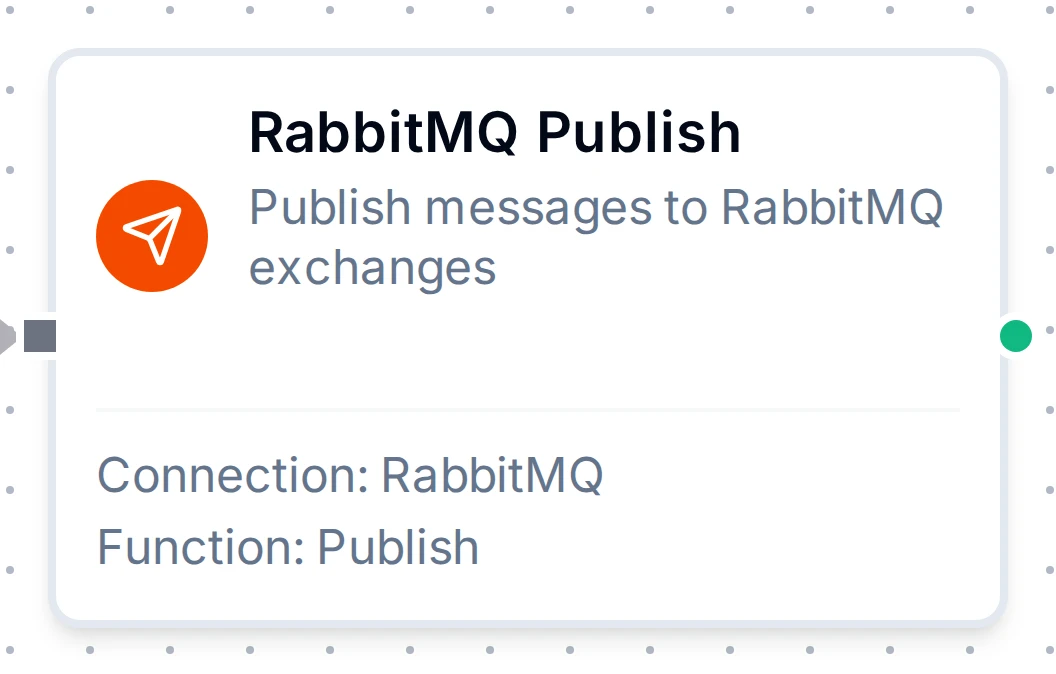
RabbitMQ publish node with connection, function, and parameter mappings
Common Use Cases
Pulling a Queue on a Schedule
When a pipeline must decide when to read, for example to process one message every few seconds while a large backlog waits, pair a Schedule Trigger with a Receive function and a For-Each over its messages. See Pulling a Queue on a Schedule for the pipeline.
Task Queue Distribution
Publish work items to RabbitMQ queues consumed by worker processes. Competing consumers automatically distribute work across multiple pipeline instances.
Event Broadcasting
Use fanout exchanges to broadcast events (e.g., order placed, sensor alert) to all bound queues without specifying routing keys.
Topic-Based Routing
Route messages to specific queues using topic exchanges and routing key patterns (e.g., sensor.temperature.high, order.*.completed).
Enterprise Application Integration
Bridge data between legacy systems and modern services by publishing structured messages to RabbitMQ exchanges and consuming from dedicated queues.
RPC Request/Response
Implement request/response patterns using the Correlation ID and Reply To fields. Publish a request with a unique correlation ID and listen on the reply-to queue for the response.