SSO Providers
The SSO Configuration tab in the Identity & Access module allows you to configure Single Sign-On (SSO) providers for enterprise authentication. Users can authenticate through external identity providers instead of managing passwords locally.
Purpose of SSO Configuration
- Integrate with external identity providers for centralized authentication.
- Support multiple SSO protocols: OpenID Connect, SAML 2.0, and LDAP/Active Directory.
- Enable and disable providers to control which authentication methods are available.
- Test provider configurations before enabling them for users.
- Manage multiple providers simultaneously for different user groups or organizations.
Supported Provider Types
MaestroHub supports three SSO provider types:
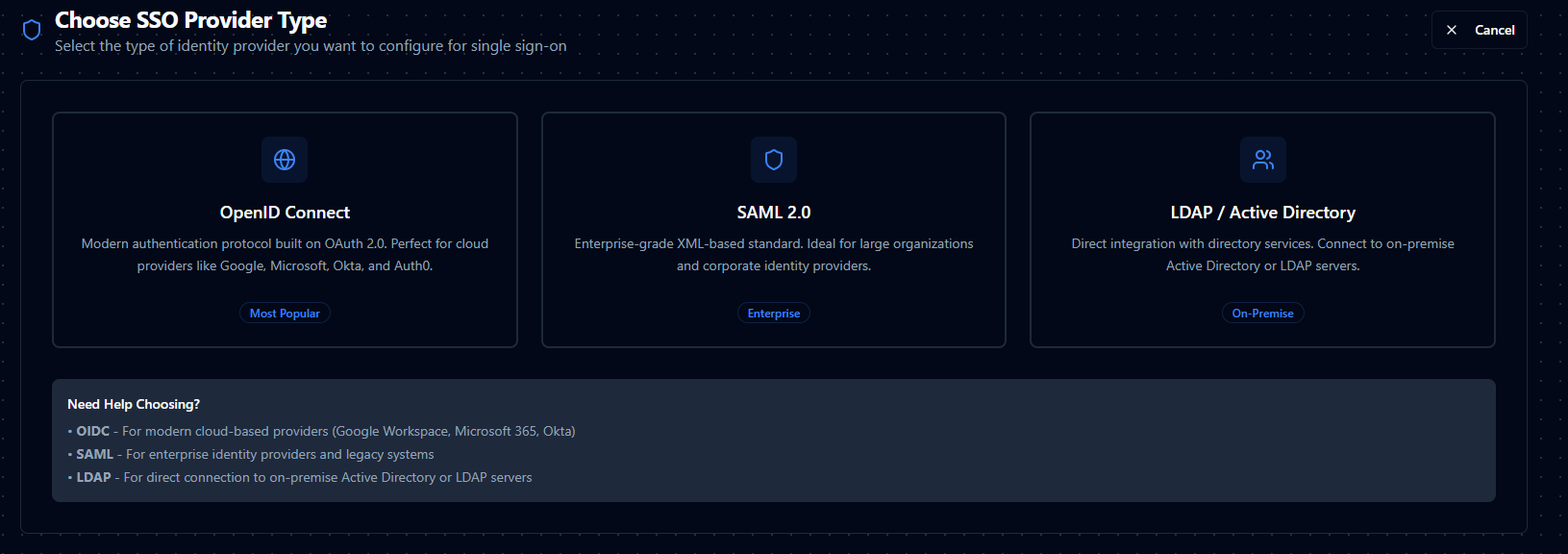
OpenID Connect (OIDC)
Modern authentication protocol built on OAuth 2.0. Perfect for cloud providers like Google, Microsoft, Okta, and Auth0.
SAML 2.0
Enterprise-grade XML-based standard. Ideal for large organizations and corporate identity providers.
LDAP / Active Directory
Direct integration with directory services. Connect to on-premise Active Directory or LDAP servers.
Working with SSO Providers
Provider List View
- Overview cards: Display total providers, enabled providers, and counts by provider type (OIDC, SAML, LDAP).
- Search and filters: Use the search bar to find providers by name. Filter by provider type (OIDC, SAML, LDAP) and status (Enabled, Disabled).
- Sorting: Sort by name, type, status, created date, or updated date.
- Table settings: Customize visible columns, toggle avatars, and adjust page size.
- Provider actions: Each provider has a menu with Edit, Test Connection, and Delete options.
Creating a New Provider
Click Add Provider and select the provider type you want to configure. Each provider type has different configuration requirements.
OpenID Connect (OIDC) Configuration
OpenID Connect is the most popular choice for modern cloud-based authentication. Use this for providers like Google Workspace, Microsoft 365, Okta, Auth0, and other OAuth 2.0/OIDC-compliant services.
Basic Information
| Field | Description |
|---|---|
| Provider Name | A descriptive name for the provider (required). Must be at least 2 characters. This name will be displayed to users. |
| Slug | URL-friendly identifier (required). Auto-generated from the provider name. Must contain only lowercase letters, numbers, and hyphens. Cannot be changed after creation. |
| Description | Optional description to help identify the provider's purpose or intended user group. |
| Provider Type | Select "OpenID Connect (OIDC)" (required). Cannot be changed after creation. |
| Enable Provider | Toggle to allow users to authenticate using this provider (available after creation). When disabled, the provider remains configured but users cannot use it to sign in. |
OIDC Settings
| Field | Description |
|---|---|
| Client ID | The OAuth 2.0 client identifier provided by your identity provider (required). You'll receive this when registering your application with the provider. |
| Client Secret | The OAuth 2.0 client secret provided by your identity provider (required). Keep this confidential. |
| Issuer URL | The OpenID Connect issuer URL (required). For example: https://accounts.google.com or https://login.microsoftonline.com/{tenant-id}/v2.0. This URL is used to discover the provider's configuration. |
| Redirect URI | The callback URL where users return after authentication (required). Format: https://your-domain.com/auth/oidc/callback/{provider-slug}. Configure this exact URL in your identity provider's application settings. |
Advanced OIDC Settings
| Field | Description |
|---|---|
| Scopes | Space-separated list of OAuth 2.0 scopes to request (optional). Default: openid profile email. Add additional scopes if you need extra user information. |
| Response Type | OAuth 2.0 response type (optional). Default: code. Options: code, id_token, or code id_token. Most providers use code for the authorization code flow. |
SAML 2.0 Configuration
SAML 2.0 is the enterprise standard for Single Sign-On, widely used in large organizations and corporate environments. Use this for enterprise identity providers like Okta, OneLogin, Azure AD SAML, and other SAML 2.0-compliant services.
Basic Information
| Field | Description |
|---|---|
| Provider Name | A descriptive name for the provider (required). Must be at least 2 characters. This name will be displayed to users. |
| Slug | URL-friendly identifier (required). Auto-generated from the provider name. Must contain only lowercase letters, numbers, and hyphens. Cannot be changed after creation. |
| Description | Optional description to help identify the provider's purpose or intended user group. |
| Provider Type | Select "SAML 2.0" (required). Cannot be changed after creation. |
| Enable Provider | Toggle to allow users to authenticate using this provider (available after creation). When disabled, the provider remains configured but users cannot use it to sign in. |
SAML Settings
| Field | Description |
|---|---|
| Entity ID | SAML entity identifier for the identity provider (required). Typically a URL like https://provider.com/entity-id. This uniquely identifies your SAML provider. |
| SSO URL | SAML Single Sign-On service URL (required). The endpoint where SAML authentication requests are sent. You'll find this in your provider's SAML metadata. |
| Single Logout URL | SAML Single Logout service URL (optional). The endpoint for SAML logout requests. Leave empty if your provider doesn't support single logout. |
| Metadata URL | URL to the SAML metadata document (required). This XML document contains your provider's configuration details. Many providers offer this as a downloadable file or public URL. |
| X.509 Certificate | The public certificate used to verify SAML assertions (required). Paste the certificate in PEM format, including the BEGIN and END markers. Get this from your provider's SAML metadata or configuration page. |
SAML Attribute Mapping
| Field | Description |
|---|---|
| Email Attribute | SAML assertion attribute containing the user's email address (required). Common values: email, mail, emailAddress. This must match the attribute name in your provider's SAML response. |
| First Name Attribute | SAML assertion attribute containing the user's first name (required). Common values: firstName, givenName, first_name. |
| Last Name Attribute | SAML assertion attribute containing the user's last name (required). Common values: lastName, surname, last_name, sn. |
Advanced SAML Settings
| Field | Description |
|---|---|
| Signature Algorithm | Algorithm used for signing SAML requests (optional). Default: RSA-SHA256. Options: RSA-SHA1, RSA-SHA256, RSA-SHA512. Choose the algorithm your provider requires. |
| Digest Algorithm | Algorithm used for message digests (optional). Default: SHA256. Options: SHA1, SHA256, SHA512. Most modern providers use SHA256. |
| Name ID Format | Format for the SAML NameID element (optional). Default: urn:oasis:names:tc:SAML:1.1:nameid-format:emailAddress. This tells the provider what format to use for the user identifier. |
| Additional Certificate | Optional additional certificate for signing (optional). Use this if you need to provide your own certificate for signing SAML requests. |
| Private Key | Optional private key for request signing (optional). Required if you enable "Sign Requests" and provide an additional certificate. |
| Sign Requests | Toggle to sign SAML authentication requests (optional). Default: disabled. Enable if your provider requires signed requests. |
| Require Signed Assertion | Toggle to require SAML assertions to be signed (optional). Default: disabled. Enable for enhanced security when supported by your provider. |
LDAP / Active Directory Configuration
LDAP (Lightweight Directory Access Protocol) provides direct integration with directory services. Use this to connect to on-premise Active Directory servers or other LDAP-compliant directory services.
Basic Information
| Field | Description |
|---|---|
| Provider Name | A descriptive name for the provider (required). Must be at least 2 characters. This name will be displayed to users. |
| Slug | URL-friendly identifier (required). Auto-generated from the provider name. Must contain only lowercase letters, numbers, and hyphens. Cannot be changed after creation. |
| Description | Optional description to help identify the provider's purpose or intended user group. |
| Provider Type | Select "LDAP" (required). Cannot be changed after creation. |
| Enable Provider | Toggle to allow users to authenticate using this provider (available after creation). When disabled, the provider remains configured but users cannot use it to sign in. |
LDAP Connection Settings
| Field | Description |
|---|---|
| Server URL | Full LDAP server URL including protocol and port (required). Format: ldap://ldap.company.com:389 for non-SSL or ldaps://ldap.company.com:636 for SSL. Use the appropriate port for your server. |
| Bind DN | Distinguished Name for binding to the LDAP server (required). Format: cn=admin,dc=company,dc=com. This account is used to connect to the LDAP server and search for users. |
| Bind Password | Password for the Bind DN account (required). Keep this confidential. This password authenticates the bind account to the LDAP server. |
| User Search Base | Base distinguished name for user searches (required). Format: ou=users,dc=company,dc=com. This defines where in the directory tree to search for user accounts. |
LDAP Search Configuration
| Field | Description |
|---|---|
| User Search Filter | LDAP filter for finding user accounts (optional). Default: `(&(objectClass=person)( |
| User Object Class | LDAP object class for user entries (optional). Default: person. Common values include person, inetOrgPerson, or user for Active Directory. |
| Group Search Base | Base distinguished name for group searches (optional). Format: ou=groups,dc=company,dc=com. Leave empty if you don't need group-based authorization. |
| Group Search Filter | LDAP filter for finding groups (optional). Default: (&(objectClass=groupOfNames)(member=%s)). The %s placeholder is replaced with the user's DN. |
| Group Object Class | LDAP object class for group entries (optional). Default: groupOfNames. Common values include groupOfNames, group, or organizationalUnit. |
LDAP Attribute Mapping
| Field | Description |
|---|---|
| Username Attribute | LDAP attribute containing the username (optional). Default: uid. Common values: uid, sAMAccountName (Active Directory), cn. |
| Email Attribute | LDAP attribute containing the user's email address (optional). Default: mail. This attribute must exist in your user entries. |
| First Name Attribute | LDAP attribute containing the user's first name (optional). Default: givenName. Common values: givenName, firstName. |
| Last Name Attribute | LDAP attribute containing the user's last name (optional). Default: sn. Common values: sn, surname, lastName. |
Advanced LDAP Settings
| Field | Description |
|---|---|
| Use TLS | Toggle to use STARTTLS to secure the connection (optional). Default: disabled. Enable this to upgrade a plain LDAP connection to encrypted TLS. Cannot be used with LDAPS URLs. |
| Use SSL | Deprecated option for SSL connections (optional). Default: disabled. Instead of enabling this, use ldaps:// in the Server URL. |
| Skip TLS Verification | Toggle to skip TLS certificate verification (optional). Default: disabled. Only enable this for testing or when using self-signed certificates. Not recommended for production. |
| Timeout | Connection timeout in seconds (optional). Default: 30. Range: 1-300 seconds. Increase this if your LDAP server is slow to respond. |
Testing Provider Configuration
Before enabling a provider, use the Test Connection feature:
- Configure all required fields for your provider type.
- Click the Test Connection button in the configuration form.
- The system will attempt to connect to your provider and verify the configuration.
- A success message confirms the provider is configured correctly.
- Error messages will help identify configuration issues.
You can also test existing providers from the provider list:
- Click the three-dot menu on any provider row.
- Select Test Connection.
- The test uses the saved configuration to verify connectivity.
Managing Provider Status
Enable a Provider
- Edit the provider by clicking on its name or using the Edit action.
- Toggle the Enable Provider switch to on.
- Save your changes.
- Users can now authenticate using this provider.
Disable a Provider
- Edit the provider.
- Toggle the Enable Provider switch to off.
- Save your changes.
- The provider remains configured but users cannot sign in with it.
Delete a Provider
- Click the three-dot menu on the provider row.
- Select Delete.
- Confirm the deletion.
- Users who previously authenticated with this provider will lose access.
Note: Deleting a provider is permanent and cannot be undone. Make sure to disable the provider first to test the impact before deletion.
Troubleshooting
OIDC Issues
- Invalid redirect URI: Ensure the Redirect URI in your provider configuration exactly matches the one configured in your identity provider's application settings.
- Invalid client credentials: Verify the Client ID and Client Secret are correct and haven't expired.
- Issuer URL errors: Confirm the Issuer URL is accessible and returns the OpenID Connect discovery document at
{issuer}/.well-known/openid-configuration.
SAML Issues
- Certificate errors: Ensure the X.509 certificate is in PEM format with proper BEGIN and END markers, and contains no extra characters.
- Attribute mapping: Verify the attribute names match exactly what your provider sends in SAML assertions.
- Metadata problems: Check that the Metadata URL is accessible and returns valid XML.
LDAP Issues
- Connection failures: Verify the Server URL, port, and network connectivity. Test with
ldap://first before tryingldaps://. - Authentication errors: Confirm the Bind DN and Bind Password are correct and the bind account has search permissions.
- User not found: Check the User Search Base and User Search Filter. Ensure users exist in the specified base DN.
- SSL/TLS errors: When using
ldaps://or TLS, ensure certificates are valid. Use Skip TLS Verification only for testing.
Note: The Test Connection feature provides detailed error messages to help diagnose configuration issues. If you continue experiencing problems, contact your identity provider's support team or your system administrator.