Model Version History
Overview
MaestroHub automatically tracks every change made to your models, creating a complete audit trail that lets you review, compare, and revert to any previous version. Every time a model is created, updated, or reverted, a new version is recorded with a full snapshot of the model at that point in time.
Version history gives your team confidence to iterate quickly. If an update introduces unexpected issues, you can instantly roll back to a known-good version — no manual reconstruction needed.
Navigation Path: Compose > Models > ⋮ (Actions) > Version History
Opening Version History
To access version history for a model:
- Navigate to Compose > Models
- Find the model in the list
- Click the ⋮ (actions menu) on the model row
- Select Version History
This opens the Version History dialog — a dedicated panel for browsing, inspecting, and comparing all recorded versions of the model.
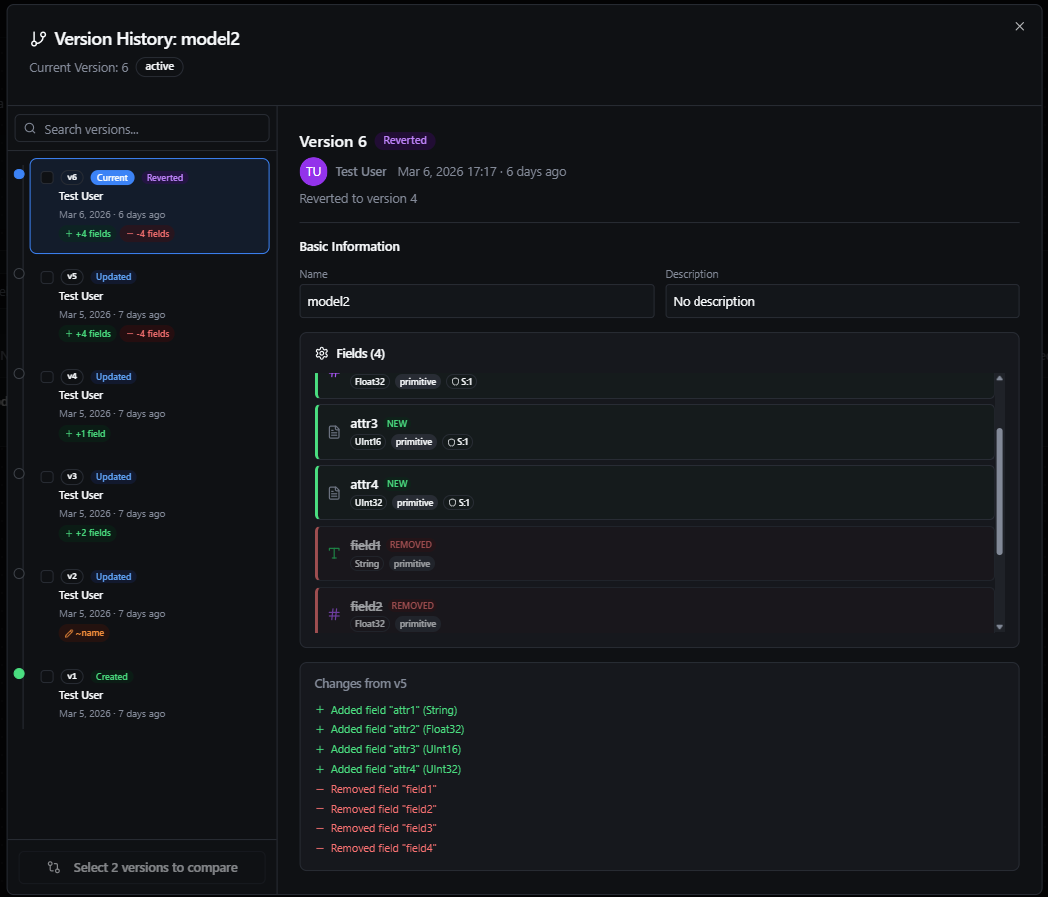
Model Version History dialog showing the timeline on the left and version details on the right
Dialog Layout
The Version History dialog is organized into two main areas:
Left Panel — Version Timeline
A vertical timeline listing all versions of the model in reverse chronological order (newest first). Each entry in the timeline displays:
| Element | Description |
|---|---|
| Version Number | Sequential badge (v1, v2, v3, etc.) |
| Current Badge | Indicates the active version of the model |
| Change Type | Color-coded badge showing what happened — Created, Updated, Deleted, or Reverted |
| User | The user who made the change |
| Timestamp | Date and time the change was made |
| Relative Time | Human-readable time offset (e.g., "2 days ago") |
| Change Summary | Quick-glance chips showing what changed (e.g., +2 field(s), ~1 field(s), -1 field(s)) |
| Checkbox | Select up to two versions for side-by-side comparison |
Search: Use the search box at the top of the timeline to filter versions by model name or description.
Pagination: Versions are loaded 25 at a time. Use the Previous / Next controls at the bottom of the timeline to navigate through older versions.
Right Panel — Version Detail or Comparison
This panel shows either:
- Single version details when one version is selected
- Side-by-side diff when two versions are selected for comparison
Viewing a Version
Click any version in the timeline to view its full details. The right panel displays:
Version Metadata
- Version number and change type badge
- Timestamp of when the change was made
- User who made the change
Model Information
- Name and Description of the model at that version
- Status badge
Fields
A table listing all fields that existed in the model at this version:
| Column | Description |
|---|---|
| Name | The field's identifier |
| Type | Data type with an icon indicator (String, Int, Float, Boolean, DateTime, JSON, or a model reference) |
| Kind | Whether the field is a Primitive type or a Model reference |
| Sensitivity | Security level (1–5) |
| Required | Whether the field is mandatory |
Inline Change Highlights
When viewing a version other than v1, fields are visually highlighted to show what changed compared to the previous version:
| Highlight | Meaning |
|---|---|
| Green left border | Field was added in this version |
| Red left border with strikethrough | Field was removed in this version |
| Orange left border | Field was modified in this version |
Labels
Any labels (key-value pairs) attached to the model at this version are displayed below the fields section.
Comparing Two Versions
To compare any two versions side by side:
- Check the checkbox on the first version in the timeline
- Check the checkbox on the second version
- Click the Compare button that appears
The comparison view shows:
Summary Bar
A quick-glance bar at the top showing counts of:
- Added fields (green)
- Removed fields (red)
- Modified fields (orange)
Basic Information Changes
If the model's name or description changed between the two versions, the old and new values are displayed side by side.
Fields Comparison
A detailed breakdown of every field difference:
| Change Type | Display |
|---|---|
| Added fields | Shown with a green background and + Added badge |
| Removed fields | Shown with a red background and - Removed badge |
| Modified fields | Shown with an orange background, displaying old → new values for each changed property (type, kind, sensitivity, required) |
| Unchanged fields | Listed normally for context |
Label Changes
Any label additions, removals, or modifications are shown in a dedicated section.
Reverting to a Previous Version
If you need to restore a model to a previous state:
- Select the version you want to revert to in the timeline
- Click the Revert button in the version detail panel
The Revert button is disabled for the current version since the model is already at that state.
-
A confirmation dialog appears with the message:
"This will create a new version of the model with the same configuration as version X. The current version will be preserved in the history."
-
Click Confirm to proceed or Cancel to abort
How Revert Works
Reverting is a non-destructive operation:
- A new version is created with the configuration from the selected historical version
- The new version is marked with a Reverted change type (purple badge)
- All previous versions remain intact — no history is lost
- The model immediately reflects the restored configuration
Because revert creates a new version rather than overwriting history, you can always "undo a revert" by reverting again to the version before the revert. Your full audit trail is always preserved.
Change Types
Every version is tagged with a change type that explains how it was created:
| Change Type | Badge Color | Description |
|---|---|---|
| Created | Green | The model was initially created (always version 1) |
| Updated | Blue | The model was modified (fields, metadata, or labels changed) |
| Reverted | Purple | The model was reverted to a previous version's configuration |
| Deleted | Red | The model was soft-deleted |
What Triggers a New Version
A new version is automatically recorded whenever:
- A model is created (version 1)
- Any model property is updated — name, description, fields, labels, or status
- A model is reverted to a previous version
- A model is deleted
Each version stores a complete snapshot of the model, not just the changes. This means any version can be viewed or restored independently without needing to reconstruct from a chain of changes.
Best Practices
- Review before reverting — Use the comparison view to understand exactly what will change before performing a revert
- Use labels for context — Add descriptive labels to your models (e.g.,
release:v2.1) so that version history entries are easier to identify - Check field dependencies — Before reverting, consider whether pipelines or other models reference fields that may not exist in the target version
- Coordinate with your team — Since version history tracks who made each change, use it as a collaboration tool to understand the evolution of shared models