App Studio, start to finish
Beta: follow one app from an idea on the shop floor to a wall screen, then switch it off, roll it back, back it up and watch it run.
- Who it is for
- Plant teams and IT administrators
- Example
- Line 3 Operator Console
- Screenshots
- A Lite instance, synthetic plant and people
App Studio is in release 3.0 as Beta: a paid add-on that no edition includes by default. A licence or a trial licence that includes the app_studio feature switches it on. The module is on by default, so the licence decides. Names and steps may change while it is in Beta.
This page follows one app through its whole life, in the order a plant meets each step. Each step names who does it, what they press, and what MaestroHub checks on the way. The details behind each step are in the Builder guide and the Operator guide; the questions people ask most are answered in the FAQ, and How App Studio works now looks at the same product person by person.
The plant in the screenshots. A workspace called Plant North with one packaging line, line 3. Its stations publish their state to the namespace, and a REST gateway in front of the line's PLC offers one function, Release interlock. Three people work there: Ada Admin (workspace administrator), Ben Okafor (builds apps) and Olga Petrov (operator on line 3). Everything shown is synthetic: the people, the plant and the gateway, which is a stand-in on the same machine.
1. An idea
The shift on line 3 keeps asking the same three things: which station is down, what the last shift wrote down, and who may release the interlock after a jam. Today that is a whiteboard, a paper book and a phone call. Ada wants one screen.
She opens App Studio → New App and writes one sentence. She can also start from a template or open one of the showcase apps that MaestroHub ships to see what an app can do. Here she picks the Line Operator Console template, which has exactly those three cards, and calls it Line 3 Operator Console.
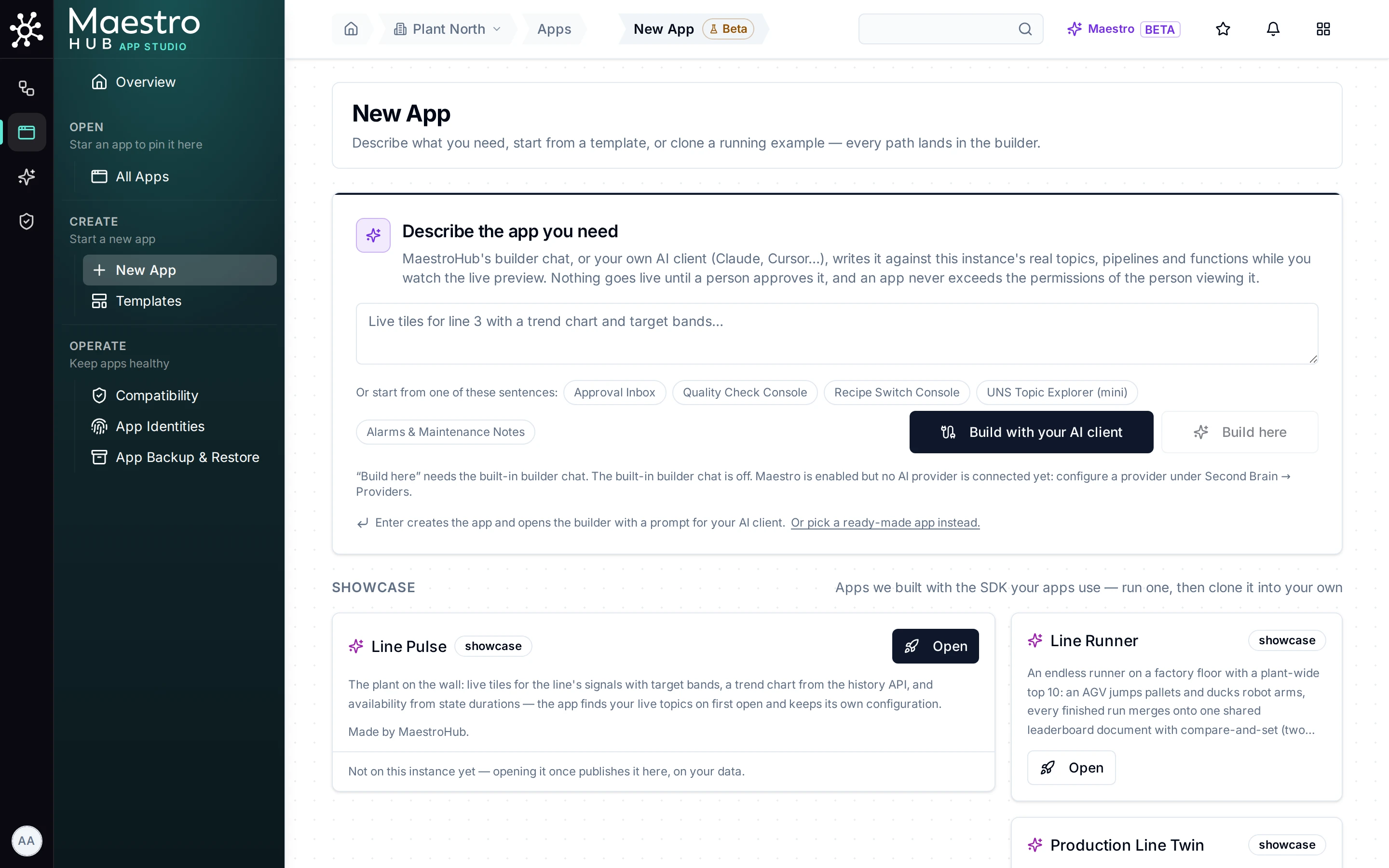
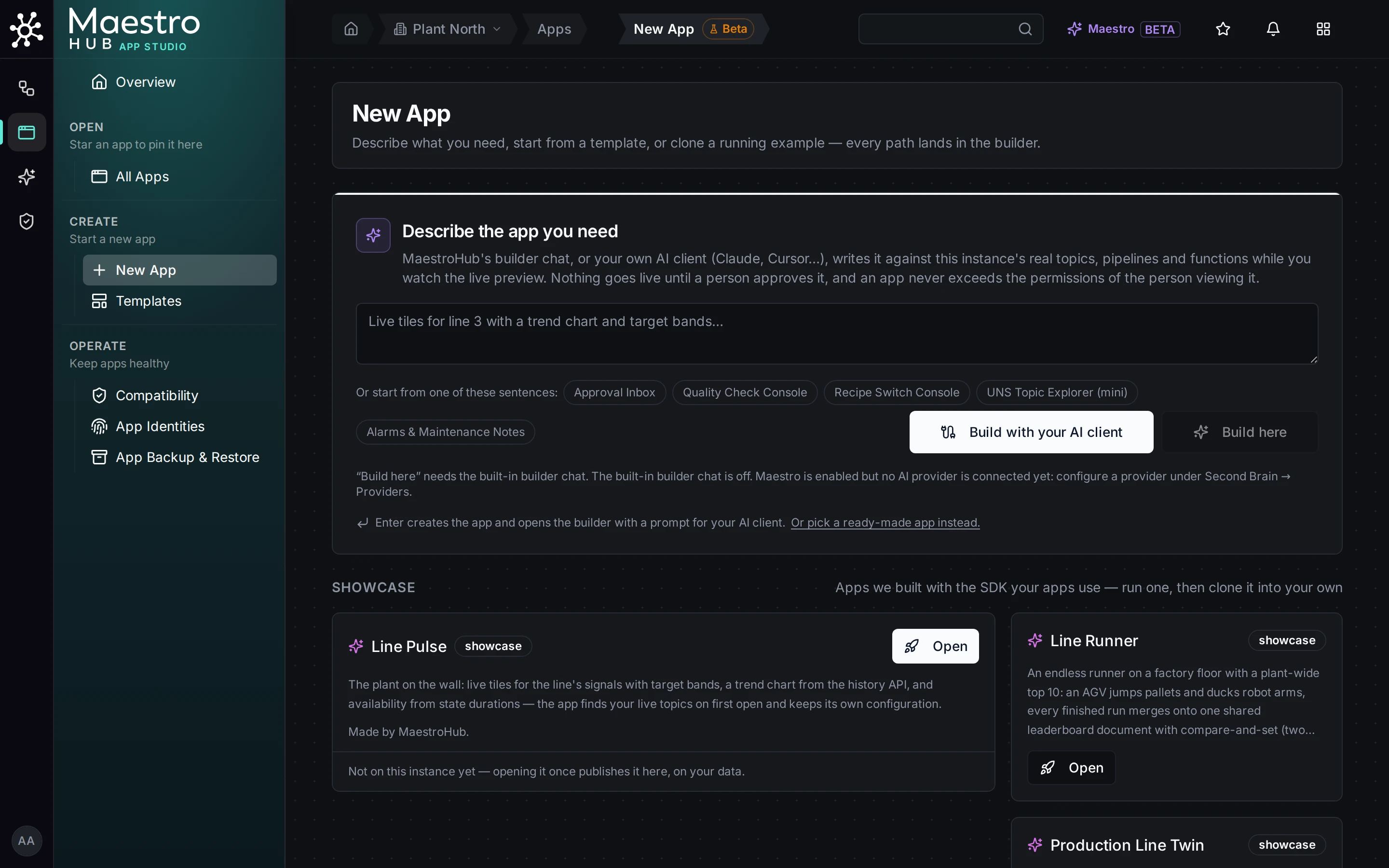
New App: describe the app, or start from a template or a showcase app. Build here is off because this instance has no AI provider; Build with your AI client works without one.
Nothing is live yet. Creating an app makes a draft: nobody can run it, and it is listed with a Draft badge. In this release, people who can open apps in the workspace can also read a draft's files; only people who may edit the app can change it.
2. Building it, with Maestro or with your own AI client
The builder opens. On the left is whatever writes the code; on the right, the live preview of the draft, running on real data from the namespace with the permissions of the person looking at it.
Two things can write the code:
- Maestro, MaestroHub's own assistant (in release 3.0 as Beta, early access on request), as a chat beside the preview.
- Your own AI client (Claude Desktop, Claude Code, Cursor or any MCP client), through MaestroHub's MCP server. This instance has no AI provider set up, so the builder opens on the Build with your AI client panel: connect the client once, give it the prompt shown, and watch the preview change as it works. This route needs MaestroHub's MCP server switched on. It is on by default: on the single binary the setting is
mcp.enabledin the server configuration, and on Enterprise (Helm) it is themcpgatewaypod (mcpgateway.enabled). An administrator who has switched it off turns it back on there; until then the Connect an AI client page says that the MCP server is switched off. The walkthrough records one such session from start to end.
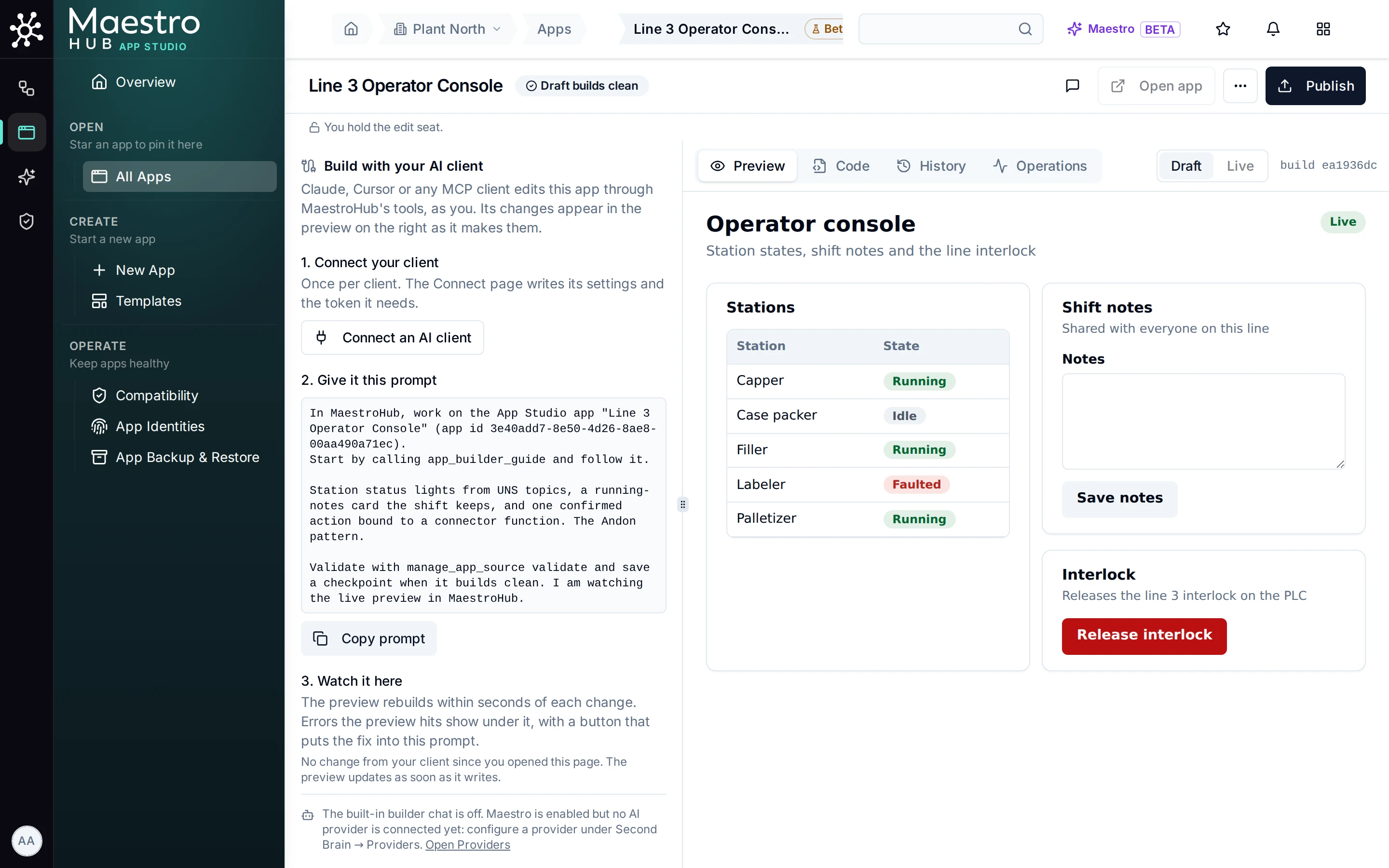
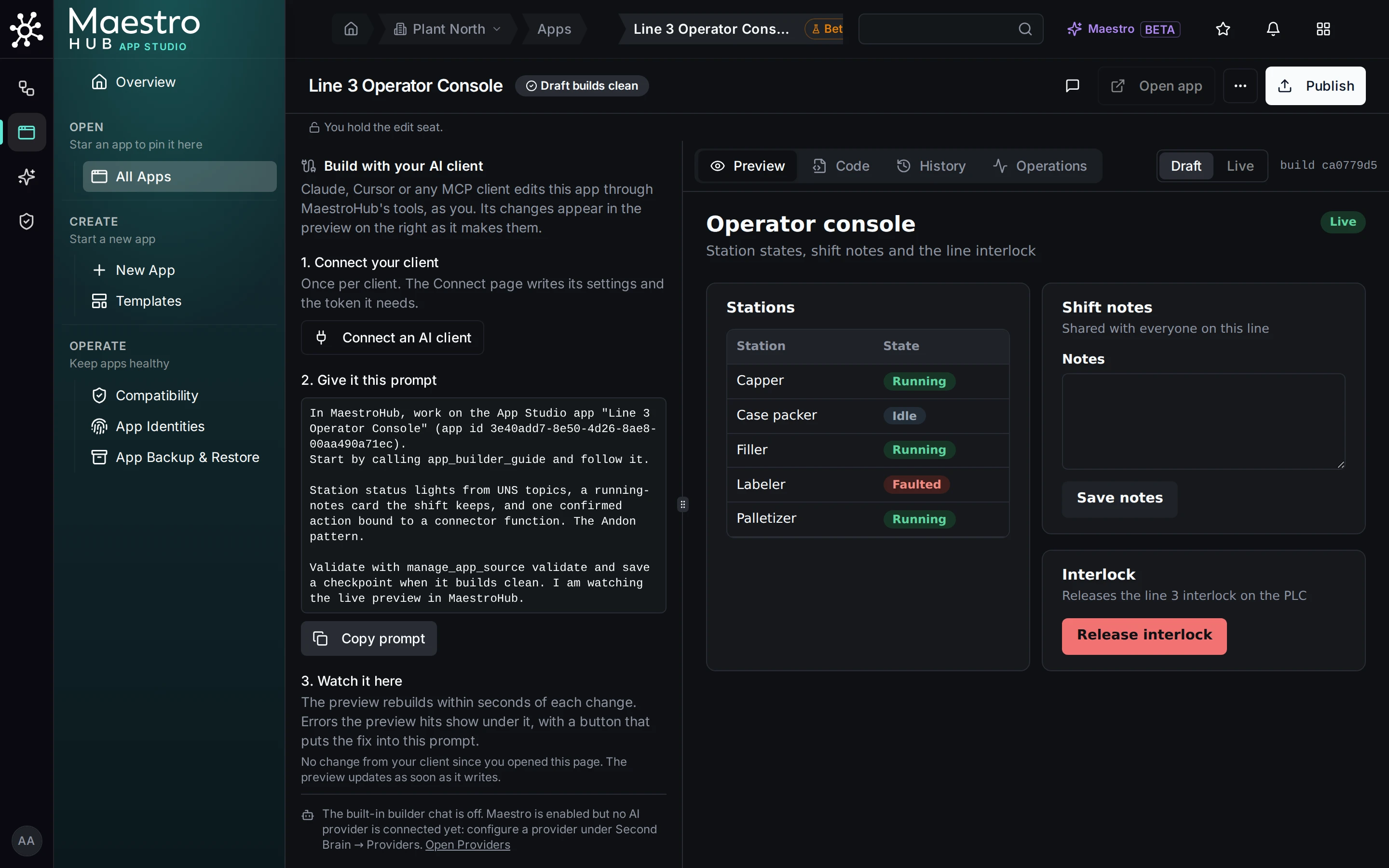
The builder: the AI client panel on the left, the live preview of the draft on the right. Draft builds clean means it will also publish.
Whoever writes, the result is the same kind of thing: a small React app in a git repository that MaestroHub keeps for that app, compiled inside MaestroHub. An app can import only a fixed set of libraries (React, the MaestroHub SDK and UI kit, the 3D scene kit, and three.js with three of its add-ons); there is no npm and no download from the internet. Every change is saved as a checkpoint you can go back to. One person at a time holds the edit seat, so two builders do not overwrite each other.
3. Bindings: the app names what it uses
This step matters to the plant for one reason: the same app can later run on another line without anyone changing its code. (It is written for builders; the screenshots show the code.)
An app does not write the address of a topic or a connector function into its code. It declares each thing it uses once, by a name, in its manifest.json, and the code asks for it by that name. In the console, stations is the line's station-state topic and interlock is the gateway's Release interlock function:
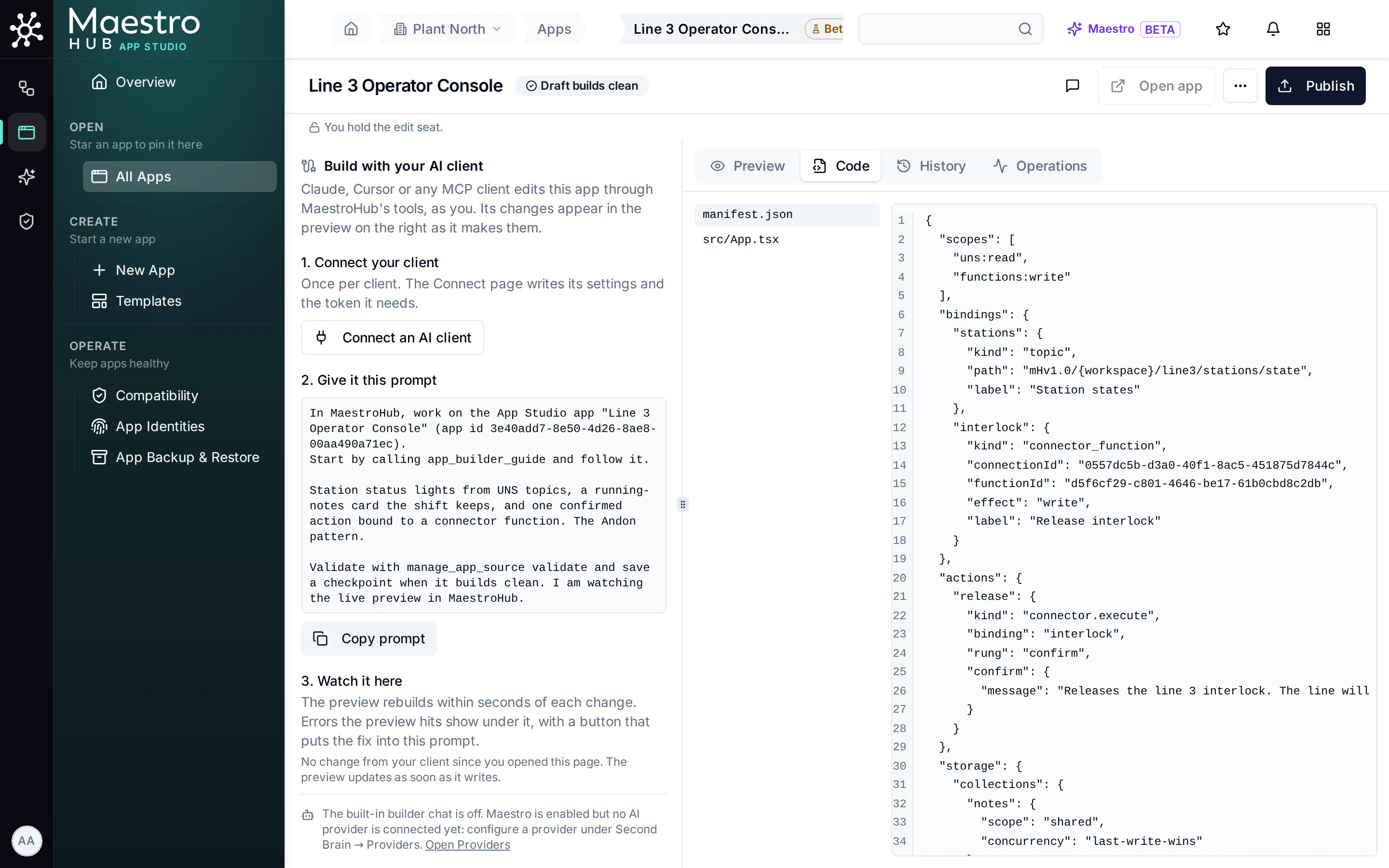
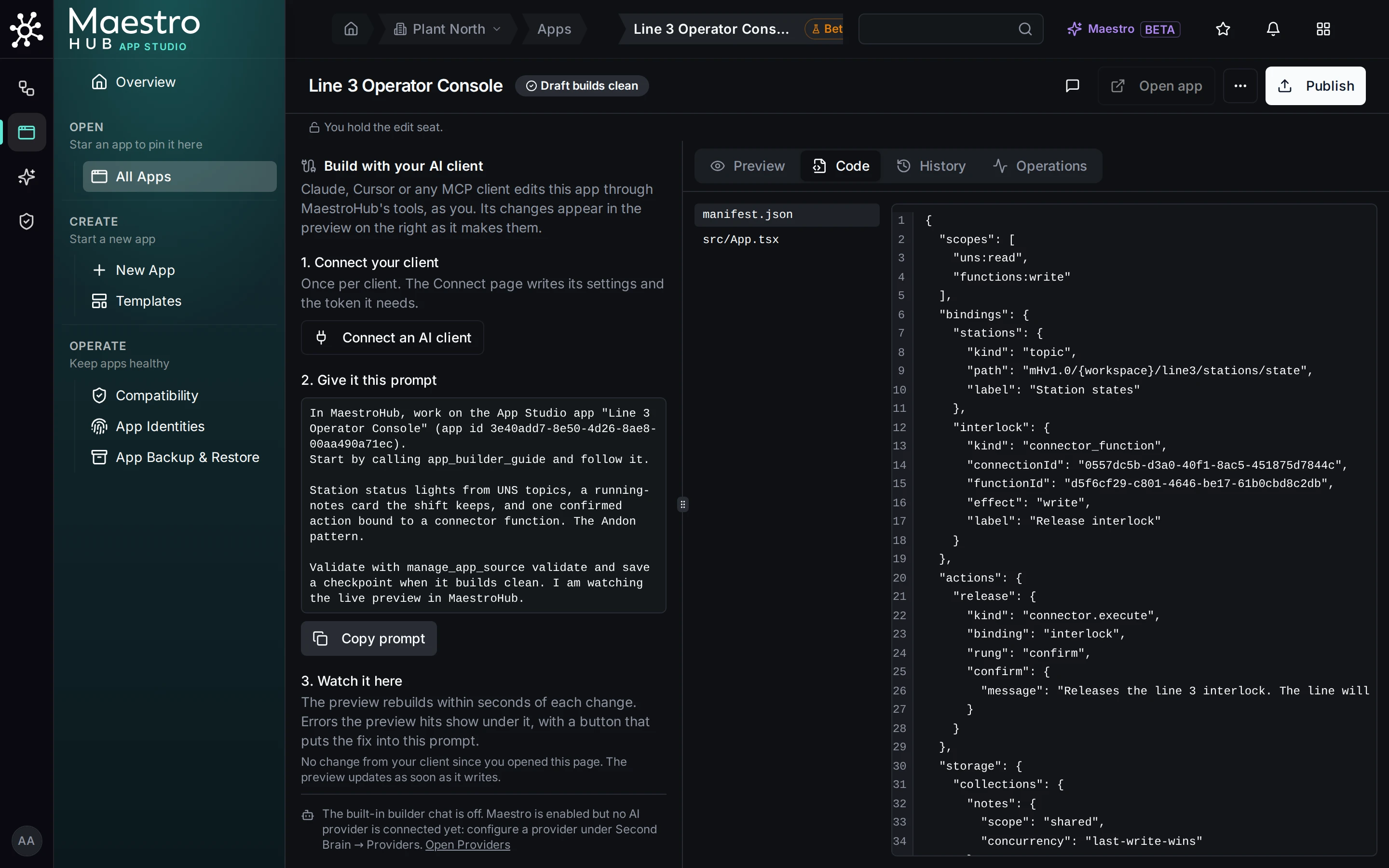
manifest.json: two bindings by name, and one action, release, that runs the interlock binding and asks the person to confirm first
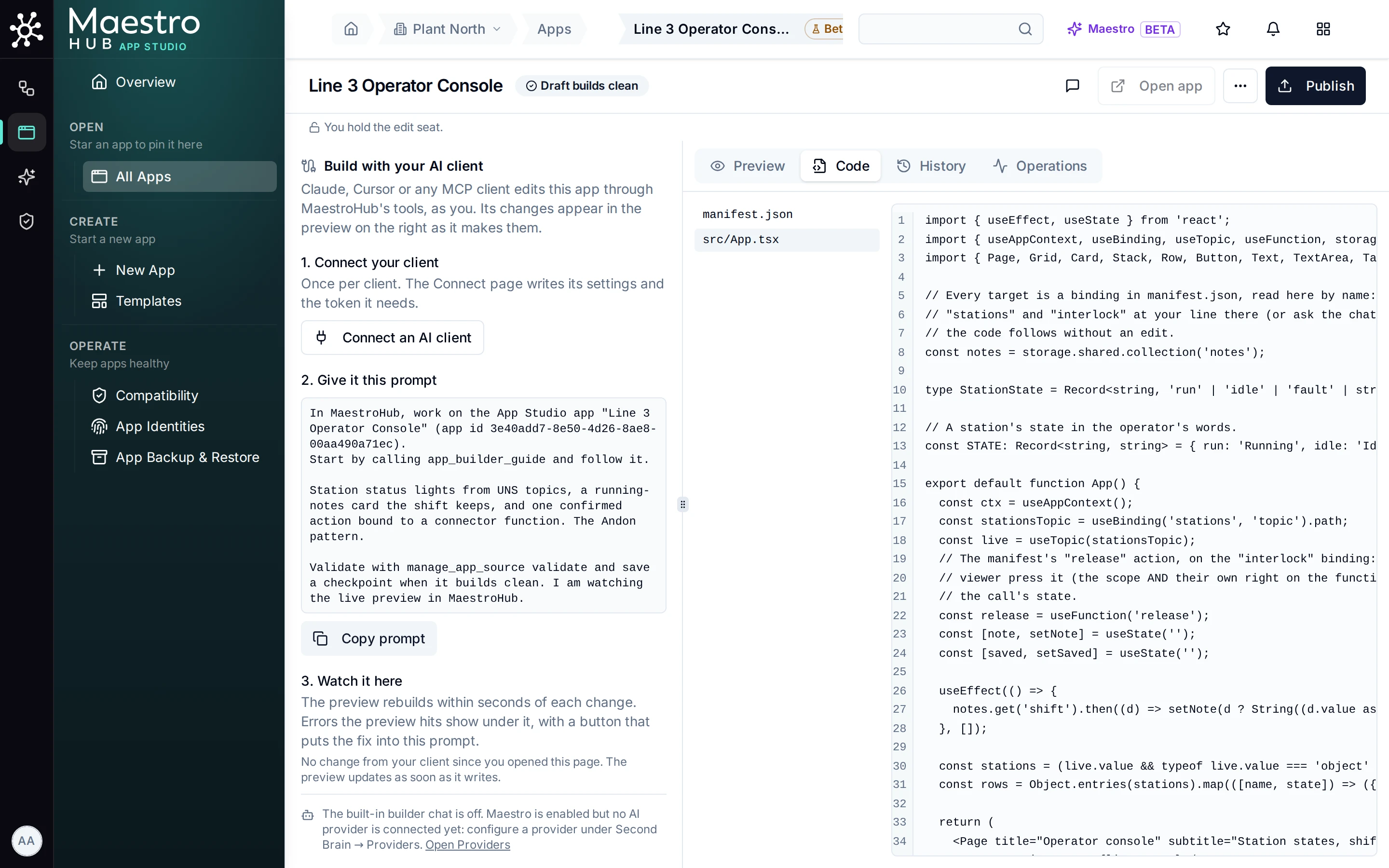
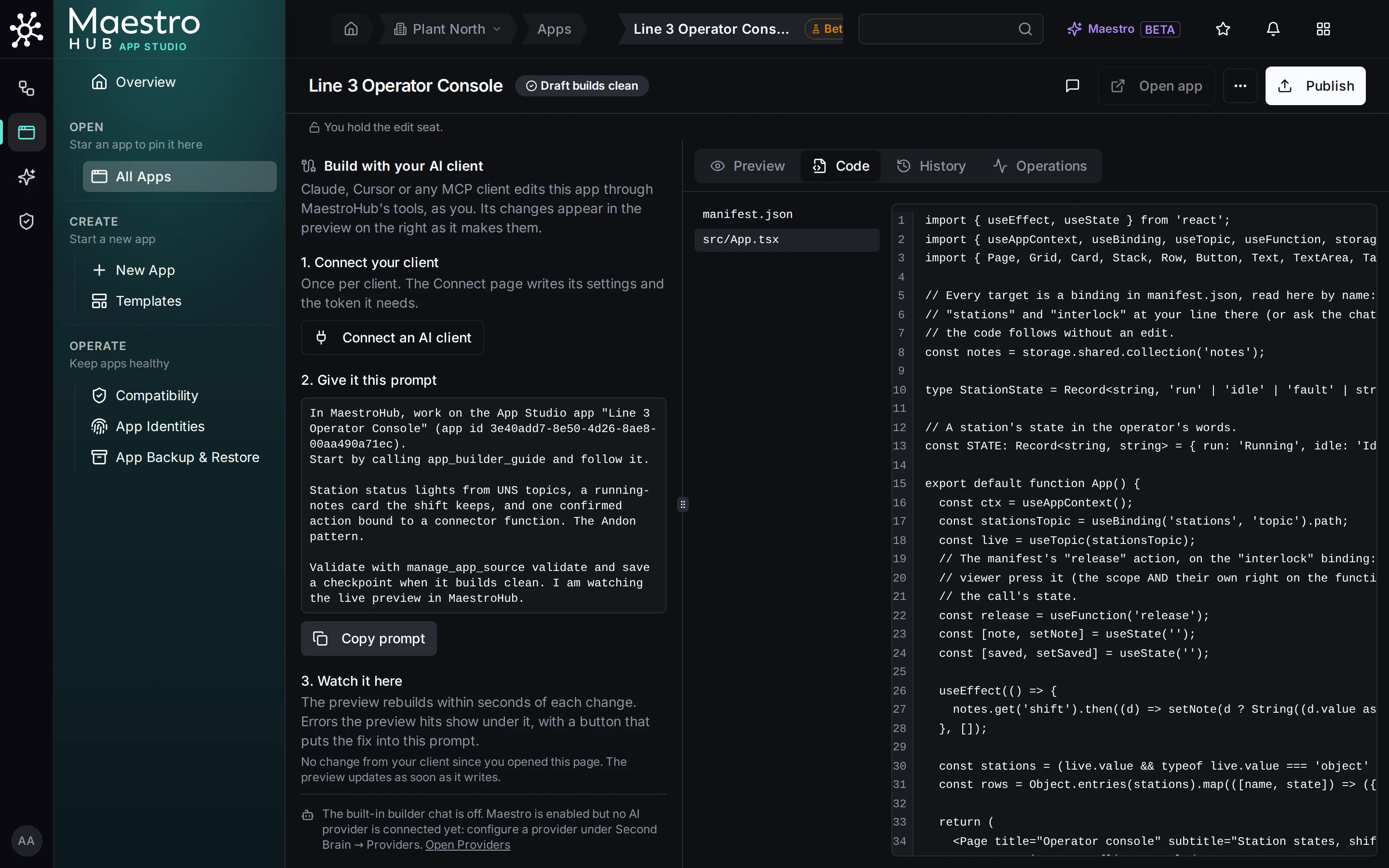
The code reads the binding by its name, never the topic's address
Why it matters: to put the same app on line 5, you change the two targets in manifest.json and publish; the code does not change. A target written into the code by hand, as a literal string, is refused, at validation and again at publish, with the line and the fix:
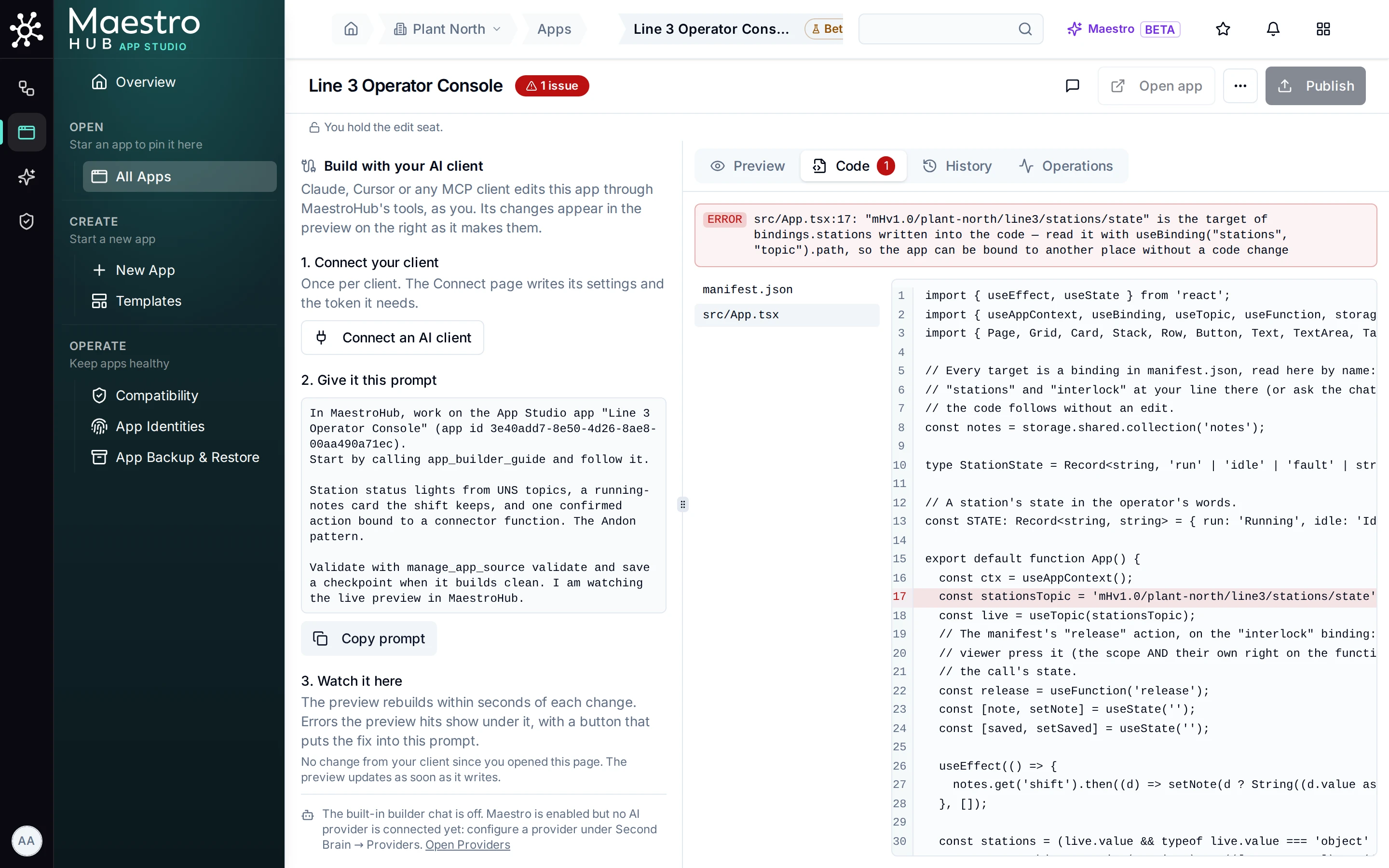
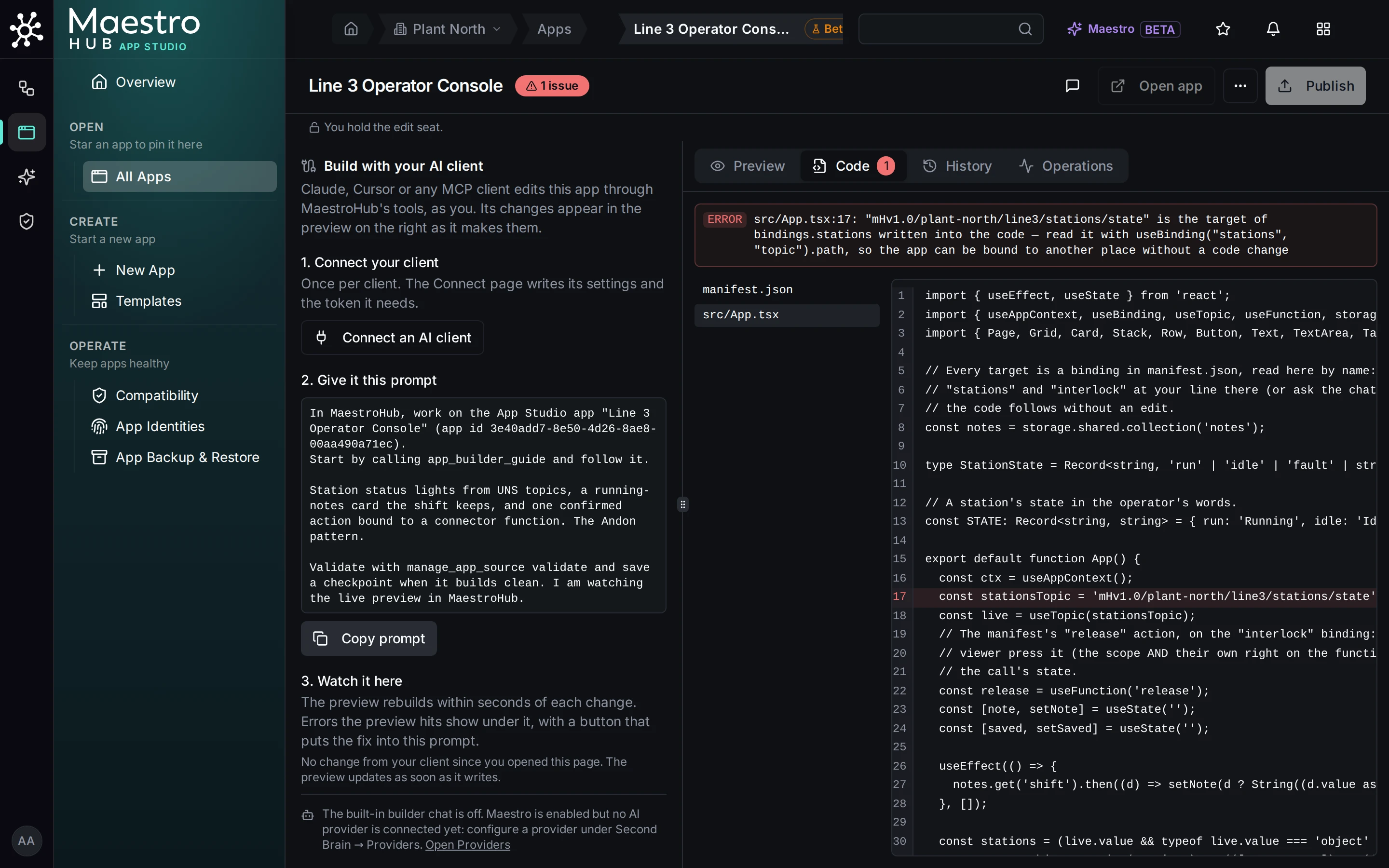
A topic address written into the code is an error that names the fix: read it with useBinding
The manifest also lists the scopes the app asks for (here: read the namespace, run connector functions) and every action that writes. Those are a ceiling, not a grant: at run time the app gets only what both the manifest and the person looking at it allow. The Builder guide describes every field.
4. Review and go live through one door
When the draft is ready, Ada presses Publish. Publishing is a request that a person approves: MaestroHub builds the version and shows what would go live before anything changes.
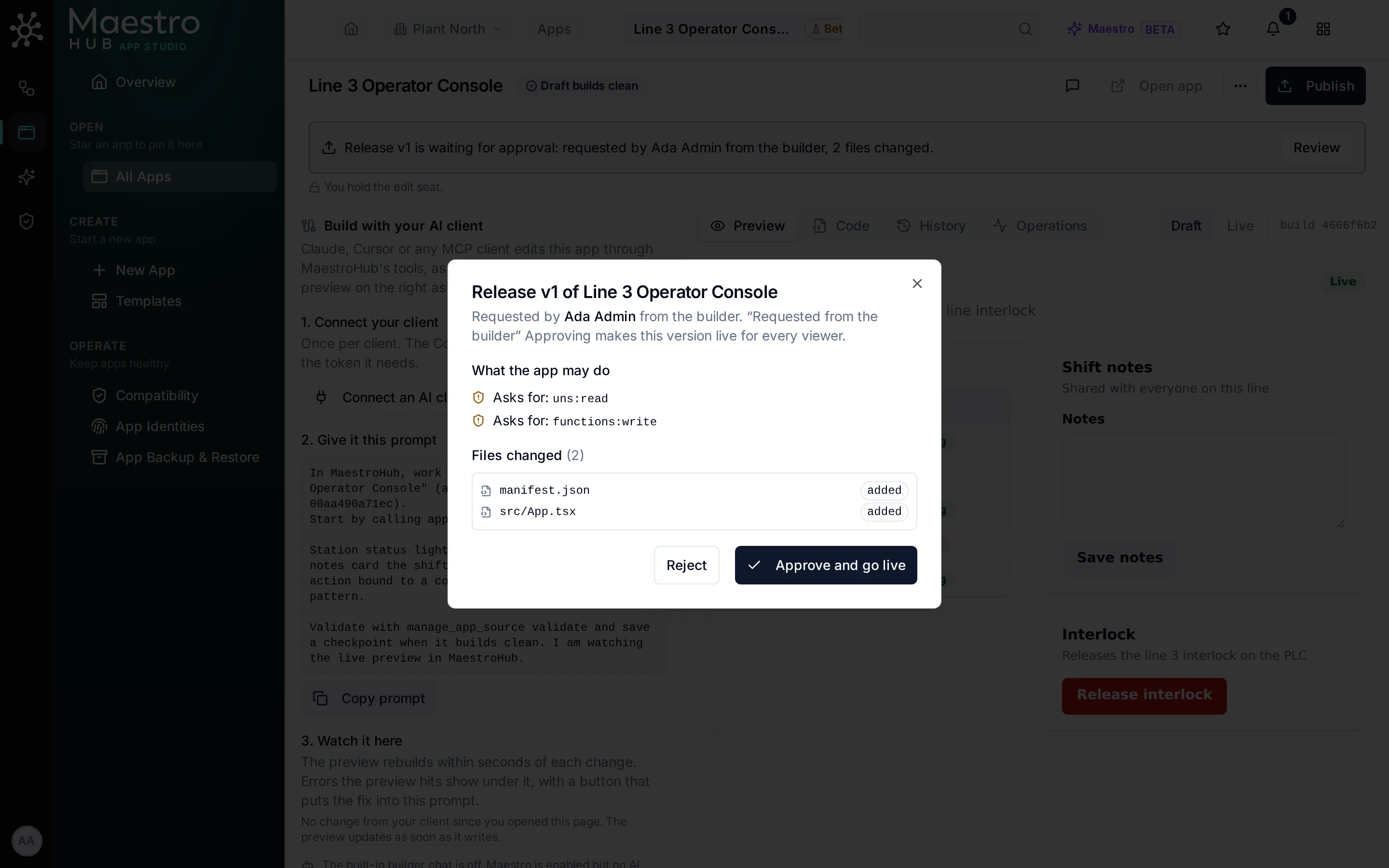
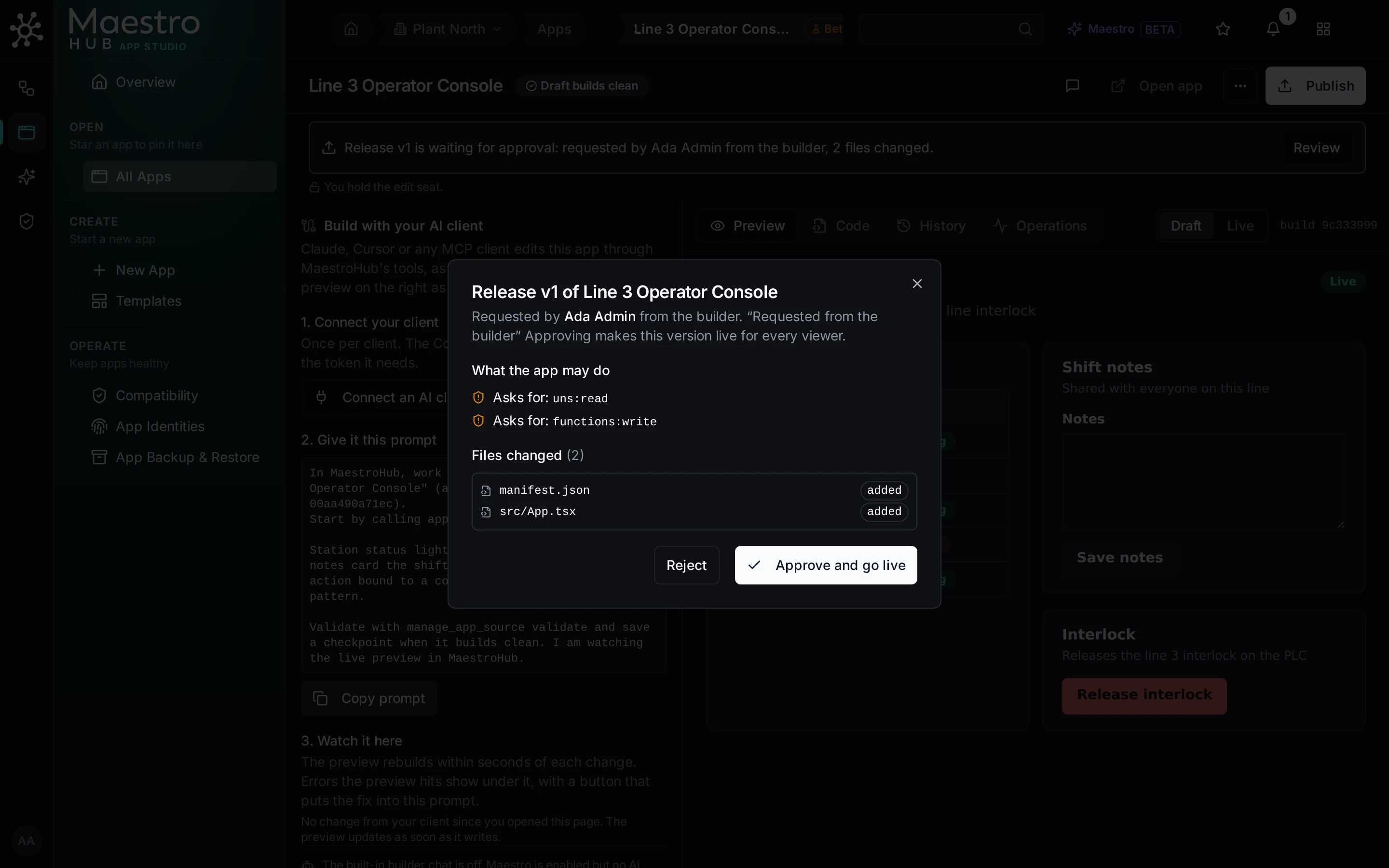
The release review: who asked, from where, which permissions viewers would start granting, and which files changed
What the review checks, and who may approve:
- A person signed in to MaestroHub approves. Anyone who may publish the app (
app:publish: its owner, an Apps editor, a workspace administrator) can approve, including the person who asked. There is no second-approver rule. A token, an AI client or Maestro can ask for a release, which then waits as a banner in the builder; none of them can approve one. - One door for every way a version goes live. Approving a release, activating a version, rolling back, opening a showcase app and switching a switched-off app back on all go through the same check, and each leaves one
app.publishedrow in the audit log that says which way it went. - Actions that act as the app itself (rare; see the Builder guide) need an approver who holds everything those actions do. The review lists them; if the approver does not hold them, the version does not go live and the refusal names what is missing.
Approved, the version is live and fixed: version 1 can no longer change. Further edits make a new draft, and the next Publish makes version 2.
5. Running it
People open the app from Apps, from a star on their sidebar, or from a link. The Run page shows the app inside MaestroHub with a strip above it: who built it, that it is not part of MaestroHub, and that it acts with the viewer's own permissions only.
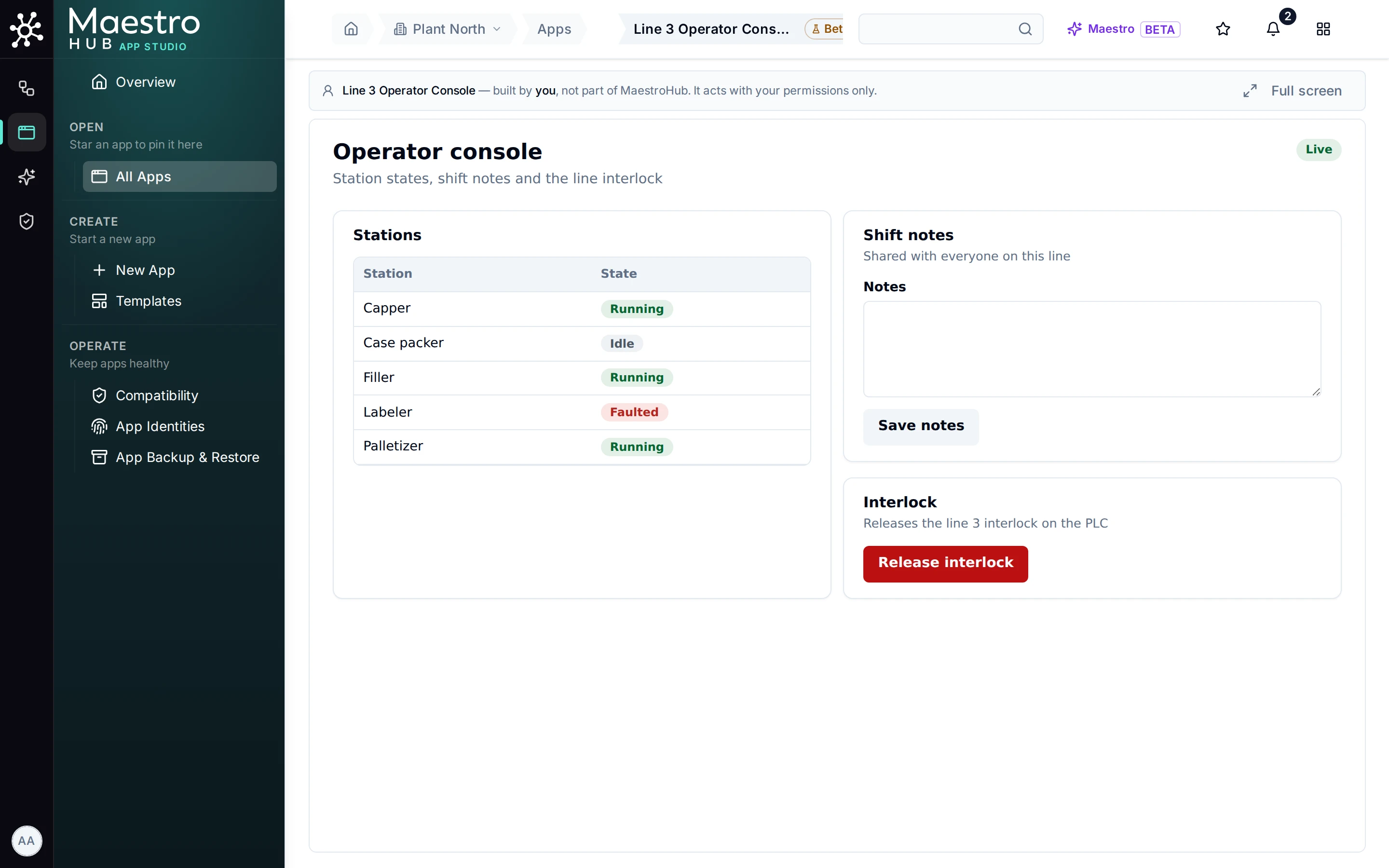
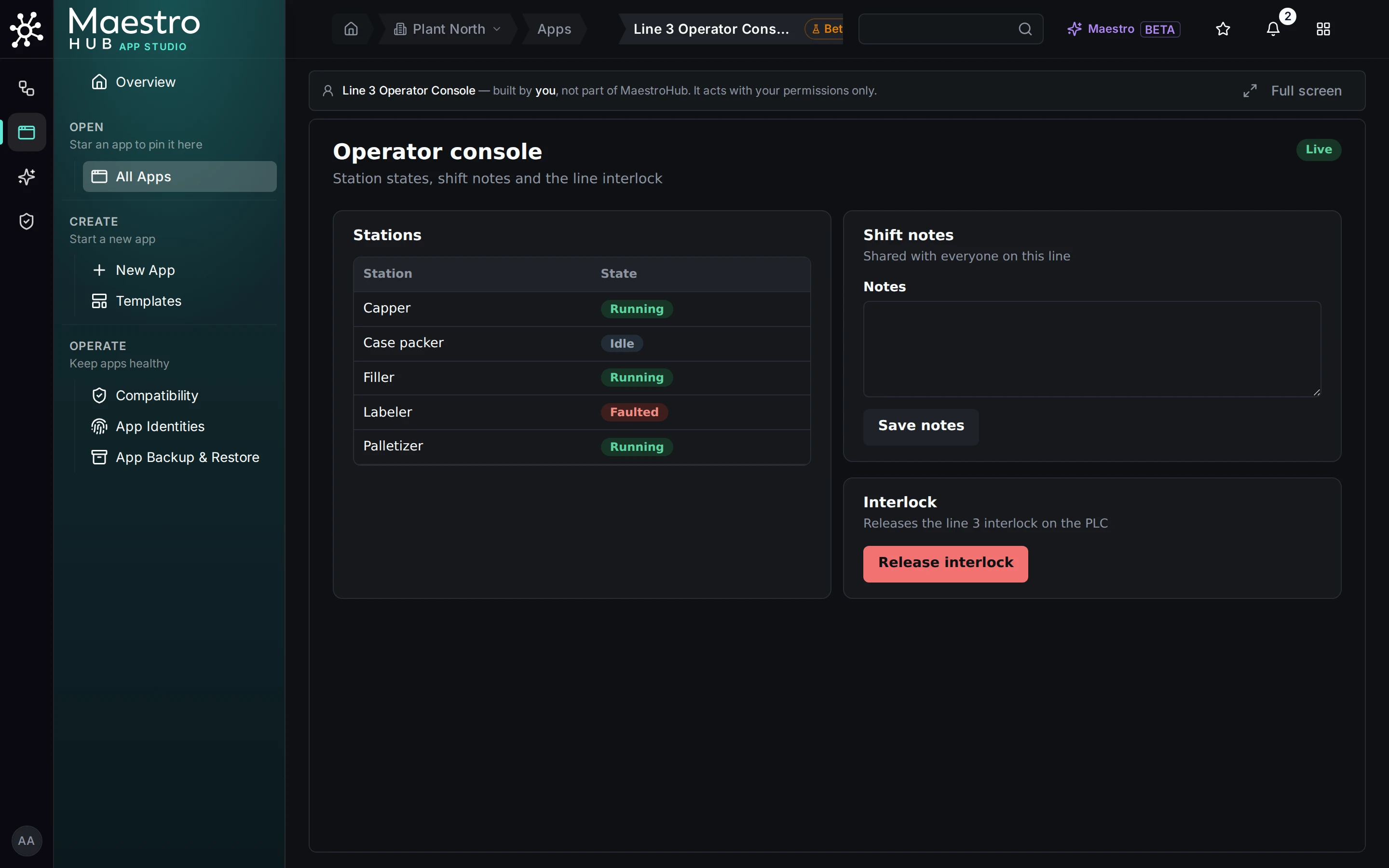
The Run page: live station states from the namespace, shared shift notes, and the interlock button
What keeps the app in its lane:
- It sees what the viewer sees. The app works with a short-lived token (5 minutes, renewed while it runs) that holds only what both the manifest and the viewer's own permissions allow. Olga sees the same app as Ada but only the data Olga may see. The SDK tells the app which of its actions the viewer may use and why not, and the templates show a button the viewer cannot use disabled, with that reason.
- It cannot touch MaestroHub itself. Each app runs in an isolated frame that the browser treats as an anonymous origin (a page with no identity of its own, so the browser gives it none of MaestroHub's sign-in or storage): it cannot read the MaestroHub sign-in, the MaestroHub page or another app's data, and it may talk only to MaestroHub. How that works, and what it does not cover, is in How apps are served.
- The first time someone opens an app they did not build, a notice names the builder and lists what the app can do with their permissions.
When an action writes something that matters, the app asks MaestroHub to confirm with the person. MaestroHub, not the app, draws the dialog over the app: what the app says, exactly what MaestroHub will send, and who is signed in. Cancel has the focus and Confirm becomes active after half a second, so a stray tap does not release an interlock. The confirmation is valid once, for 60 seconds, for that exact request.
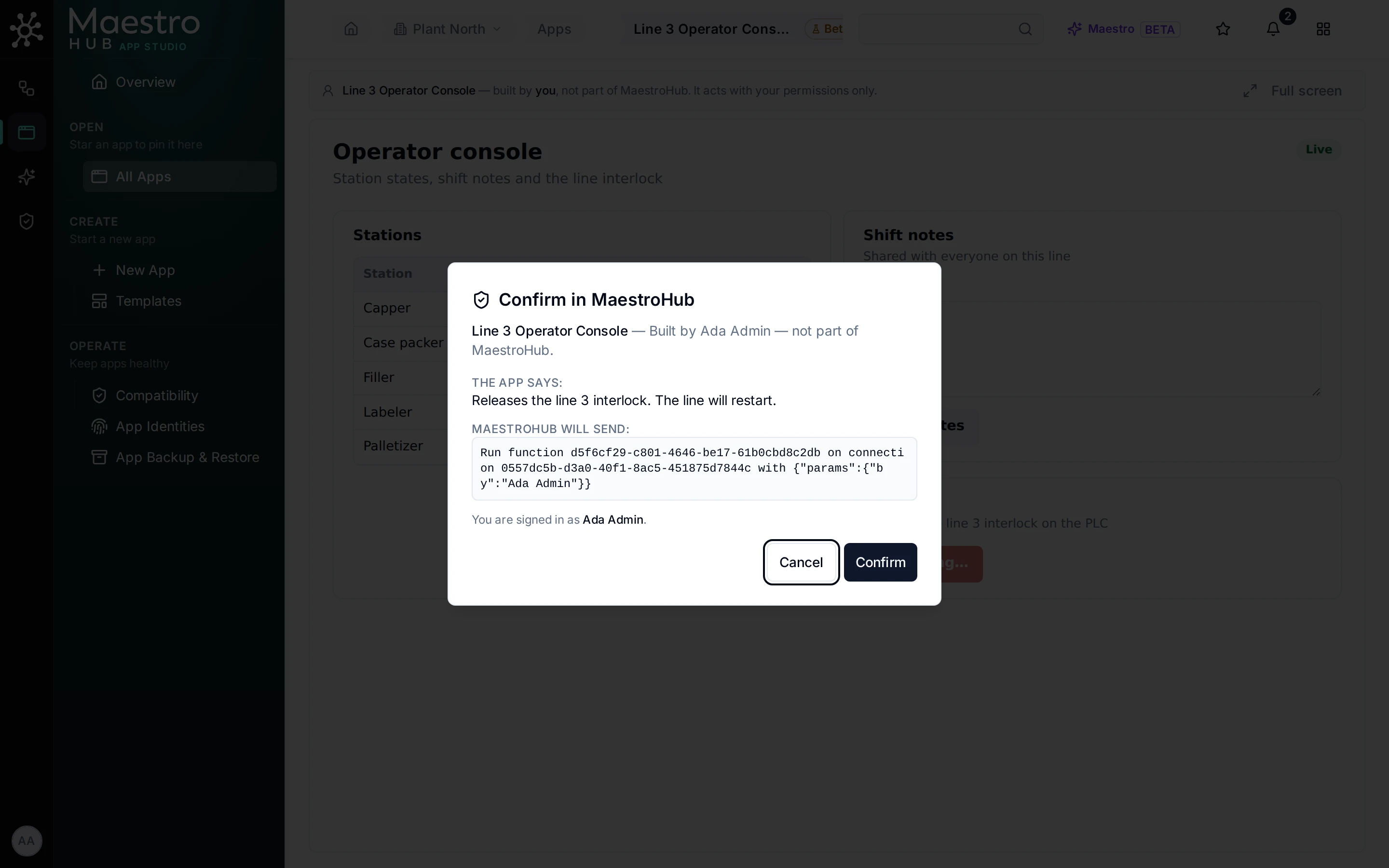
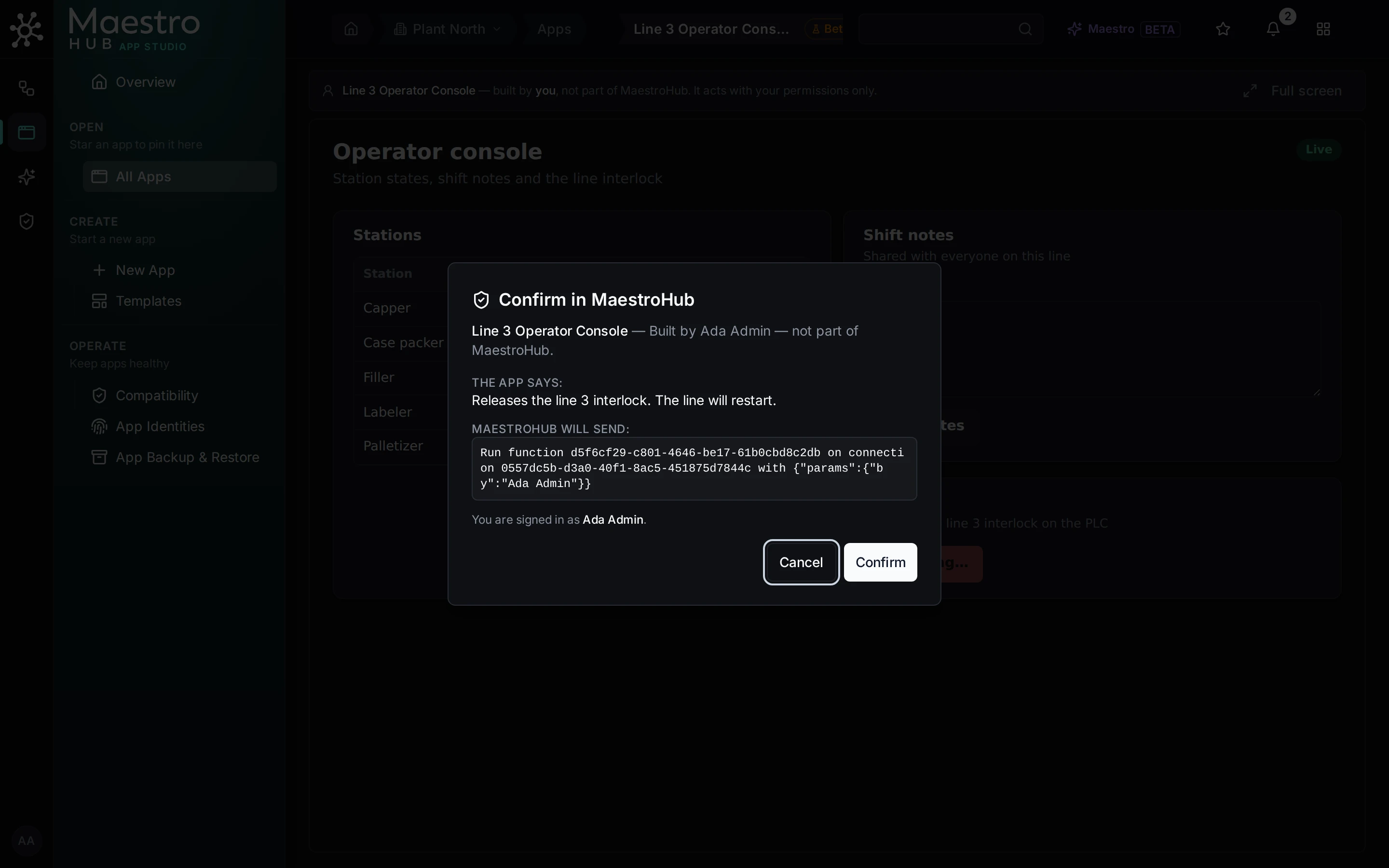
Confirm in MaestroHub: drawn by MaestroHub, not by the app, with the exact request it will send
6. On the line: Kiosk page and paired displays
There are two ways to put an app on a screen at the line, and they differ in one thing: whether anyone can press its buttons.
The Kiosk page is the app full screen, at a fixed address (/<workspace>/apps/<app>/kiosk), opened by a person who is signed in. It is for a station where operators act: the buttons work, within that person's permissions, and confirmations name that person. The page checks the app every 30 seconds, so a switched-off app comes back by itself once it is switched on again.
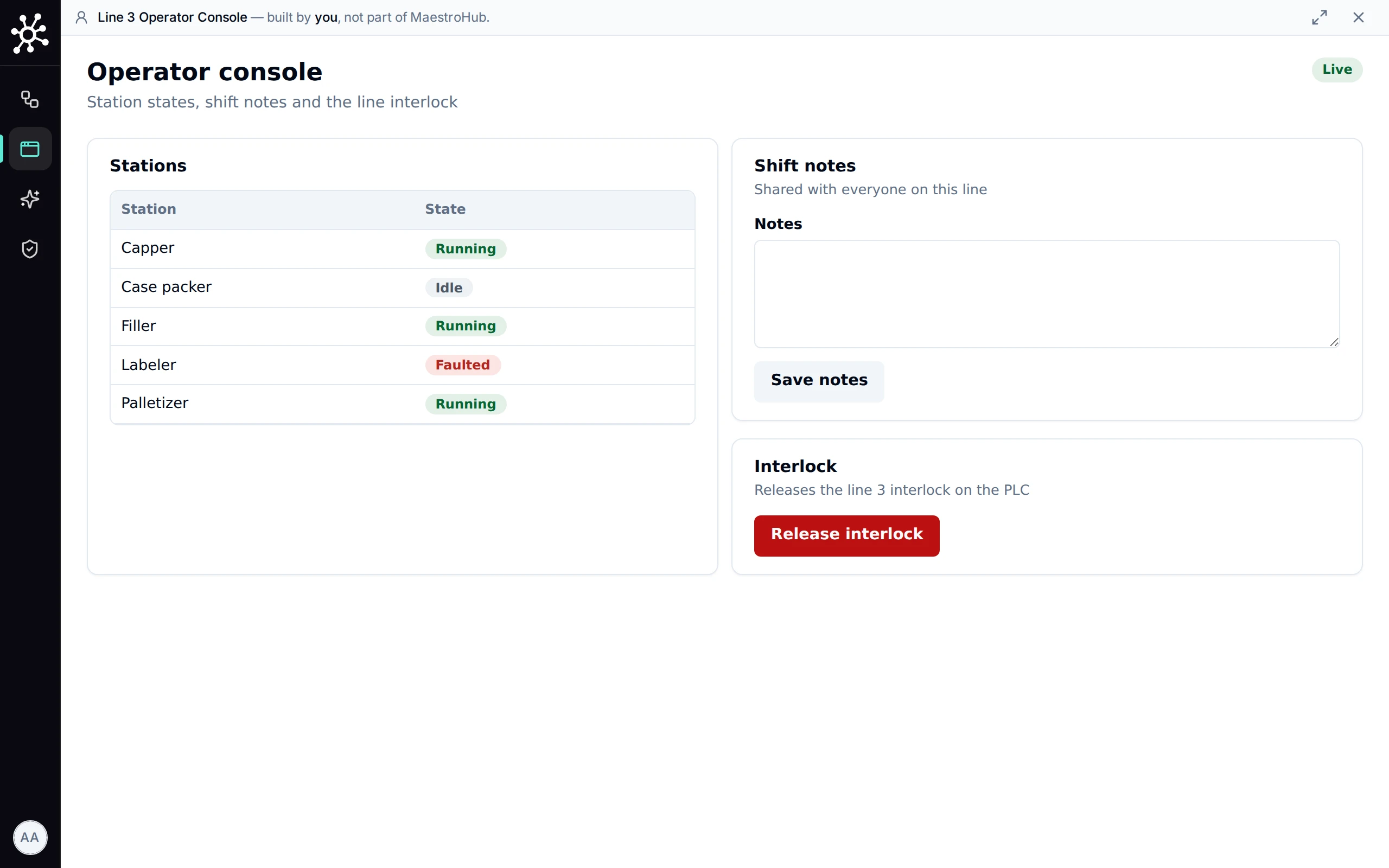
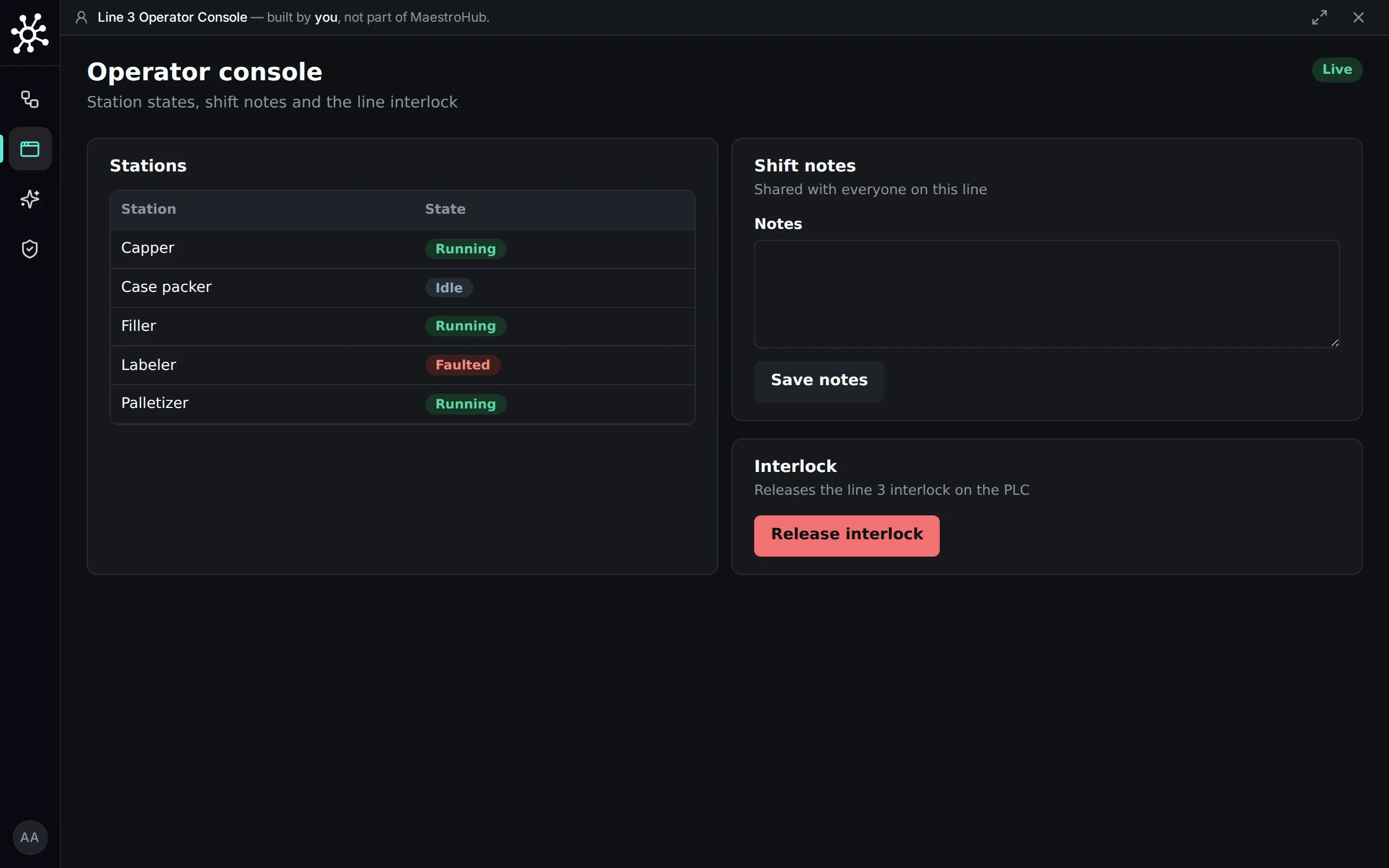
The Kiosk page: the app full screen on a station where a person is signed in
A paired display is a screen with nobody signed in: an andon board, a TV on the wall. It gets its own identity instead of a person's session. The screen opens /pair and shows a code; an administrator types the code under Identity & Access → Devices, names the screen, picks the app and approves.
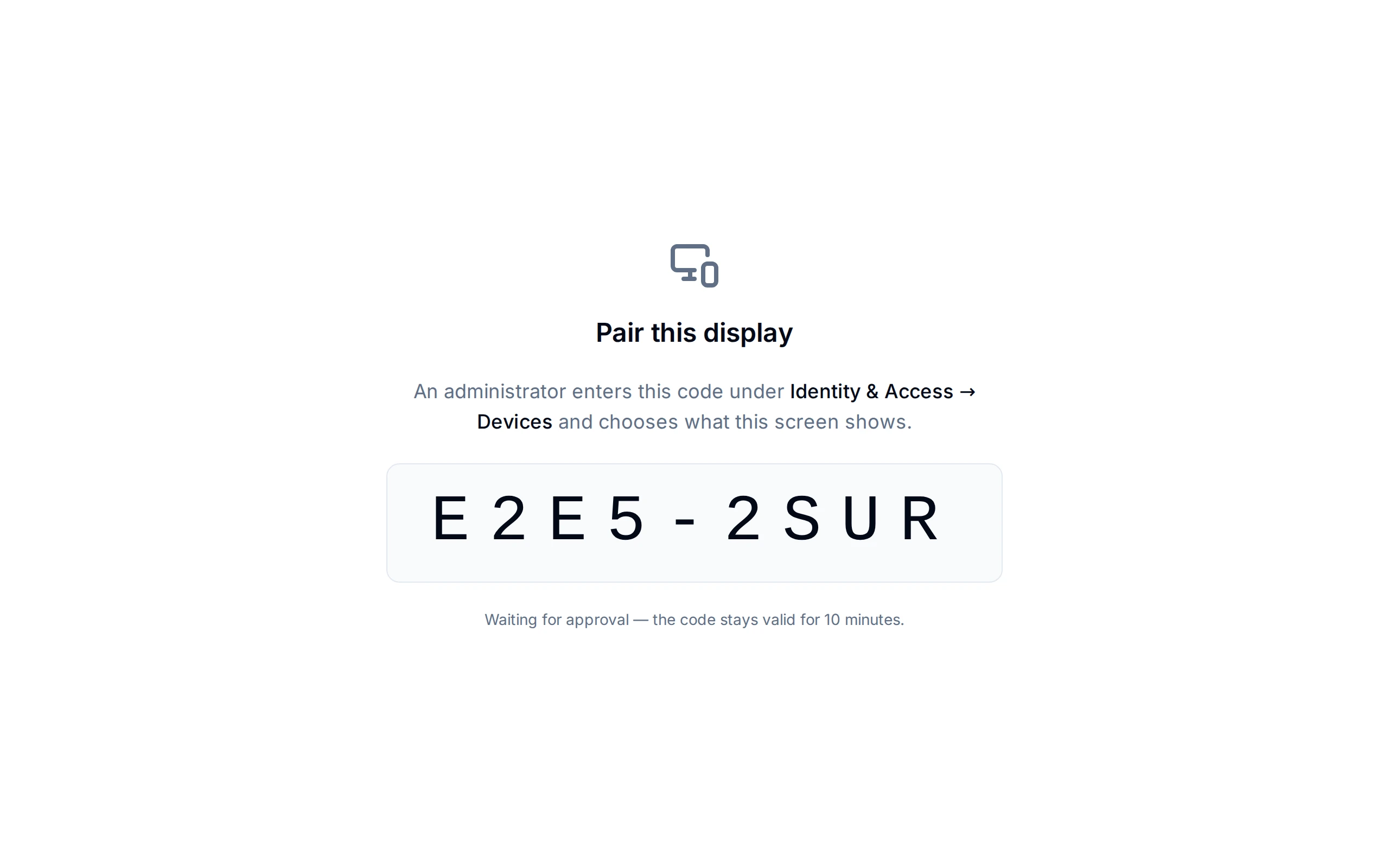
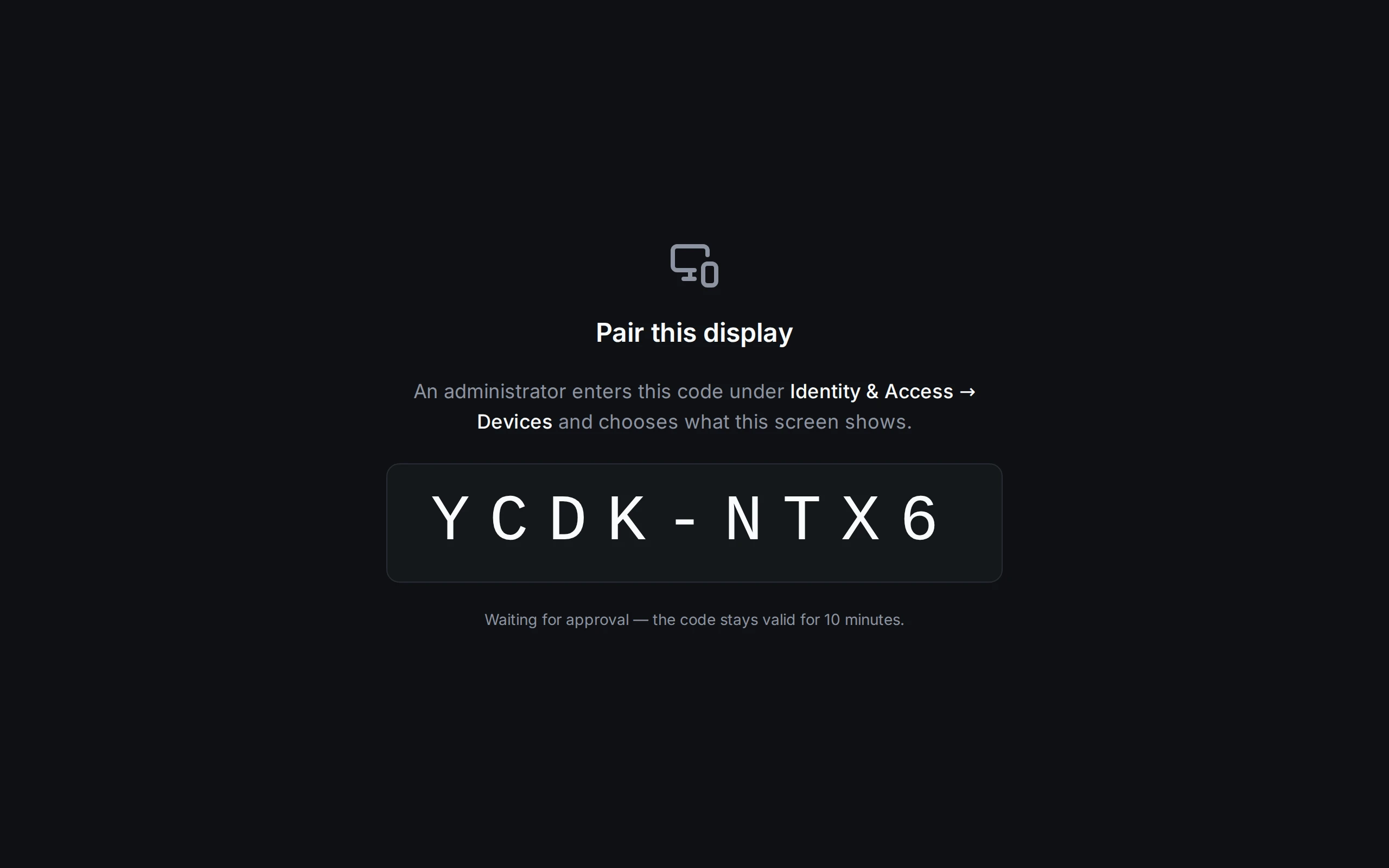
On the screen: /pair shows a code
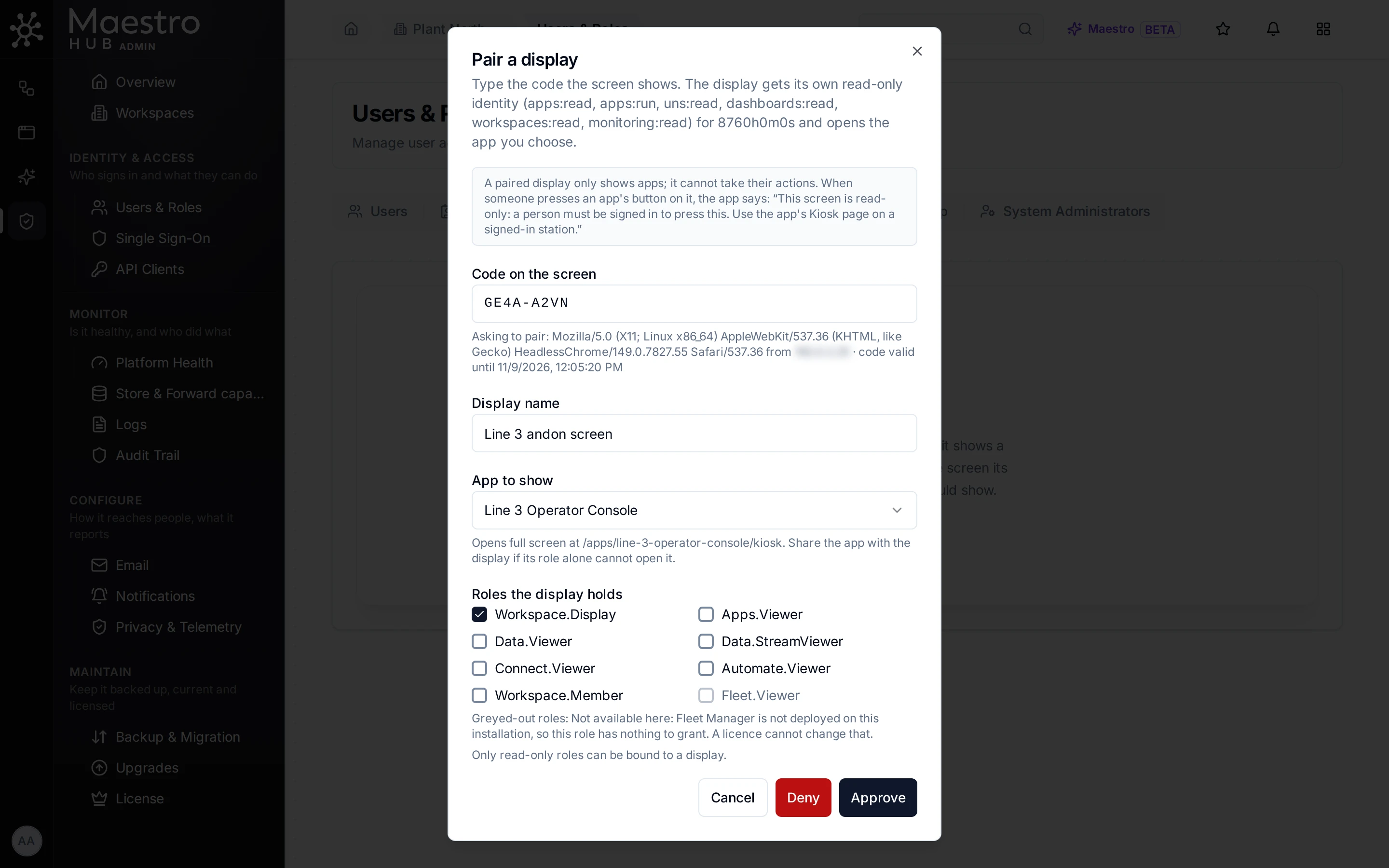
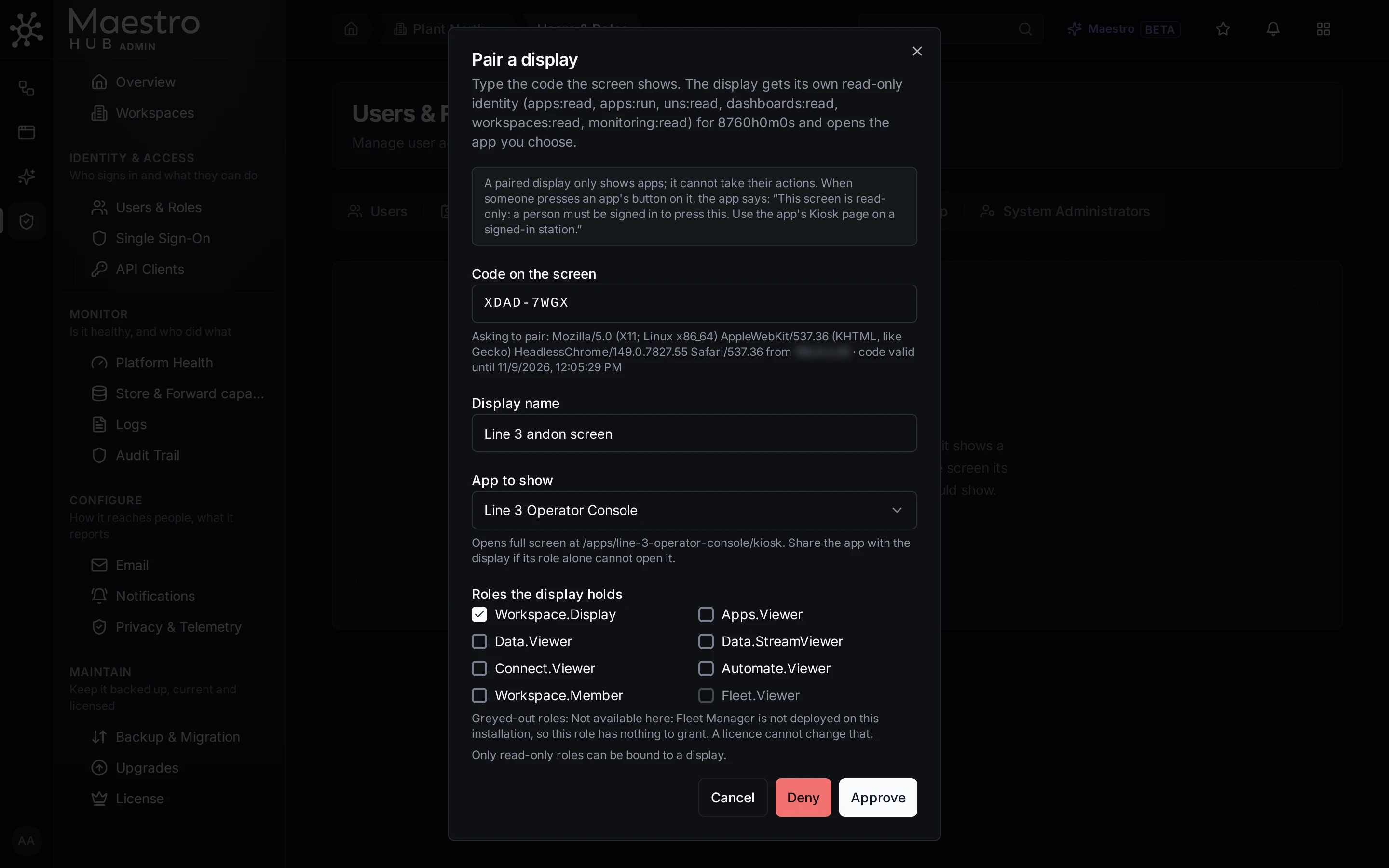
At a desk: the administrator names the screen, picks the app, and is told before approving that the screen is read-only
A paired display is read-only. It shows the app and its live values, and every button that writes is disabled with the reason and the way out:
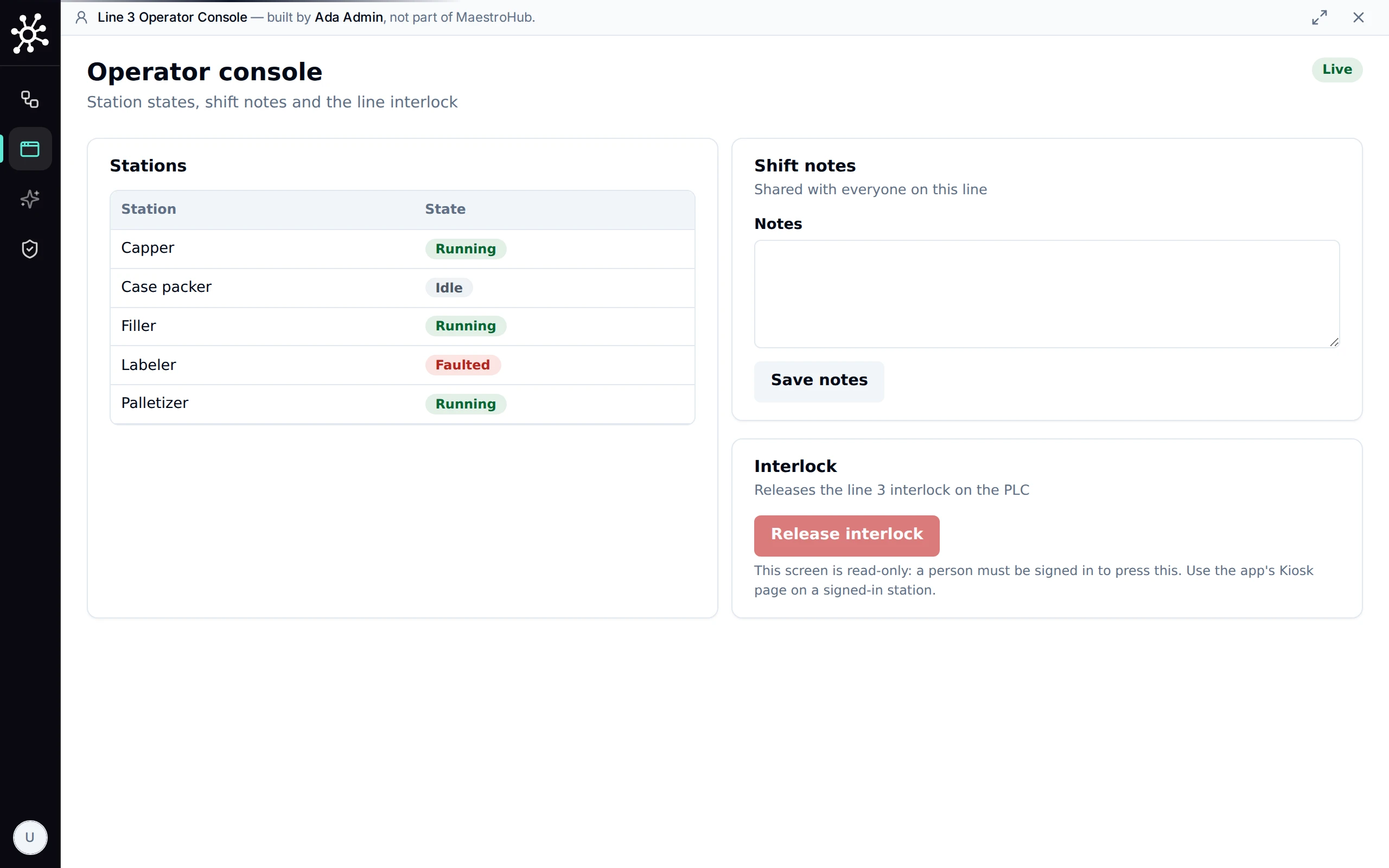
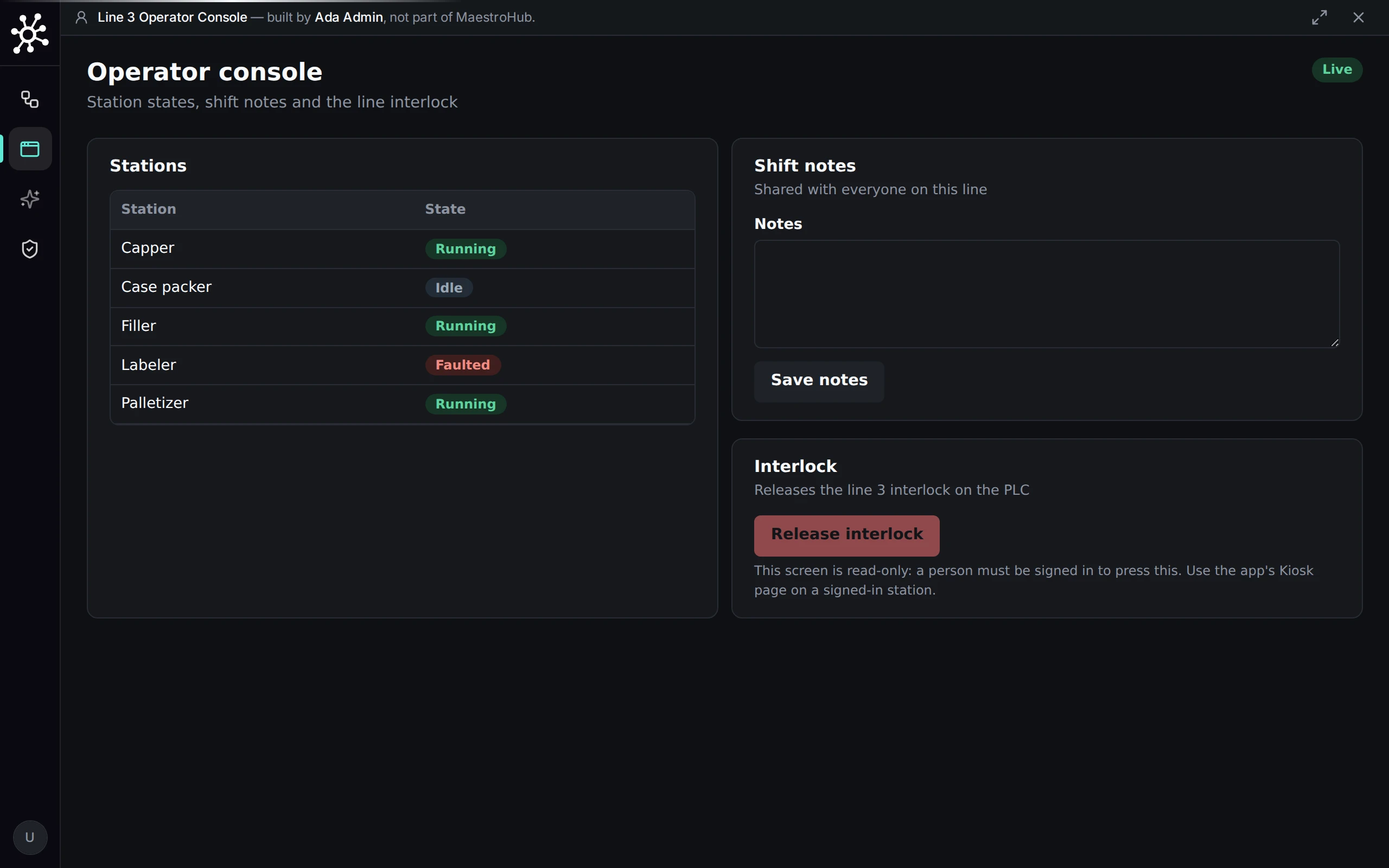
The paired display: live values, and the interlock button disabled with the reason
That is a deliberate rule, not a setting: a wall screen's identity lives for up to a year and no person stands behind its clicks, so it never holds a write permission. A station where an operator presses buttons is a Kiosk page with that operator signed in. Revoking the display under Devices ends its session on its next request.
7. Sharing it, and roles
Who can open the app is decided the same way as for pipelines and dashboards:
- By role. The built-in roles that open and run every published app in the workspace are Apps Viewer (
Apps.Viewer), Plant Operator (Persona.PlantOperator) and Analyst (Persona.Analyst).Apps.Editoralso builds and publishes;Apps.Adminalso shares, deletes and backs up;Workspace.Displayis what a paired display holds. The full table is in the Operator guide. - By sharing one app. Share on the app's menu (needs
app:share) gives a person, group, role, API client or paired display access to this one app, optionally until a date. While you choose who, the dialog shows how many of the app's bound resources that audience can actually reach, so you see before granting whether the app would work for them.
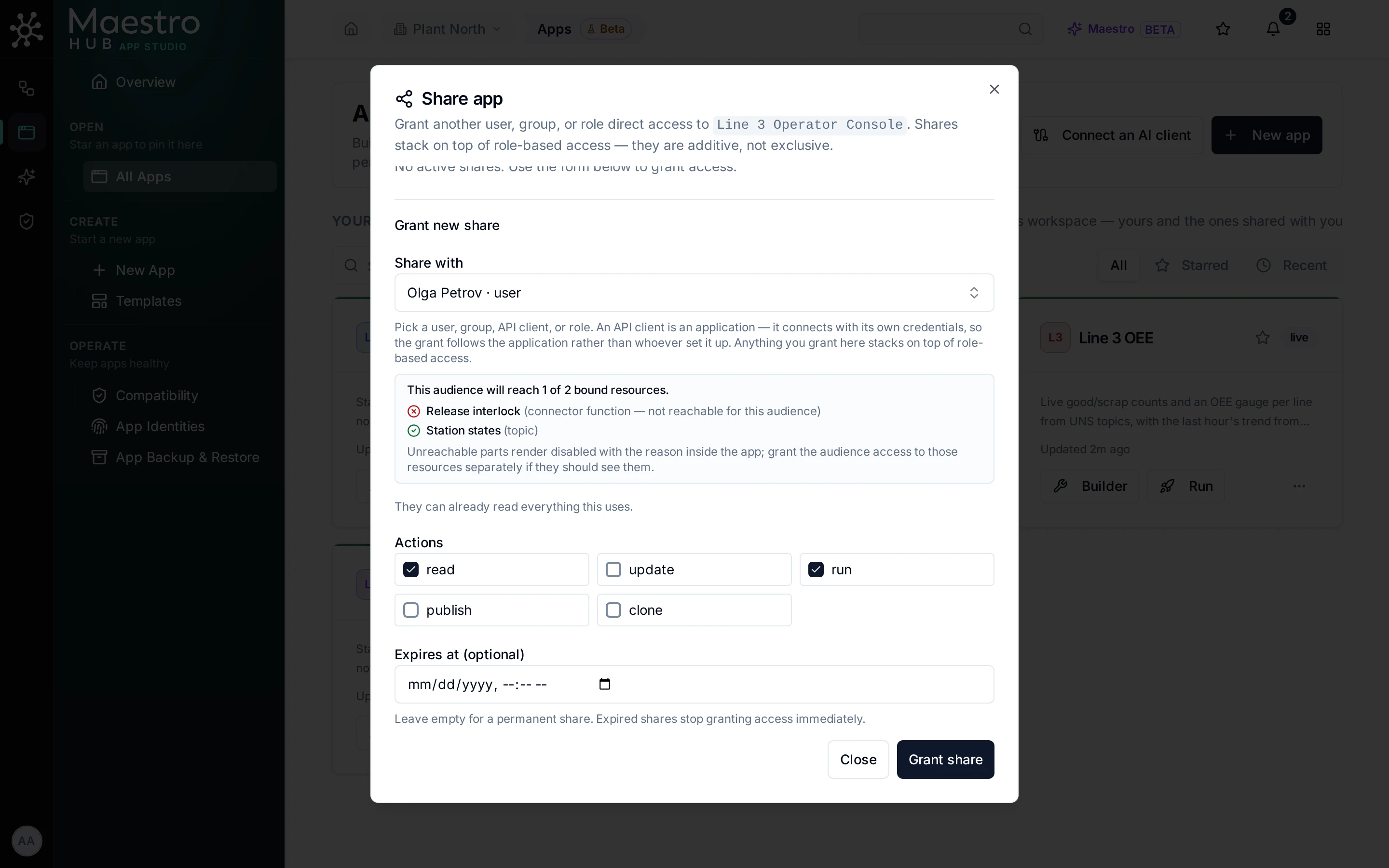
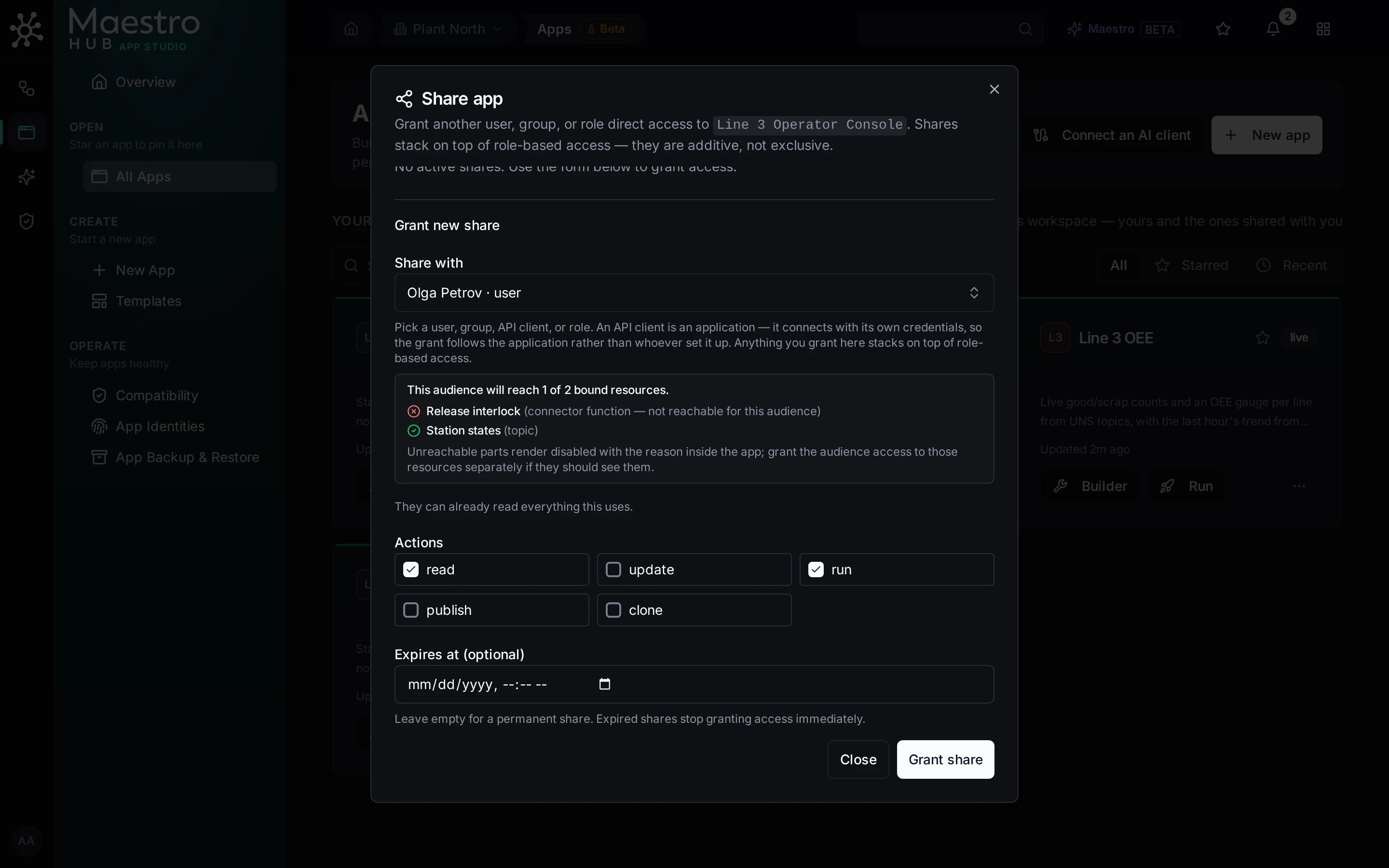
Share: pick who, pick what they may do, and see what the app would reach for them before you grant it
Sharing one app needs the Advanced Access Control licence feature. Without it, give people a role that opens apps; existing shares can still be revoked.
8. Switching it off
On day three the interlock release misbehaves on the case packer. Ada opens the app's Operations page and presses Switch off. A reason is required, because everyone who opens the app will read it.
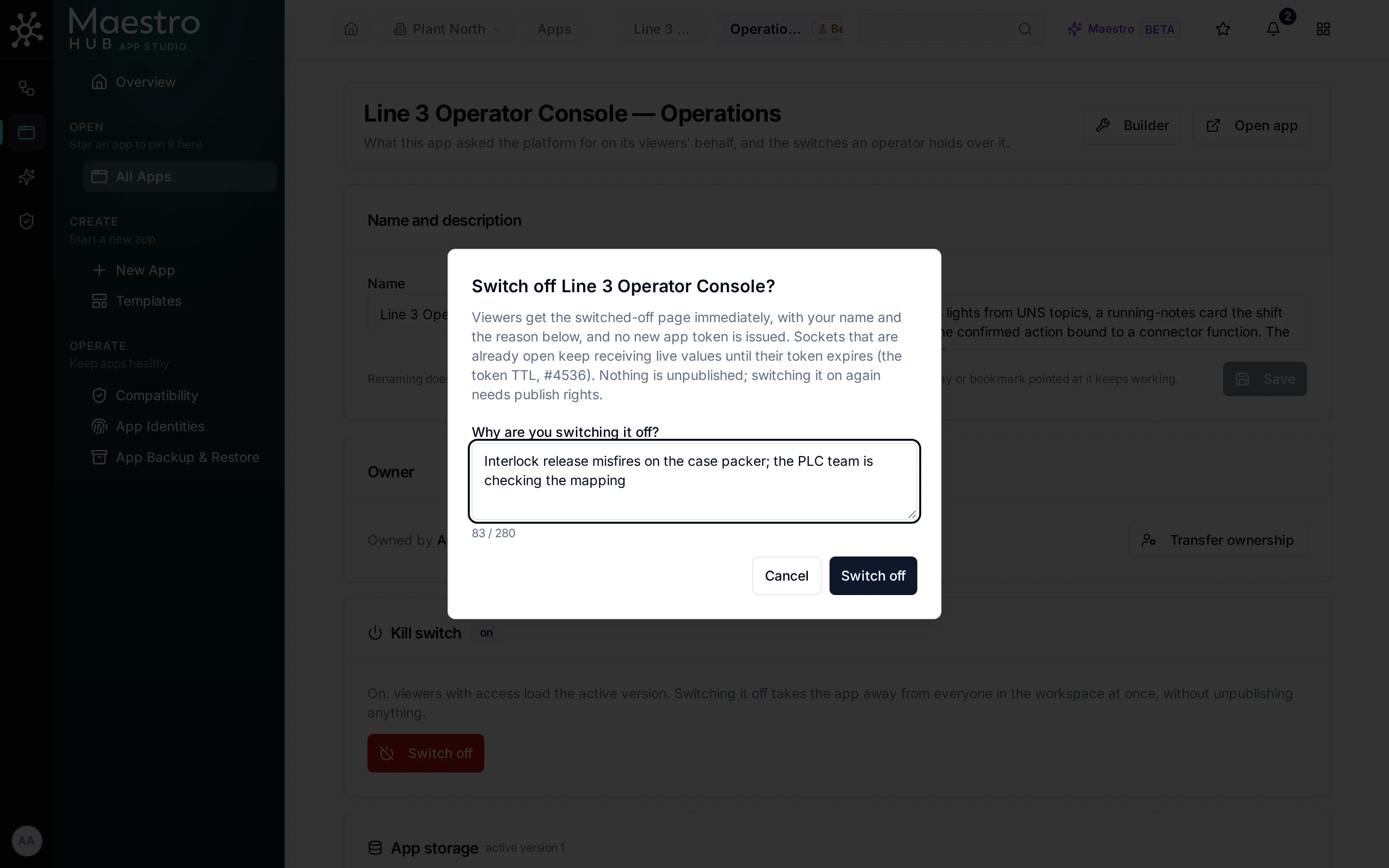
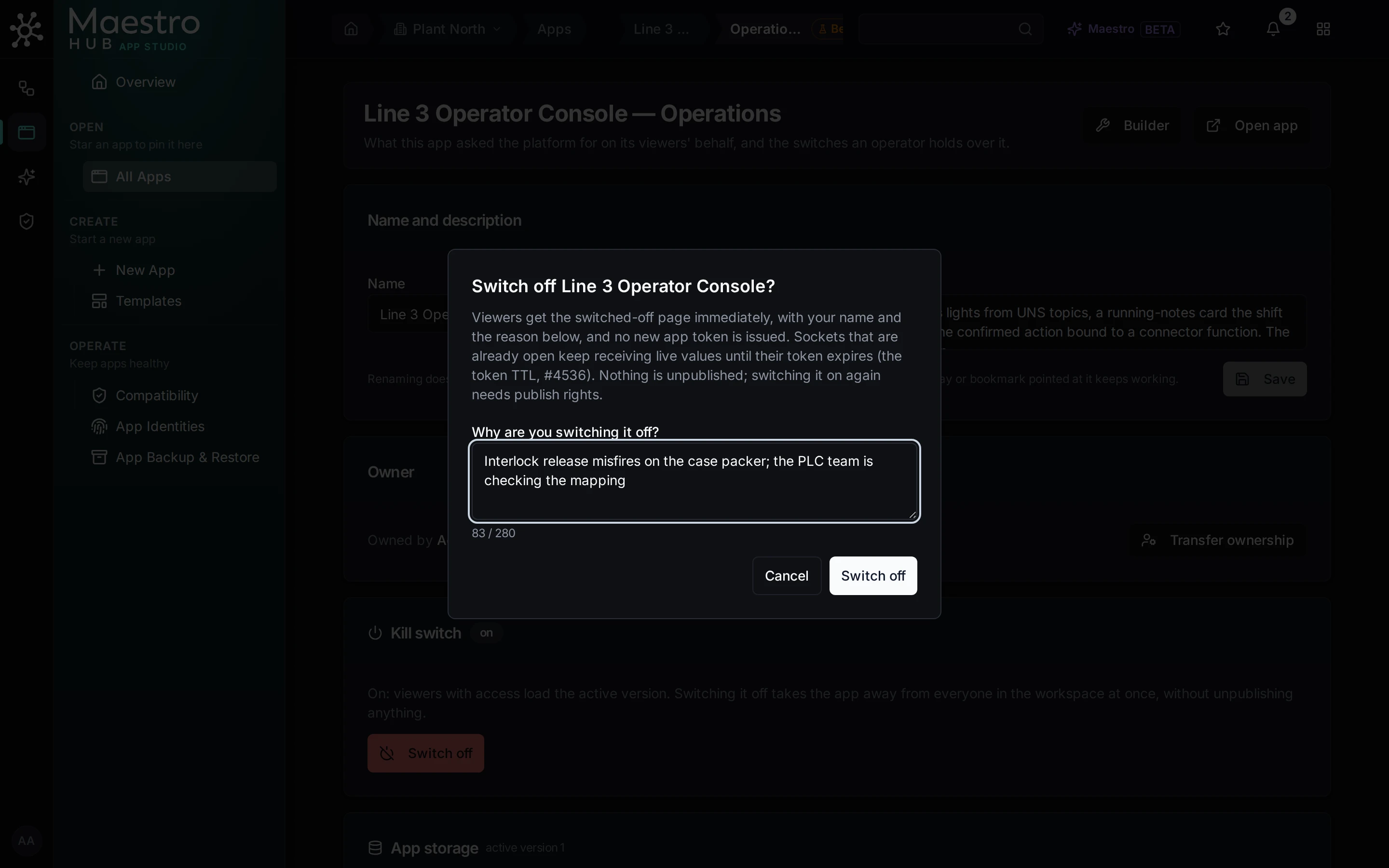
Switch off asks for the reason
The app is off for everyone at once: no new app token is issued, tokens already issued are refused on their next request, and live data stops at the next revocation sweep (about every 60 seconds by default). Nothing is unpublished or deleted, and the builder keeps working.
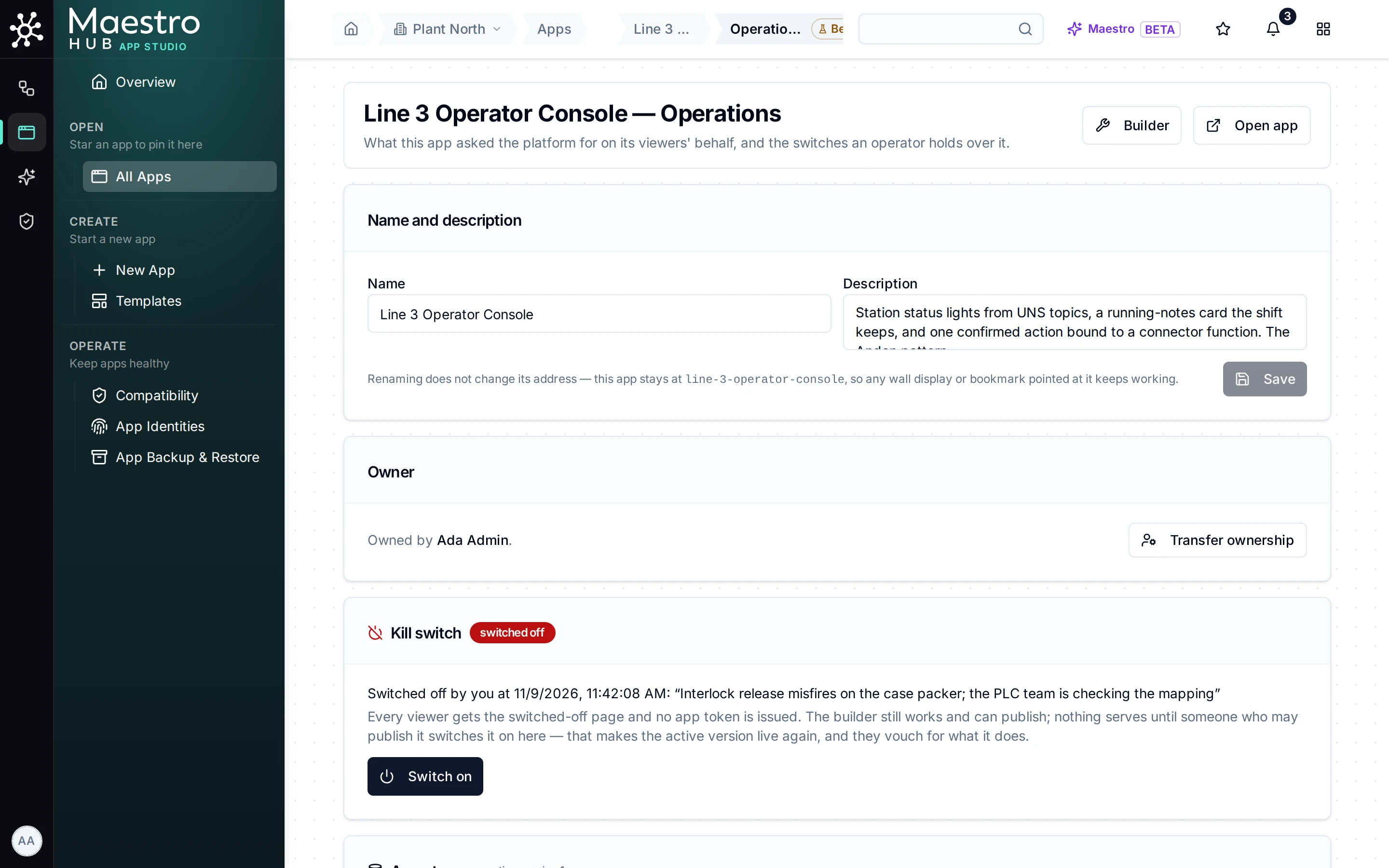
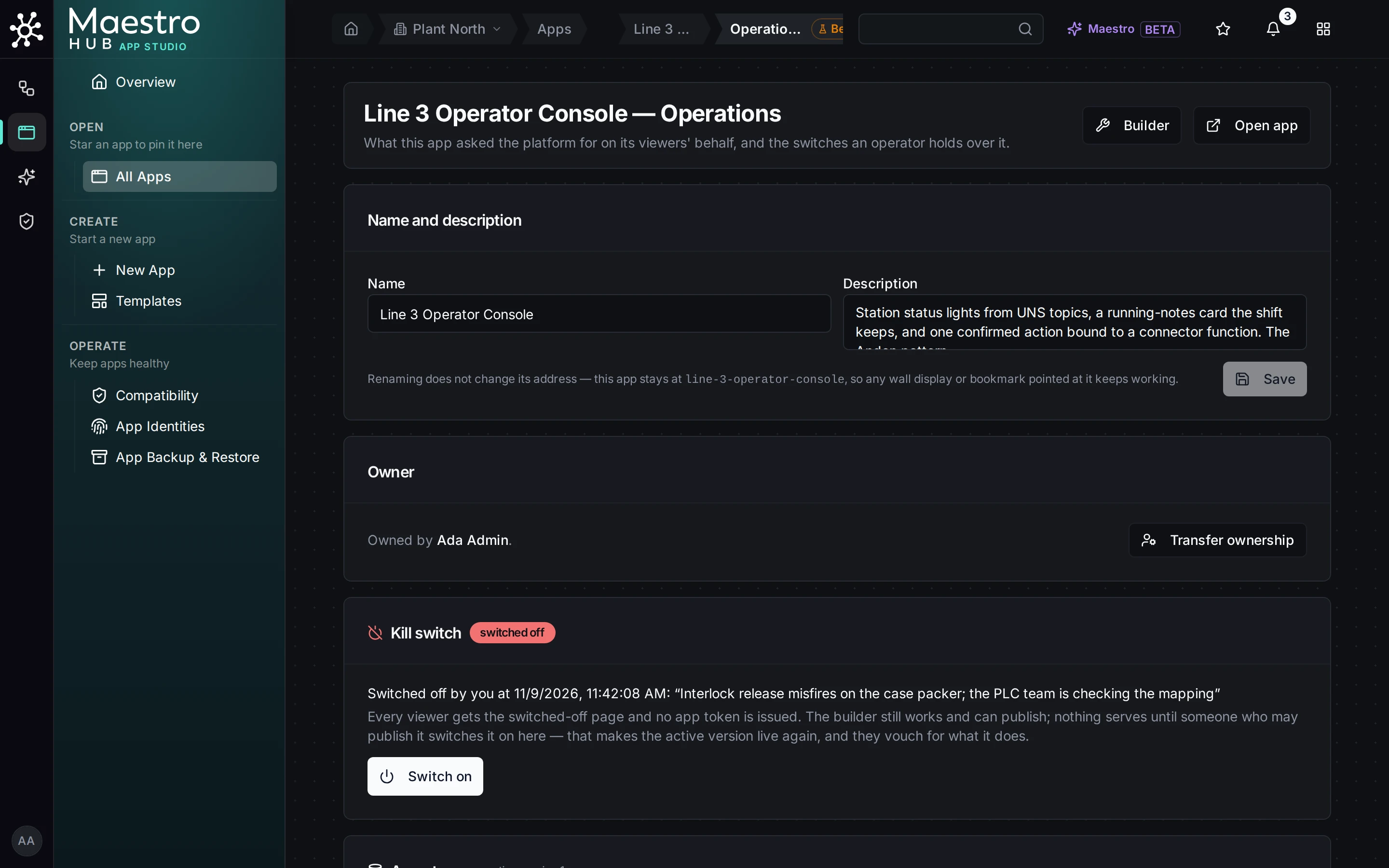
The kill-switch card: who switched it off, when, why, and Switch on
Olga, opening the app on the line, sees who switched it off, when, why, and who can switch it back on:
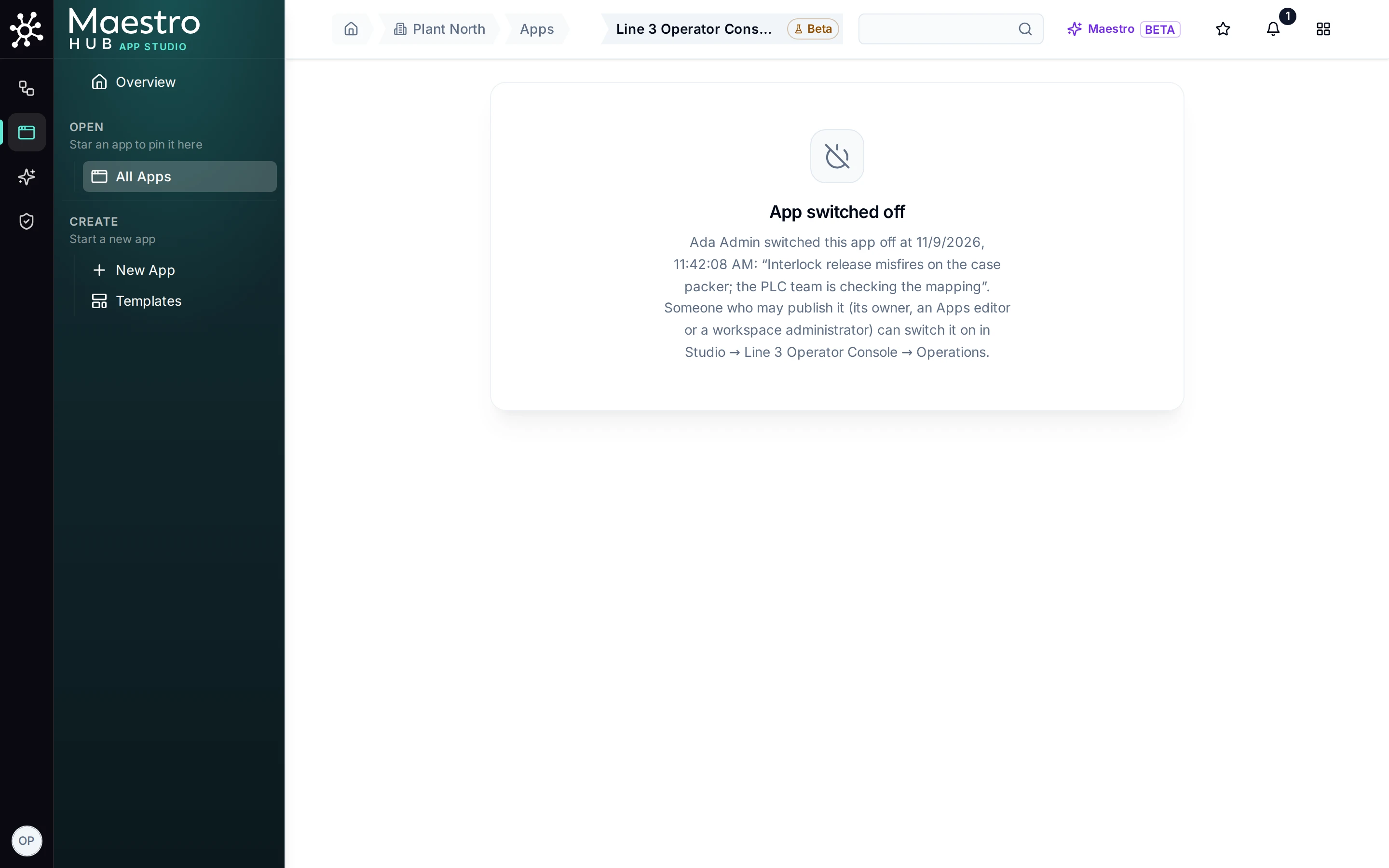
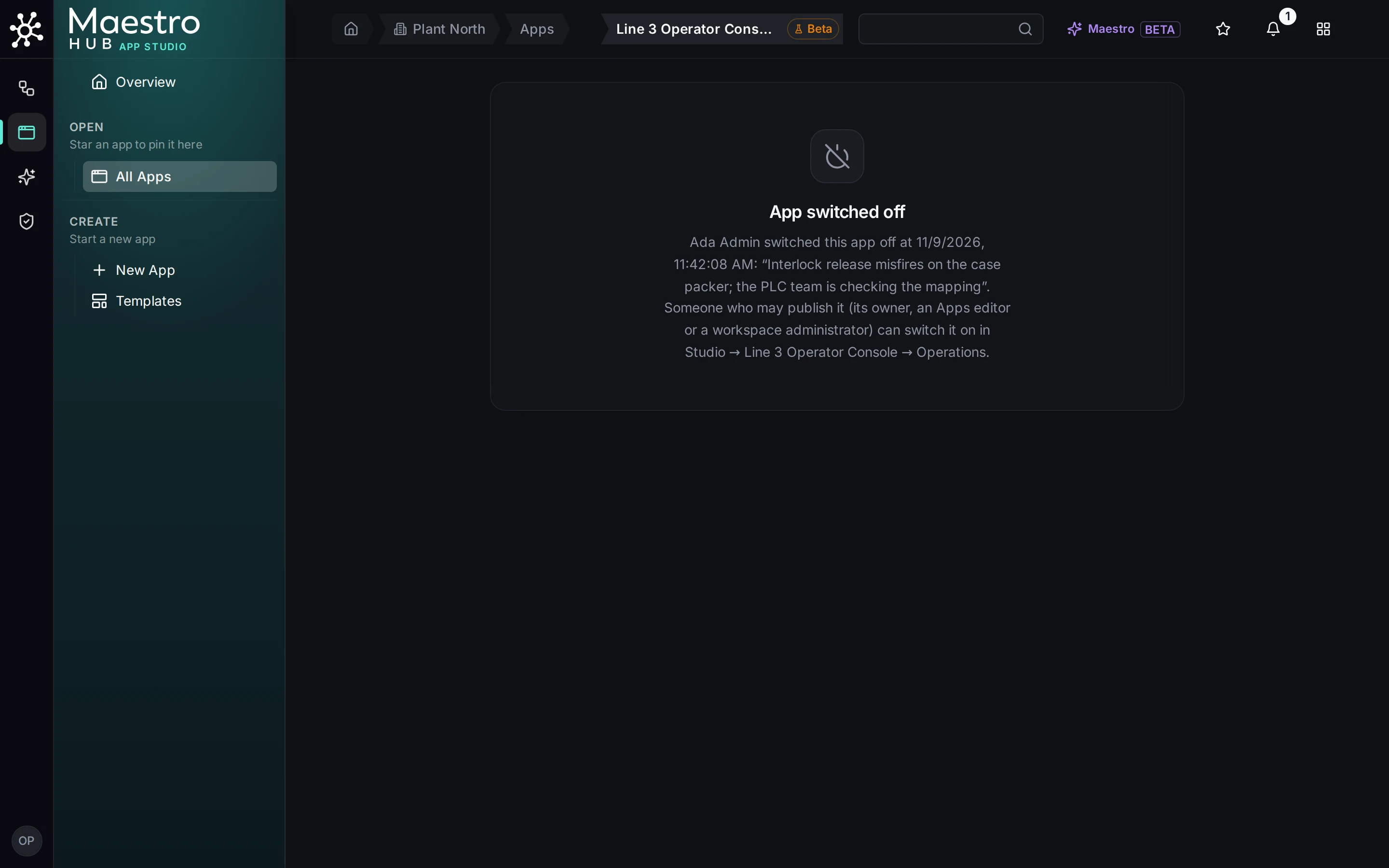
What a viewer sees: who, when, why, and who can switch it on
Anyone who may edit the app can switch it off; an AI client can too. Switching it on is a go-live decision: it needs a signed-in person who may publish the app and passes the same door as a release. People who may not see the button disabled with that reason.
9. Rolling back
Rather than wait for a fix, Ada can put the previous version back. The builder's History tab lists every version with its runtime; Activate on an older version serves it again, after a confirm that shows the scopes viewers will be granted. The draft is not touched.
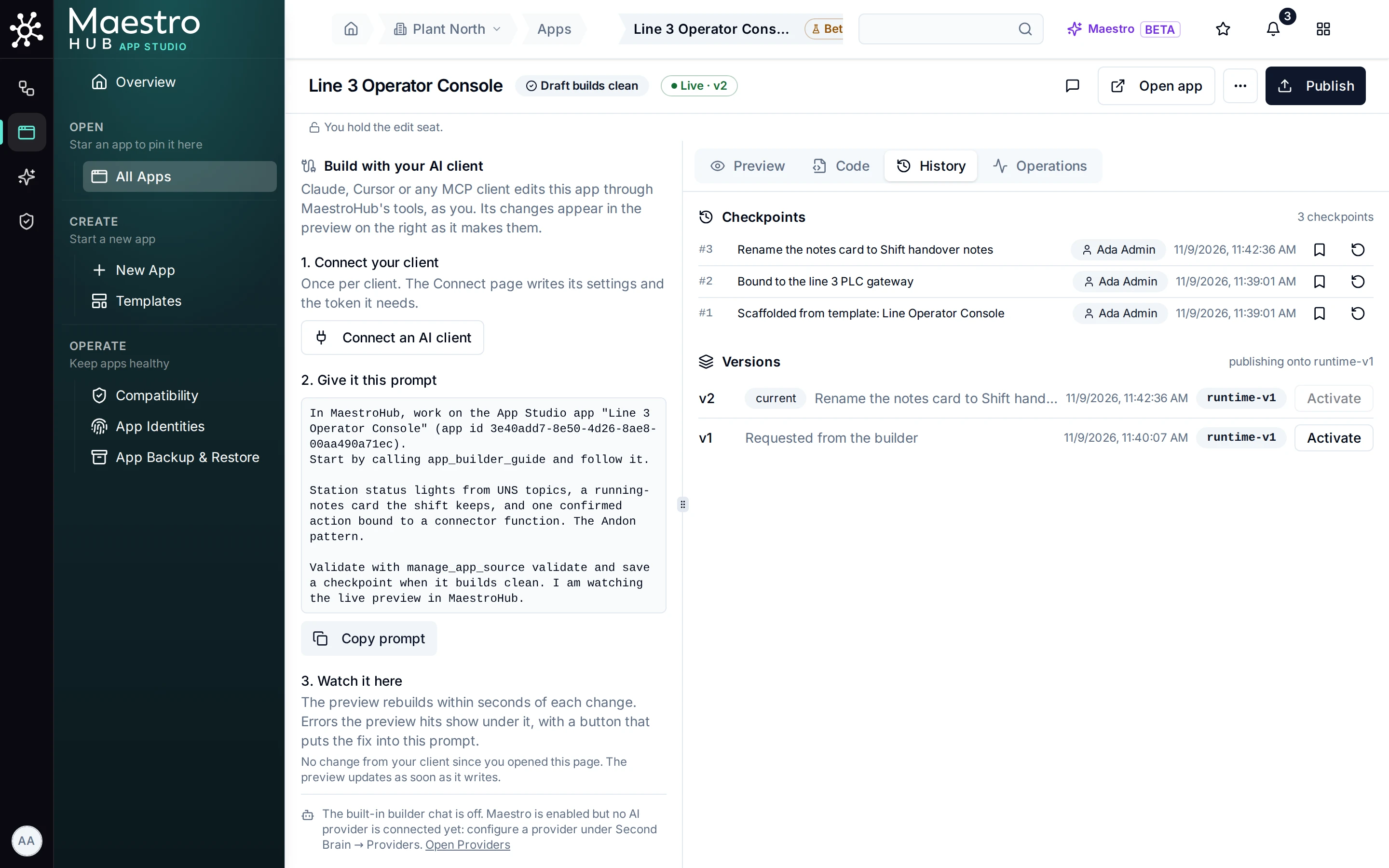
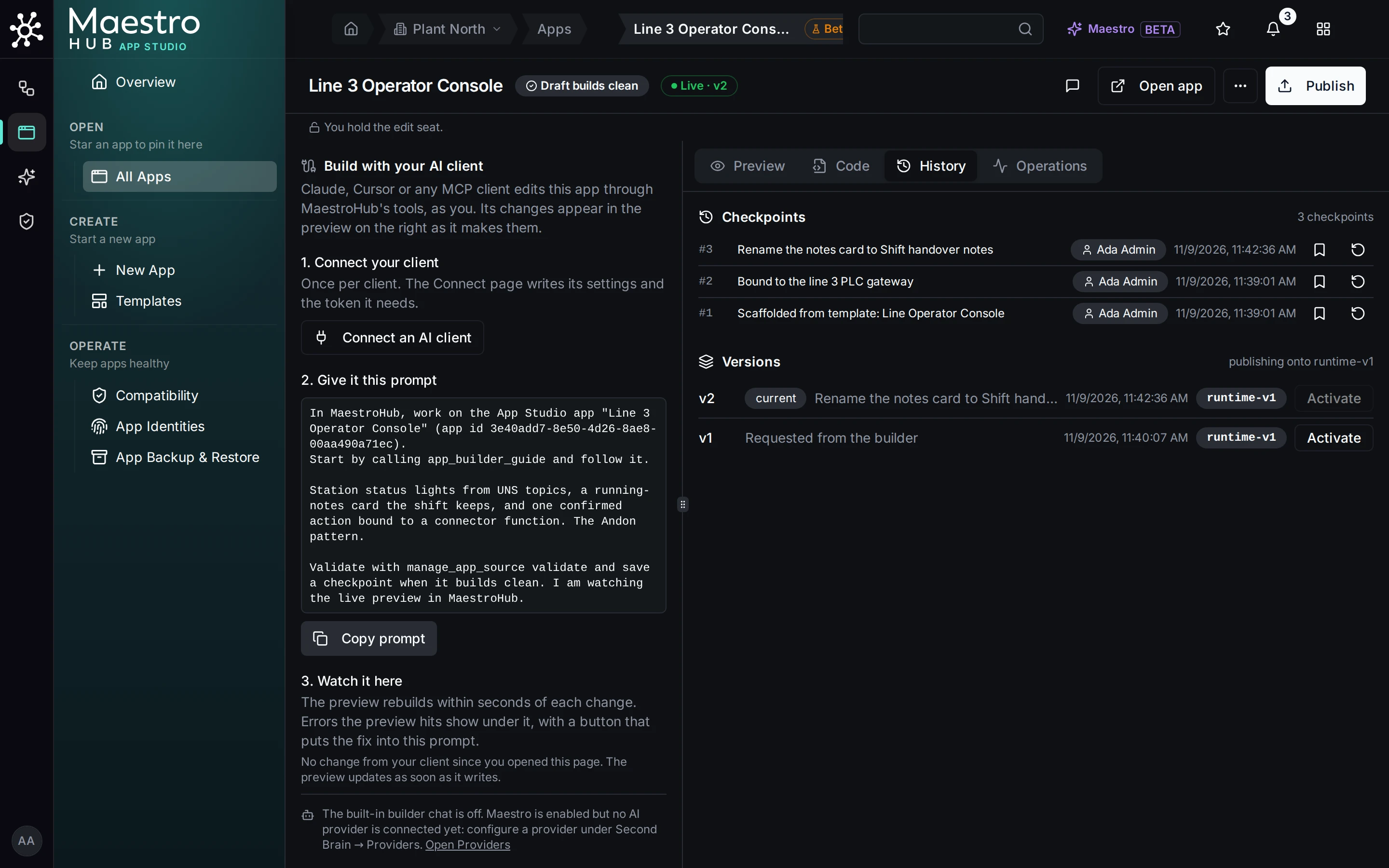
History: checkpoints of the draft, and every published version
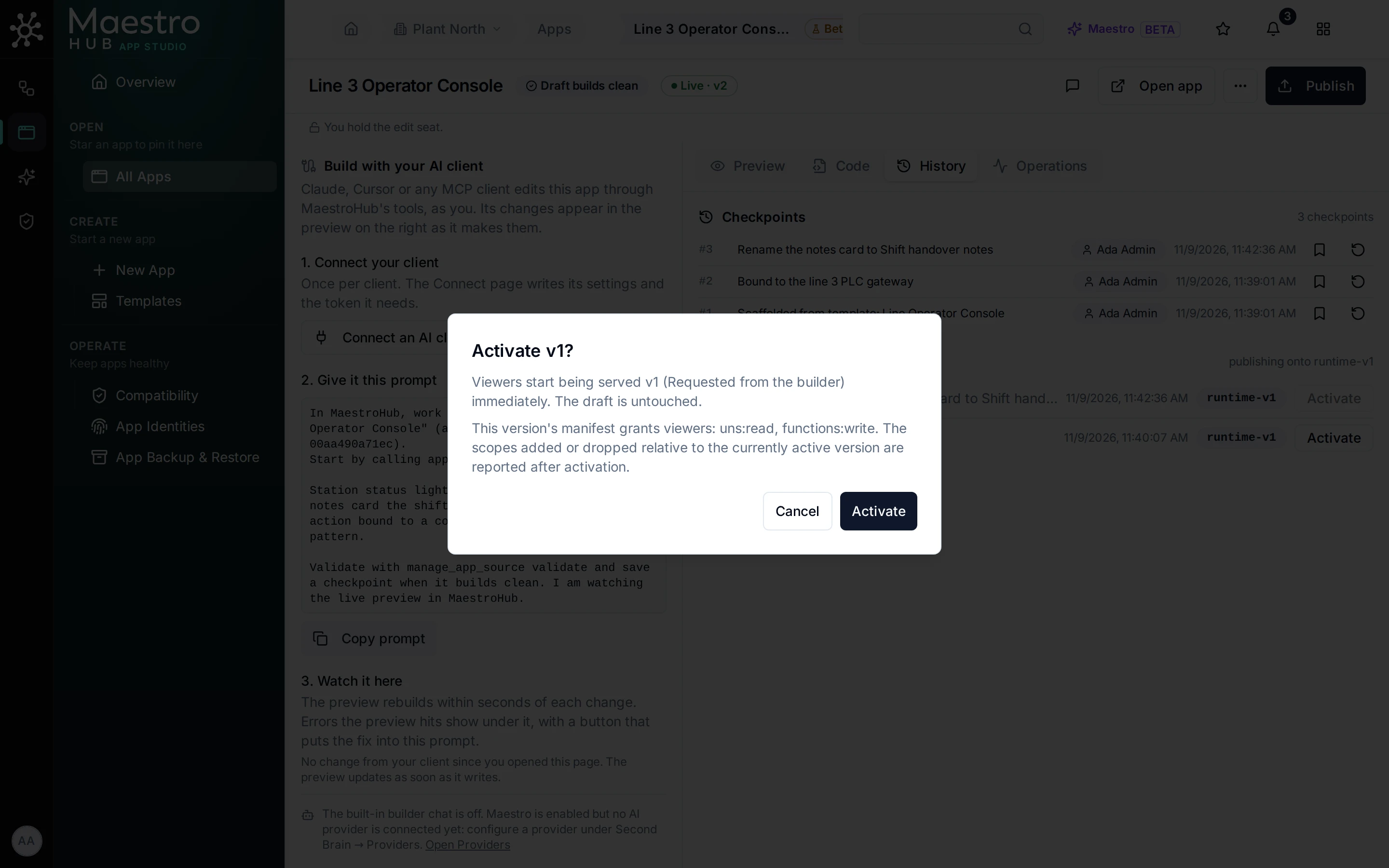
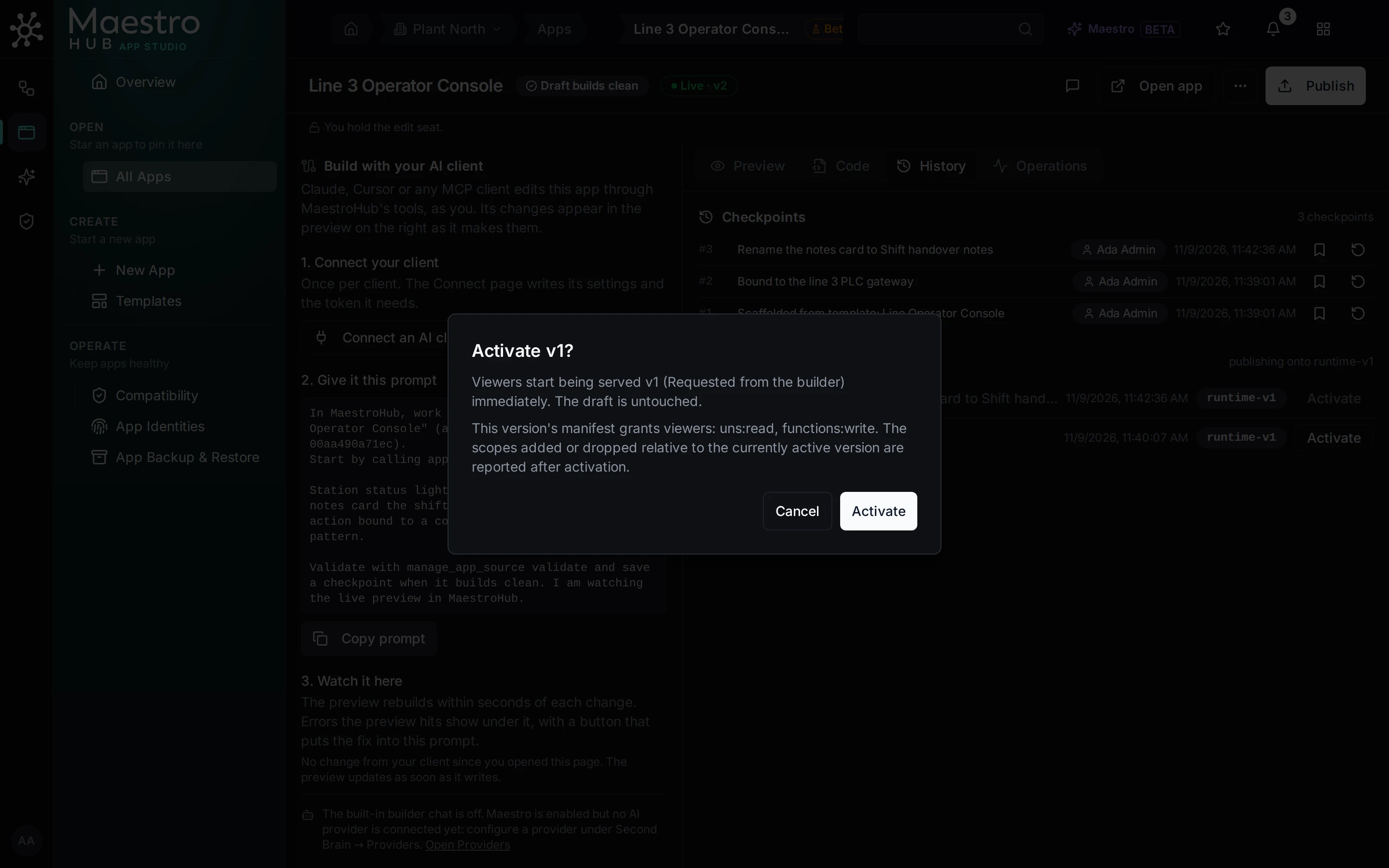
Rolling back to v1: one confirm. New opens get v1 at once; screens already showing the app switch over when their app token is renewed, within 5 minutes
A rollback goes through the same go-live door as a release (it needs app:publish and a person), and the audit row says rollback.
10. Backup and restore
App Studio → App Backup & Restore (needs app:backup) downloads one archive of the workspace's App Studio: every app, version, checkpoint and stored document, with each app's git history, so the two cannot drift apart. Restore reads the same archive back, and by default refuses if the workspace already has apps.
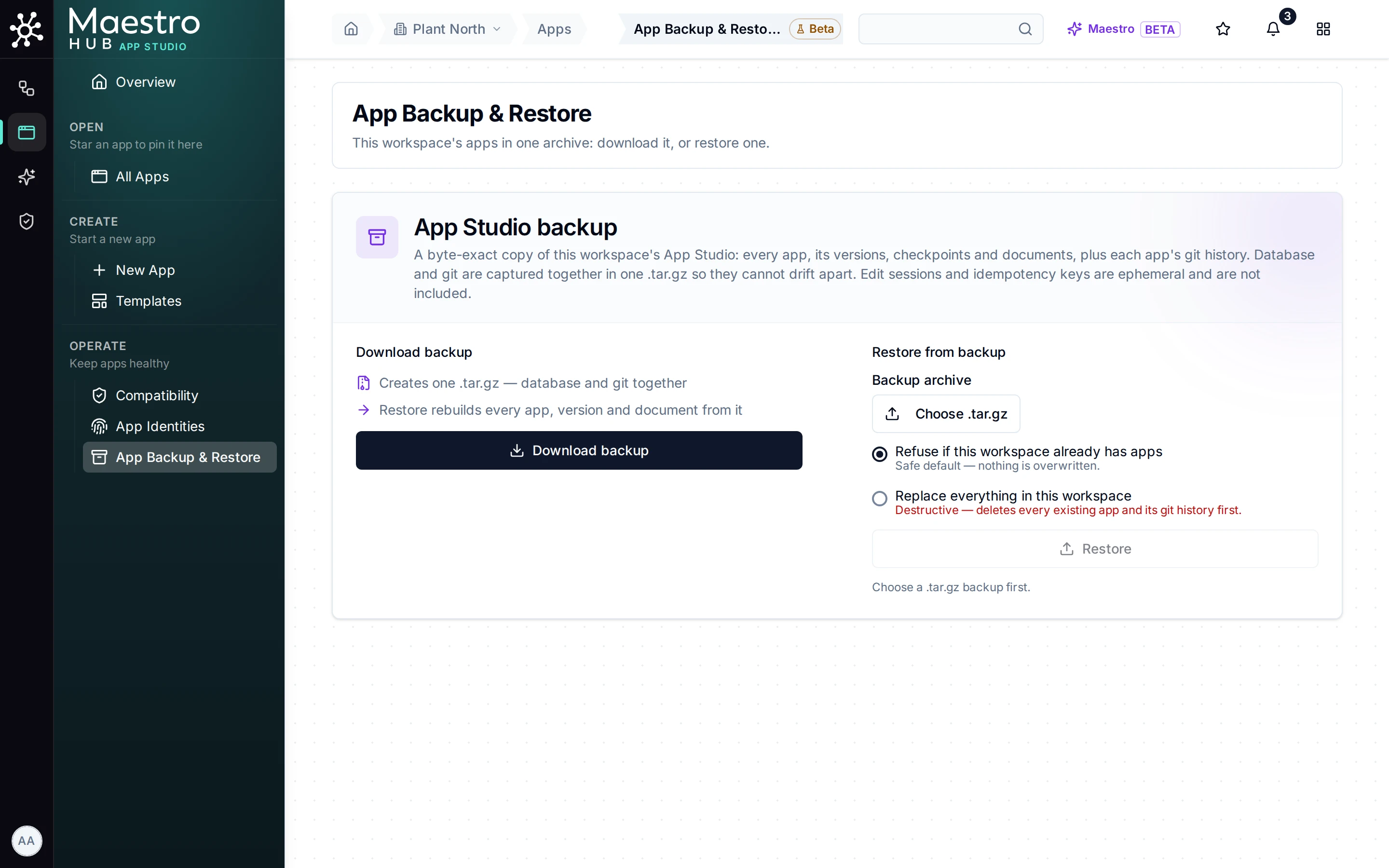
App Backup & Restore: one archive, database and git together
Restored apps that were live come back switched off, with "restored from a backup" as the reason: putting a restored app back on line is a release decision for a person who may publish it. Shares and an app's own rights are never read from an archive. The details, and what a file-level backup must include, are in Backup and restore.
11. Operating it
Two pages tell you how apps are doing.
App Studio → Overview is the front door: how many apps are live, what needs attention (only what you can fix), your apps, and, for people who may publish, the App Studio health panel: calls, denials, rate limits and errors per minute across every app.
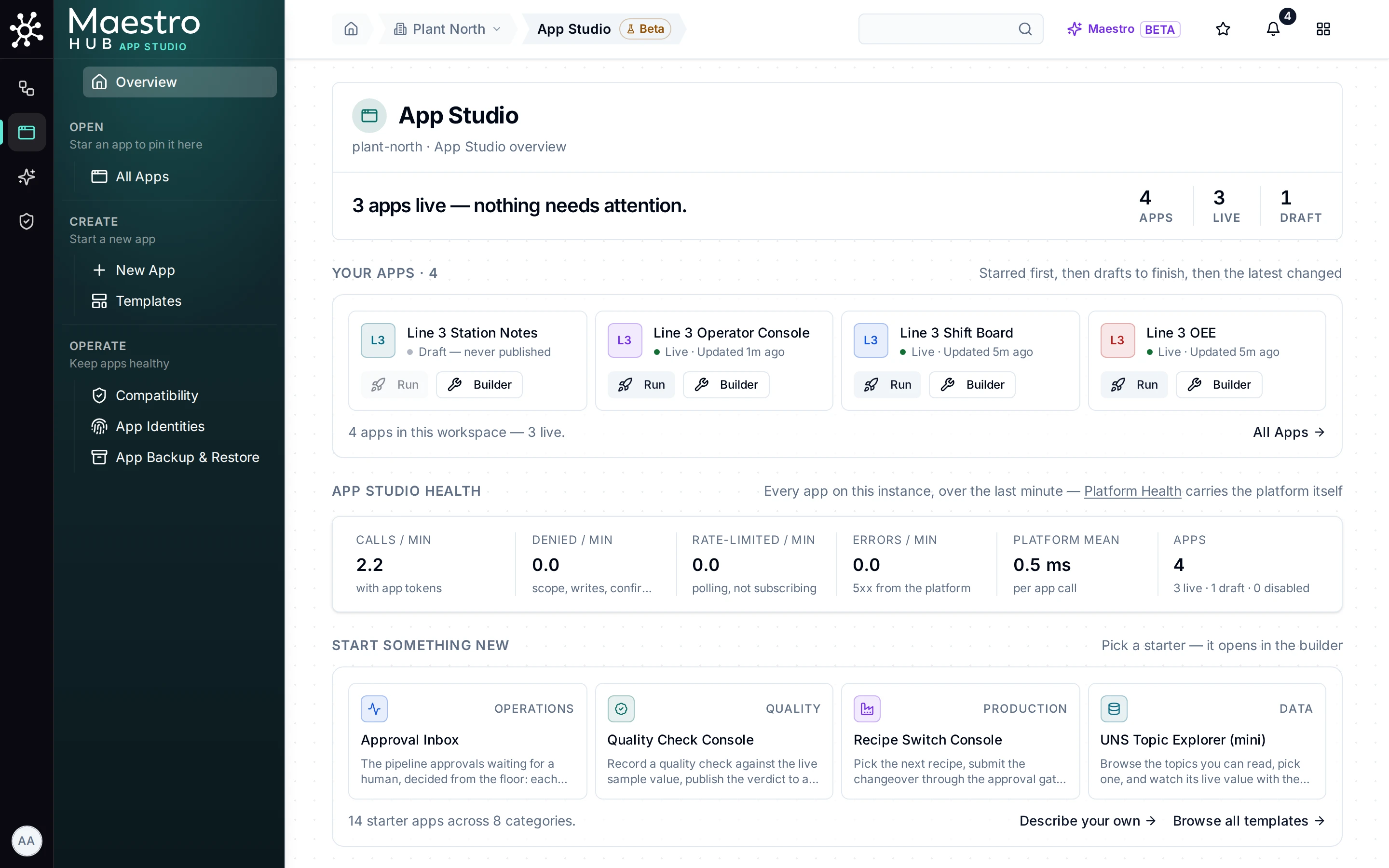
App Studio Overview: the state in one sentence, your apps, and the health of every app over the last minute
Each app's Operations page (needs app:update) holds its name and description, its owner (and Transfer ownership for workspace administrators), the kill switch, and what the app asked MaestroHub for on its viewers' behalf: calls, denials, errors and timing per kind of data, the notable calls, and problems the app reported, such as an app that keeps leaving its page.
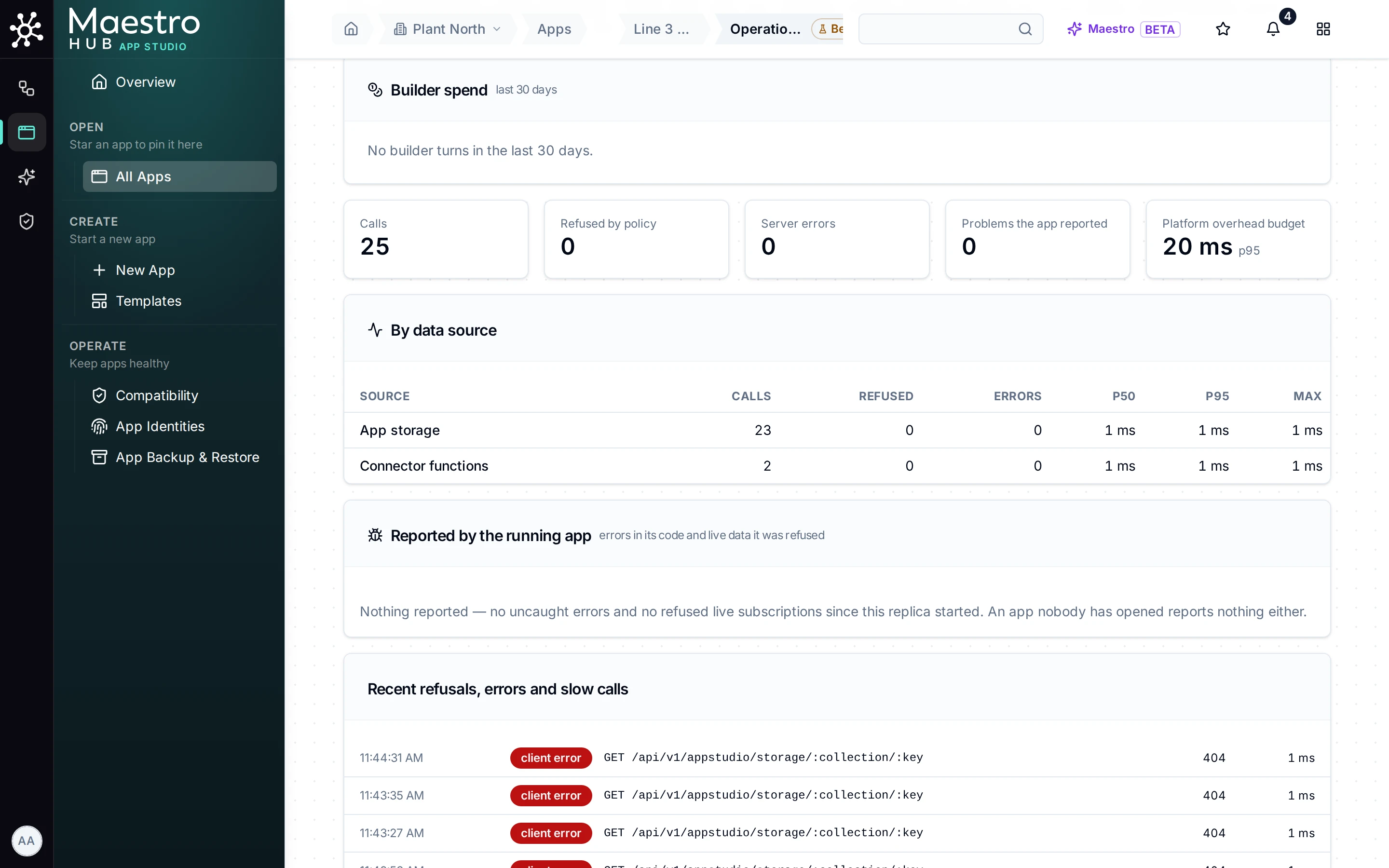
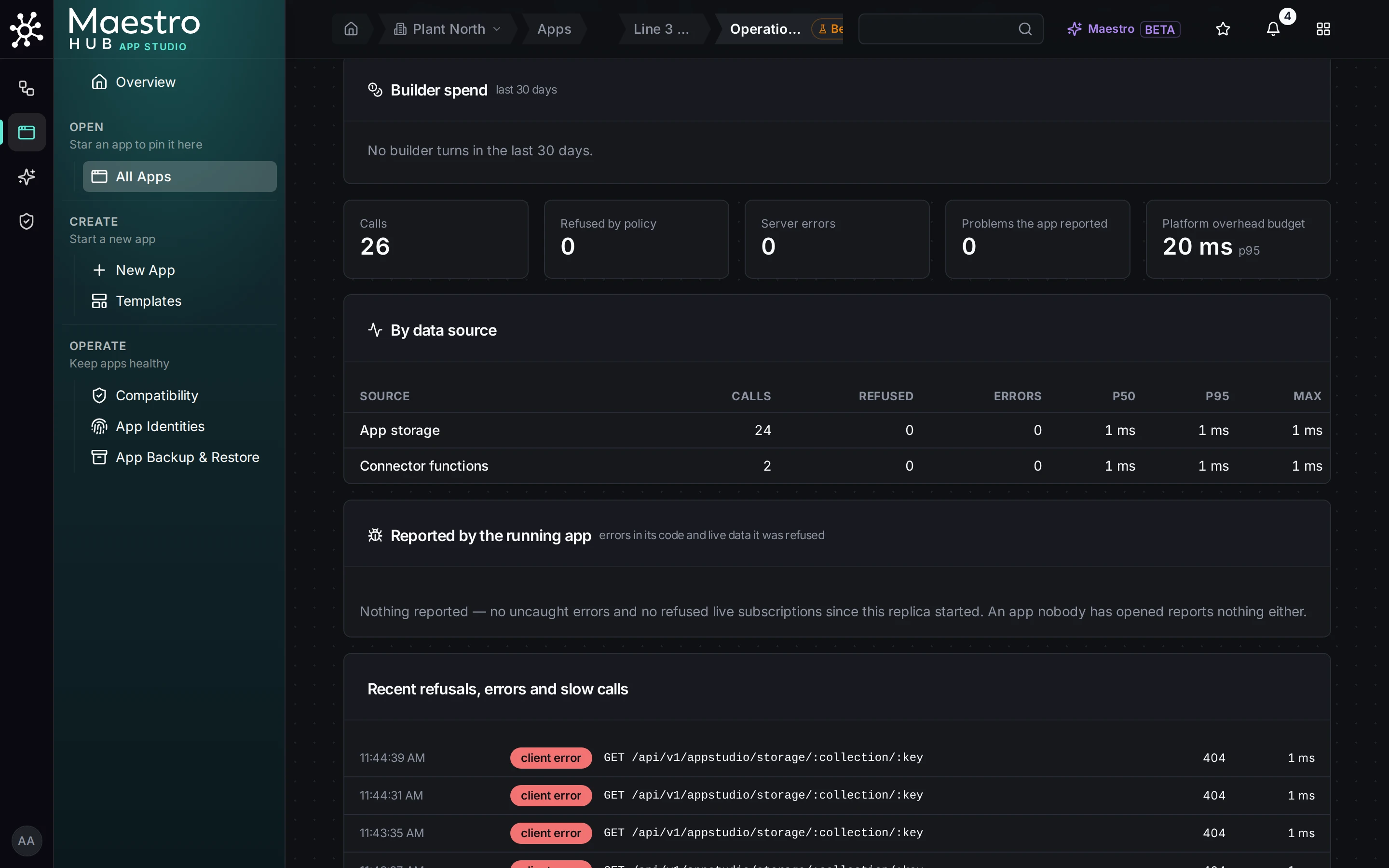
The app's Operations page: what the app asked for, per kind of data, since MaestroHub started
These figures are kept in memory and start again when MaestroHub restarts. For alerts and long-term figures, App Studio exports Prometheus metrics and ships alert rules; see Operations. Writes an app makes are in the audit log with the app and version that made them: each confirmed write is its own row, recording who confirmed it and what the dialog showed; repeated plain writes are one row per person, app and action per minute, with a count. Reads are not audited.
What happens when people leave
Apps outlive the people who built them. When the owner's account is deleted, ownership moves the way it does for every other resource: to the workspace's designated owner if one is set, otherwise to a workspace administrator. A live version stays live. If the app has actions that act as the app itself and the person who approved it leaves or is deactivated, the app keeps running and the people who can publish it are told once that the next release must be approved by someone who holds what those actions do. Nothing is revoked because someone left.
Where to go next
- How App Studio works now: the same product person by person, with the rules each person meets.
- A live 3D view of your plant: a use case, on the Demo Plant with no AI, then on your own line.
- Why App Studio: when an App Studio app is the right tool, and when a separate application is.
- FAQ: DNS and certificates, proxies, what an app can reach, licences, upgrades.
- Builder guide and Operator guide: every step above in full.
- Templates: the starter apps and showcase apps.