A live 3D view of your plant
Beta: every machine in 3D, moving on its own signal from the namespace, with each stage's cycle time, uptime and OEE beside it. Start on the Demo Plant with no AI, then point it at your own line.
- Fastest route
- Demo Plant + the Trabzon in 3D app, no AI
- Your own line
- Production Line Twin, adapted by your AI client or by Maestro
- Needs
- App Studio; the Demo Plant for route 1
App Studio is in release 3.0 as Beta: a paid add-on that no edition includes by default. A licence or a trial licence that includes the app_studio feature switches it on. The module is on by default, so the licence decides. The Demo Plant is also in release 3.0 as Beta, an add-on; the free trial includes the Demo Plant but not App Studio. Names and steps may change while both are in Beta.
A plant in 3D is a picture people understand at once: which machine is stopped, which tank is low, where the line loses time. In App Studio it is an ordinary app, built with the 3D scene kit (@maestrohub/scene). The app draws the halls, lines, machines and pipes from a scene description, src/scene.json, and moves each machine with its own live signal from the namespace. It runs, shares, goes live and is switched off like any other app (App Studio, start to finish).
There are three ways to get one.
Route 1: no AI at all, on the Demo Plant
The Demo Plant is a simulated bottling plant, Trabzon, that runs inside MaestroHub: a Mixing Hall that blends and pasteurizes syrup, two bottling lines, and an Energy Centre with a boiler and a compressor (Demo Plant). When a platform administrator enables it into an empty workspace on an instance where App Studio is licensed, it also installs two App Studio showcase apps, made live under that administrator's name through the same go-live check as any release: Line Pulse and Trabzon in 3D. Without App Studio the plant runs without its apps.
Open Apps → Trabzon in 3D. The whole plant is drawn from the plant's own model, and every machine moves with its own signals:
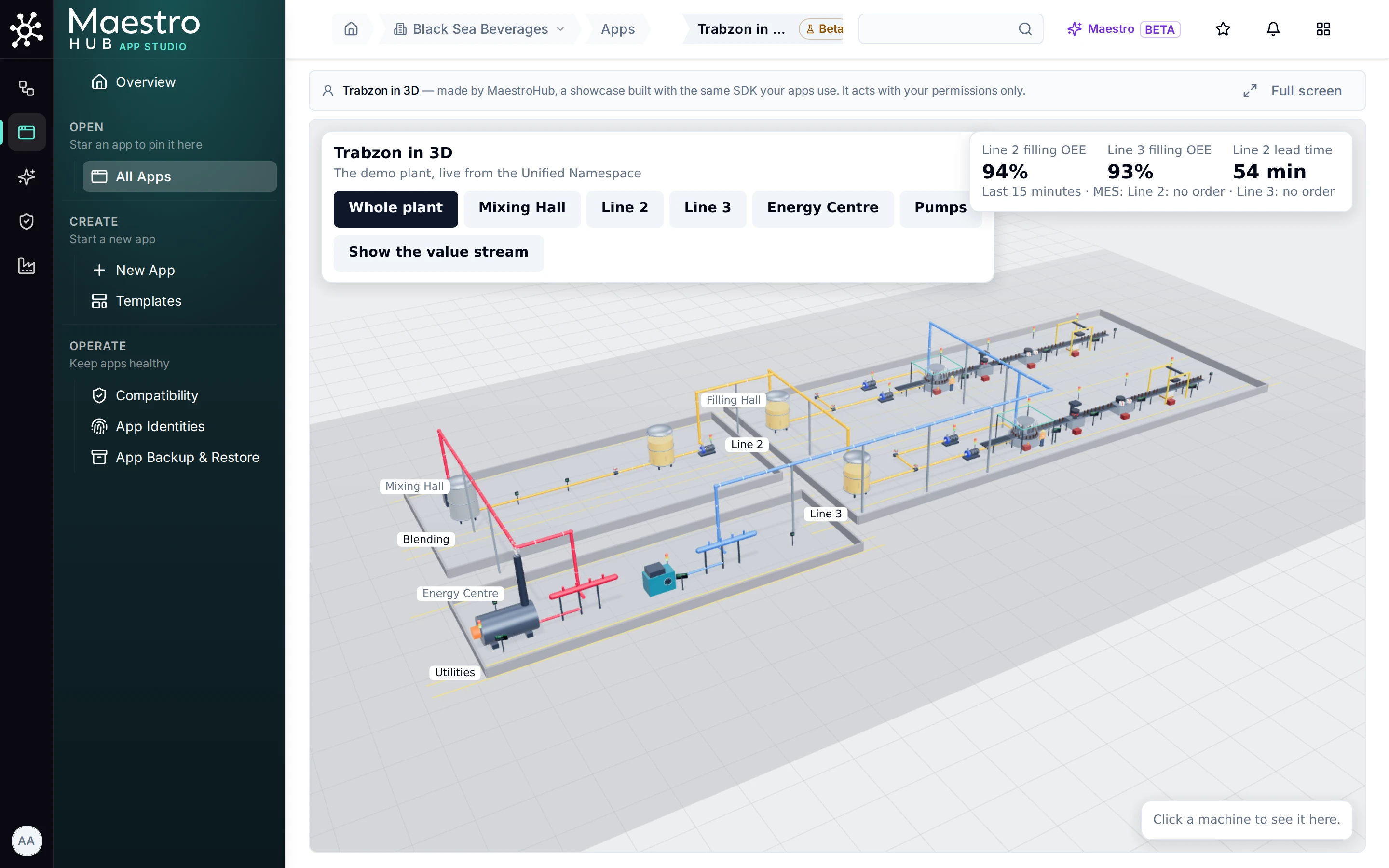
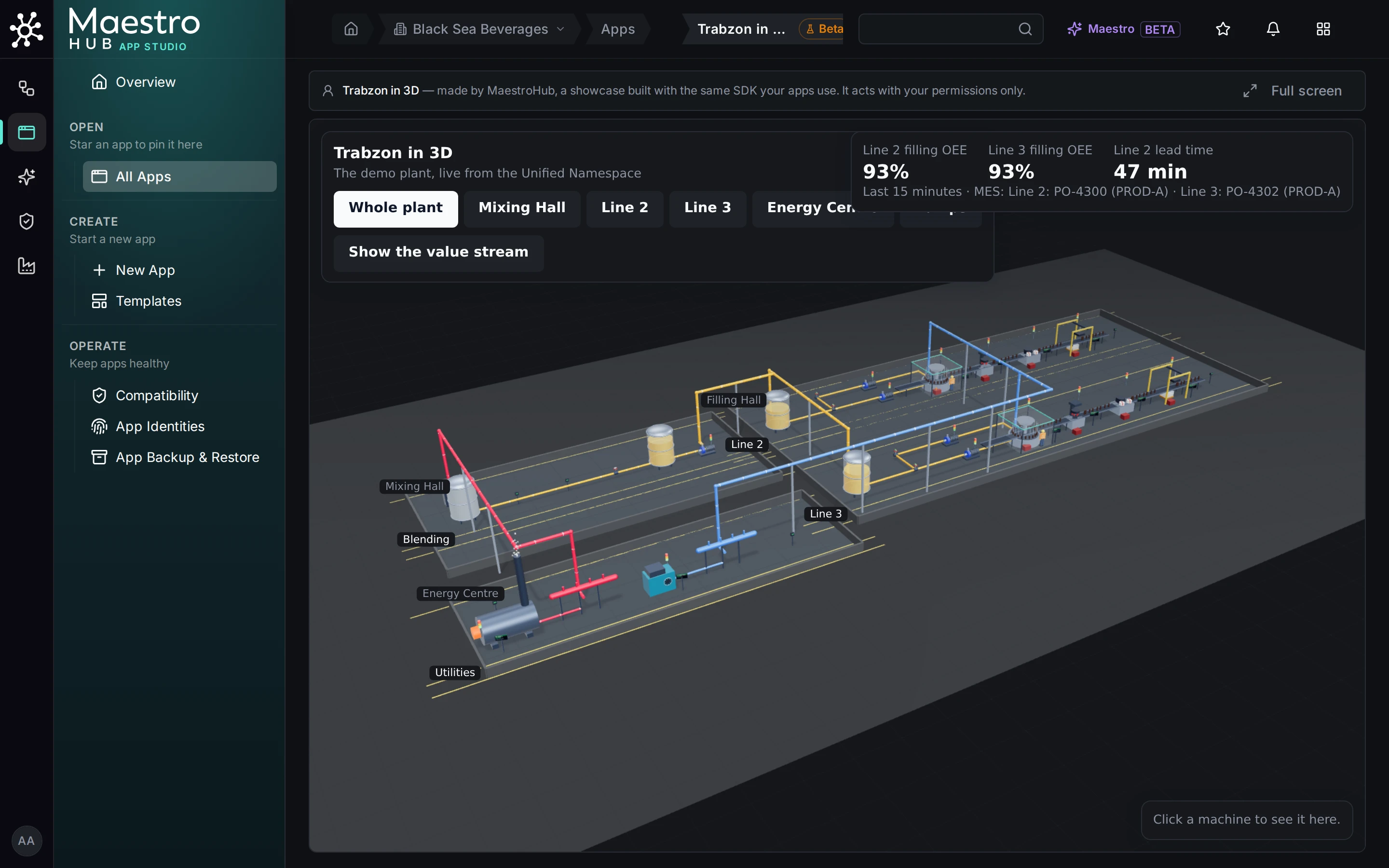
Trabzon in 3D: the Demo Plant live, every machine labelled with its own value; the view buttons jump to a hall, a line or the pumps
Click a machine, or its label, to see its state and its readings as they arrive:
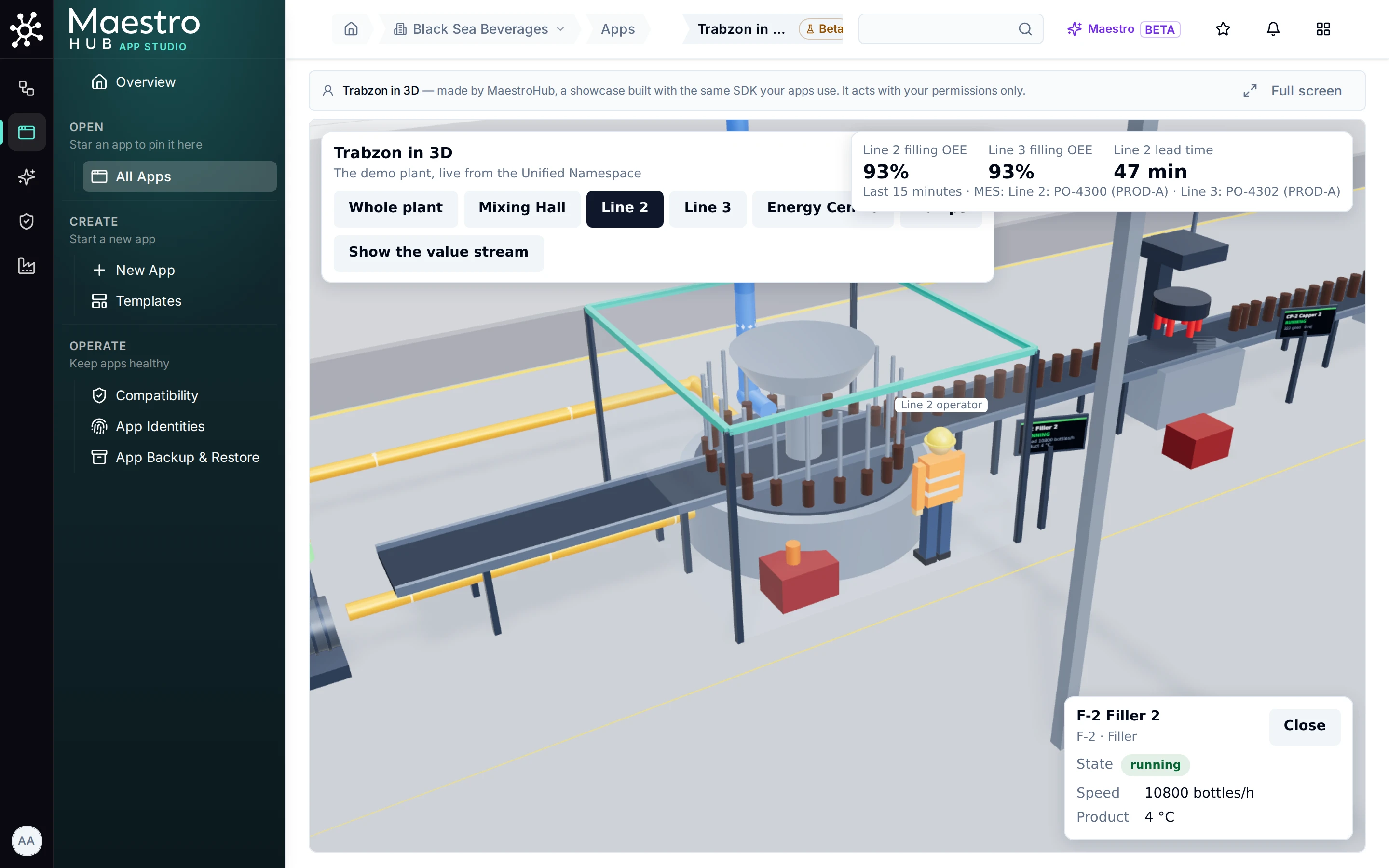
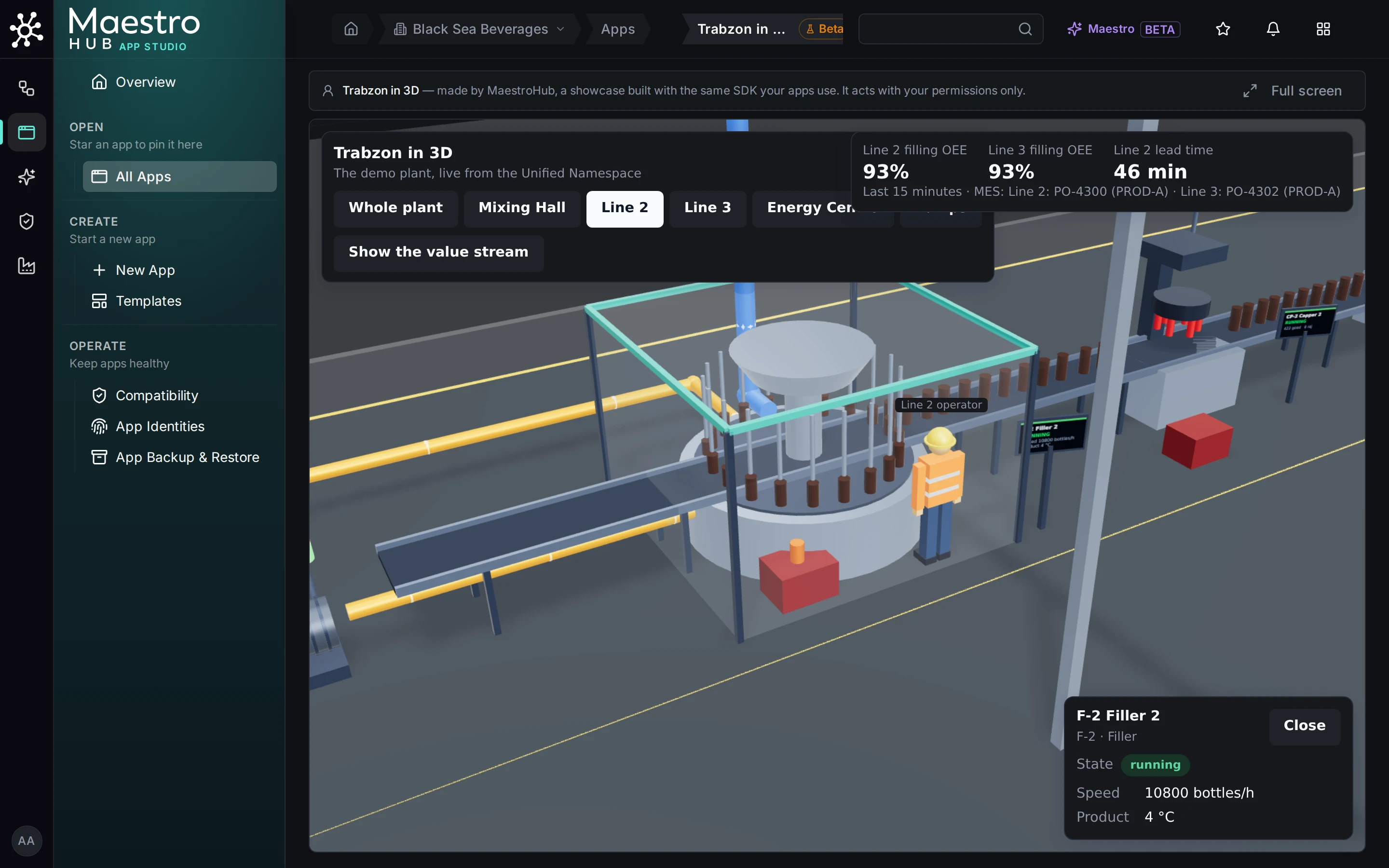
A machine clicked: Filler 2, its state and its live readouts
Show the value stream adds each stage's cycle time, uptime and OEE, the syrup inventories between the halls, the lead-time ladder and the stage losing most right now. Value stream map opens the same figures as a flat map. The figures are computed by the plant's own pipelines (its summaries pipeline, every 30 seconds), not by the app.
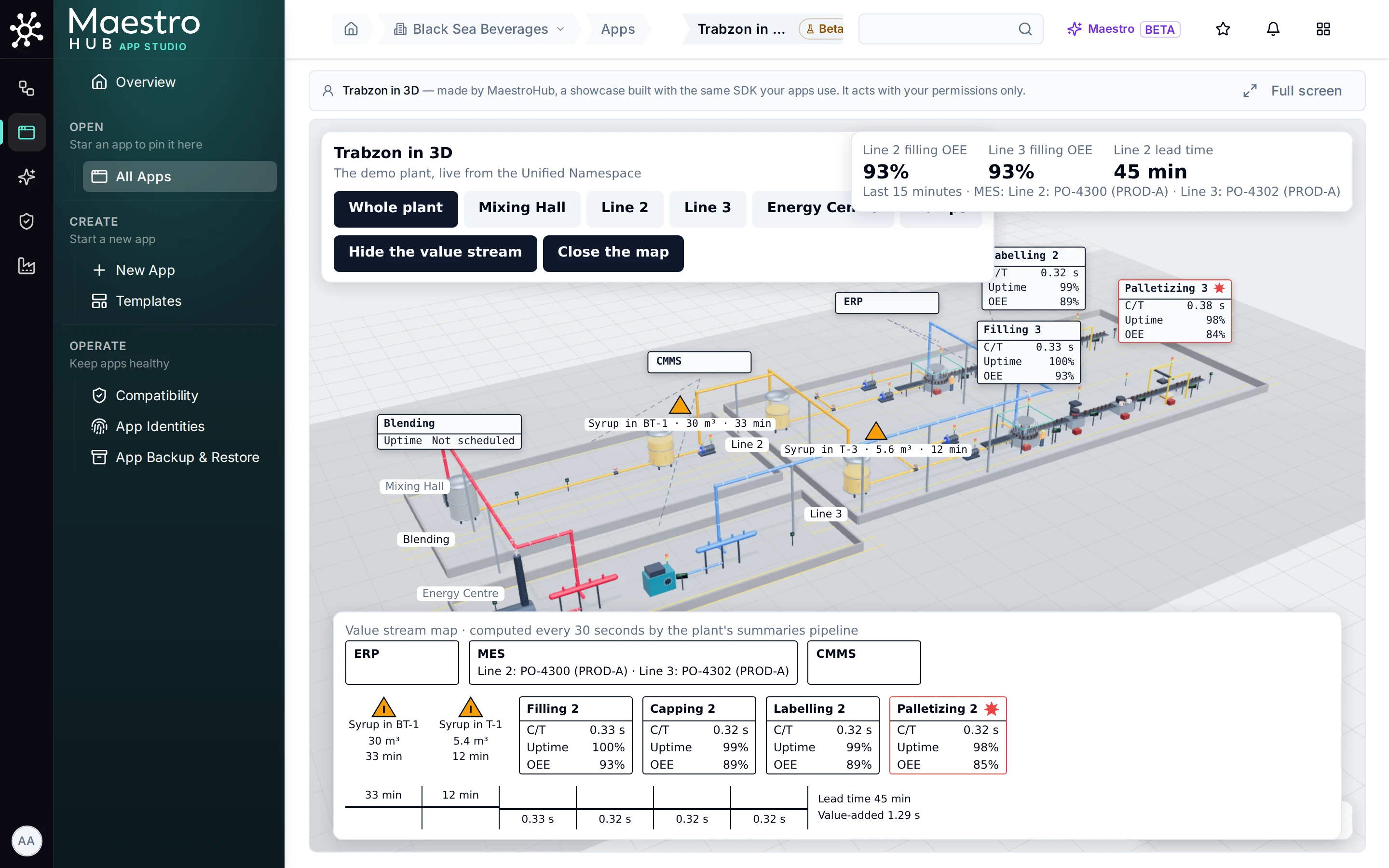
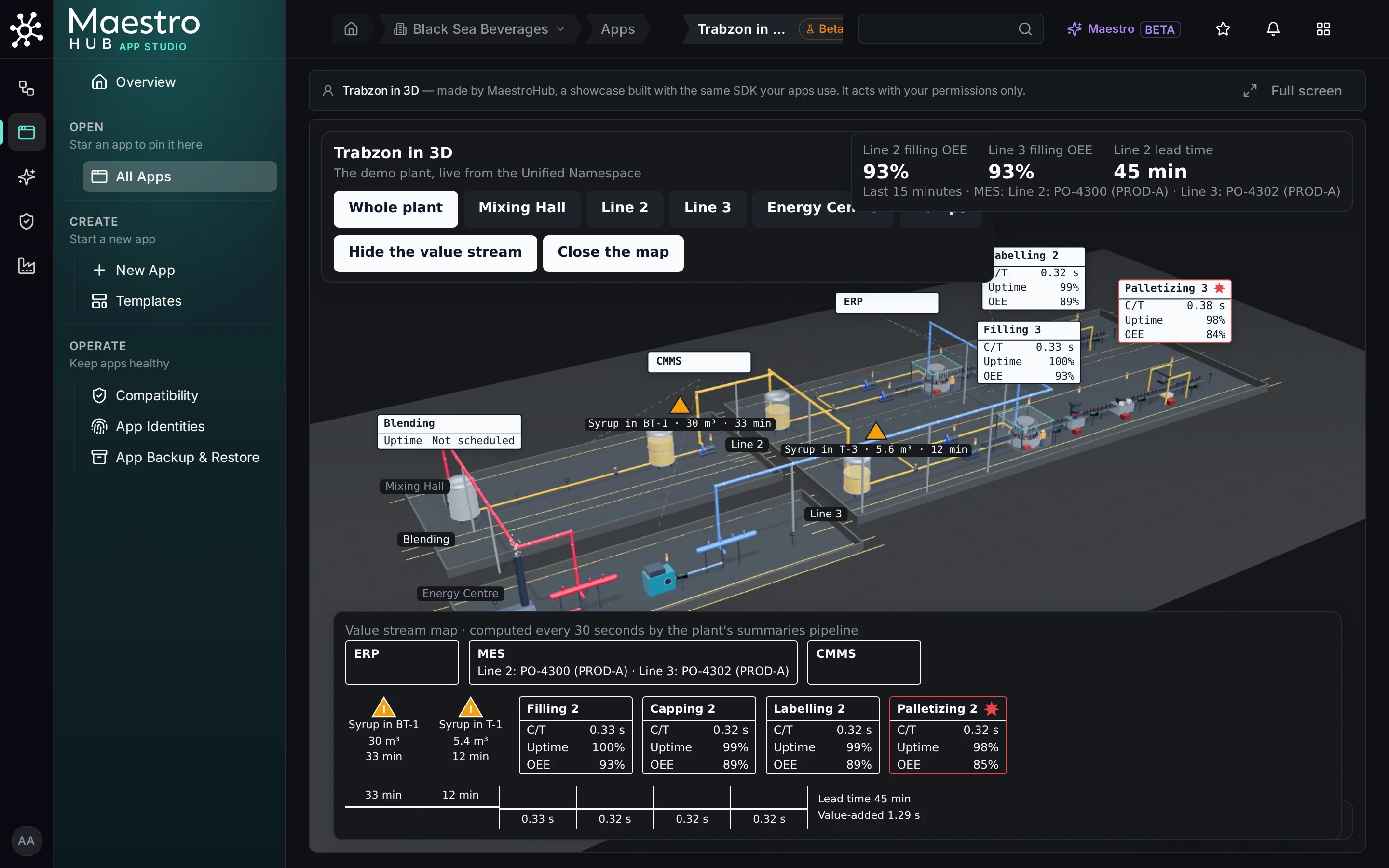
The value stream: each stage's figures, computed by the plant's pipelines
The app needs no setting. Its manifest binds a topic tree, plant, to mHv1.0/{workspace}/trabzon, and every topic in its scene is written below that root; the workspace fills in {workspace}, so in the Demo Plant's workspace it reads the plant's own topics. It reads only (uns:read): it never writes to the plant, and every person sees it within their own permissions.
The showcase apps are also listed on the New App page, Trabzon in 3D and Production Line Twin among them. Opening one there the first time makes it live in the workspace (which needs app:publish); after that, anyone who may run apps opens it, and a builder can clone it into an app of their own.
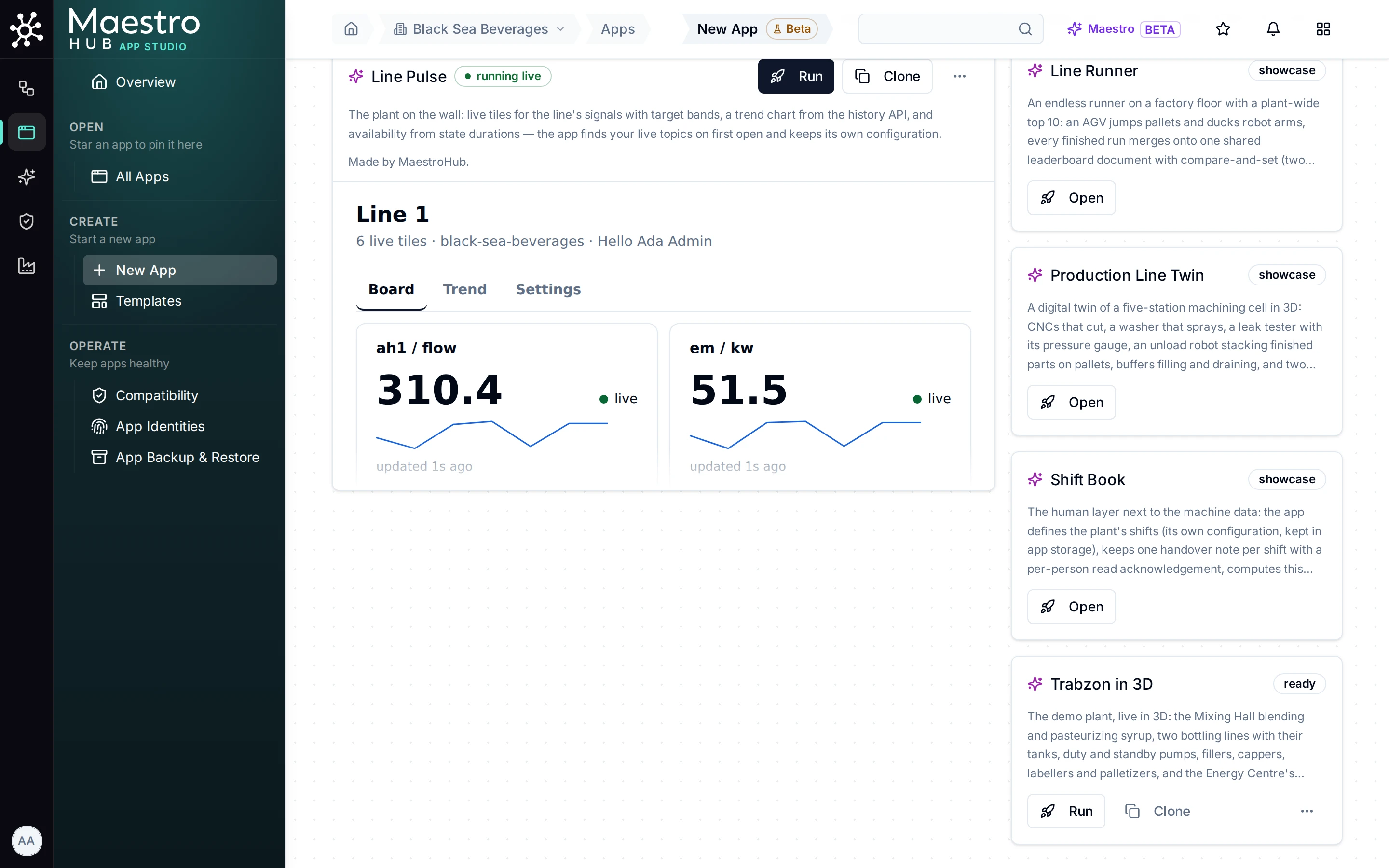
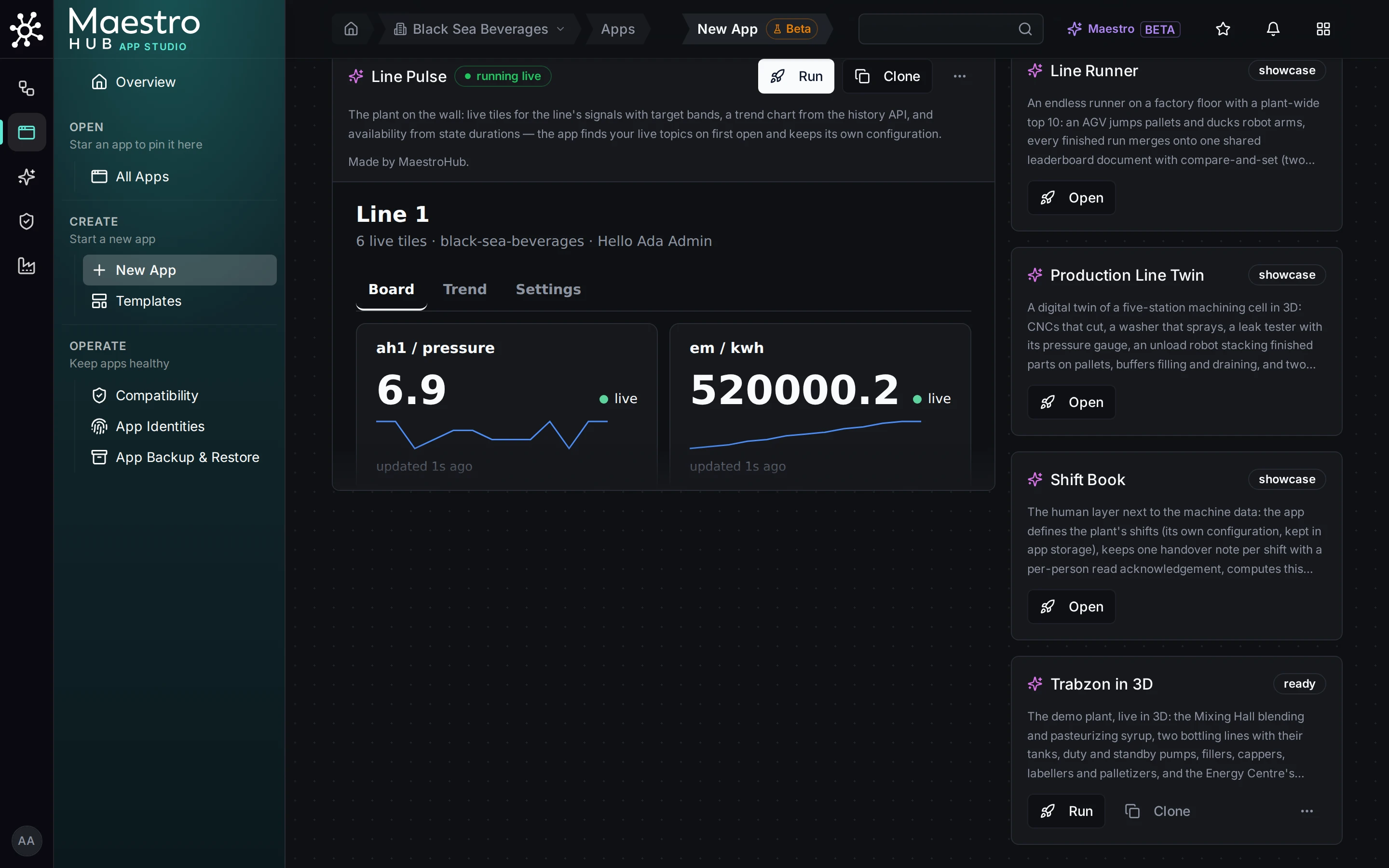
New App: the showcase apps, the two 3D ones among them
Route 2: your own line, with your own AI client
For your own line, start from Production Line Twin: a five-station machining cell in 3D with buffers, a pallet of finished parts, two operators, OEE at the bottleneck, a work order's progress and a panel for the station you click. Out of the box it runs on a built-in simulation of the cell, so it works before it is connected to anything.
The 3D templates read their topics through bindings by name: manifest.json binds a topic tree (cell in Production Line Twin, plant in Trabzon in 3D) to the root of the line's topics, and src/scene.json names that binding in "tree" and writes every topic below it. Pointing the model at another line or plant whose topics have the same shape is therefore a manifest change: set the tree's path to the new root and release; the release review shows the tree re-pointed. Changing what the model shows (its areas, lines and stations, and which topic below the root each station reads) is still an edit of scene.json. Production Line Twin runs on its built-in simulation until you press Show the live cell, which reads the bound tree instead.
Your AI client can do that edit while you watch the preview (no Maestro needed):
- On the New App page, open Production Line Twin from the showcase list and clone it: the copy is yours, and the builder opens on its Build with your AI client panel.
- Connect your client once with Connect an AI client, as in the walkthrough.
- Give it the panel's prompt, followed by what your line is. For example:
Adapt this app to our packaging line 1. Point the "cell" topic tree in
manifest.json at mHv1.0/{workspace}/riverside/packaging/line-1, then use
find_topics to list the topics under it. Rewrite src/scene.json so it has
one line with these stations in order: filler, infeed buffer, capper,
infeed buffer, labeller, palletizer, writing every topic below the cell's
root. Bind each station's state to its state topic and show its count
and, for the capper, its torque as readouts. Validate, fix every
diagnostic, and save a checkpoint when it builds clean.
- Watch the 3D preview change as it works, then press Publish: the release review shows what the app may read, and a person approves it (step 4 of the storyline).
The scene kit checks scene.json field by field at validation and at publish, so a misspelt kind, a station on a line that does not exist, or a topic written as a full path instead of below the tree is refused with the field it is about.
Route 3: with Maestro
With Maestro (Beta, early access on request), the builder's chat does the same from a few sentences, and can first find out why the line misses its target. Use case: model a line in 3D records one such session from the question to the approved release.
Where to go next
- App Studio, start to finish: going live, sharing, wall screens, switching off.
- Demo Plant: enabling the plant and the incidents it runs through.
- Builder guide: the scene kit and
scene.json.