How App Studio works now
Beta: what each person does in App Studio, what they see, and the rules they meet, from the builder to the IT administrator.
- People
- Builder, approver, operator, wall screen, workspace admin, IT admin
- Setup for IT
- No extra host name, DNS record or certificate
App Studio is in release 3.0 as Beta: a paid add-on that no edition includes by default. A licence or a trial licence that includes the app_studio feature switches it on. The module is on by default, so the licence decides. Names and steps may change while it is in Beta.
App Studio, start to finish follows one app step by step. This page looks at the same product person by person: what each person does, what they see, and the rules they meet, with the reason for each rule. The example plant is the same: Plant North, line 3, and the Line 3 Operator Console.
Rules everyone meets
- Going live needs a signed-in person. Every way a version reaches people (approving a release, activating or rolling back a version, a showcase app, switching an app back on) needs a person signed in to MaestroHub who may publish the app. A token, an AI client or Maestro can ask, never approve.
- An app never does more than the person looking at it, unless a person who holds the right approved an action that acts as the app itself.
- Wall screens are read-only. A paired display shows apps and never presses their buttons.
- Apps run isolated and stay on their page. Each app runs in an isolated frame on MaestroHub's own address. An app that reloads or navigates its own page loses its session and is restarted by MaestroHub, with a growing pause, and its Operations page flags it.
- No extra address to set up. Apps are served under
/_apps/on the address people already use for MaestroHub: no second host name, DNS record or certificate.
The builder
Builders hold app:create and app:update (the Apps Editor, Apps Admin or Data Engineer role, or a workspace administrator). They build with Maestro (Beta) or with their own AI client through MaestroHub's MCP server, watching the live preview; see step 2 of the storyline.
What builders meet in the builder, each with its reason:
- Targets are named, not written into code. The app declares each topic, function, pipeline or dashboard it uses as a named binding in
manifest.jsonand reads it withuseBinding(name, kind). Writing into the code, as a literal string, a target the manifest already names is an error at validation, preview and publish, with the line and the fix (built-up strings are not checked). Reason: the same app can be pointed at another line by editing the manifest, without touching code. - No browser storage, no
prompt(). Apps run as anonymous origins, so the browser gives them no storage that lasts:localStorageandsessionStoragewould forget everything on reload. The builder refuseslocalStorage,sessionStorage,indexedDB,caches, cookies, service workers andprompt(), naming the line; keep values with the SDK's storage (storage.user,storage.shared) and ask for input with the UI kit'sInput.
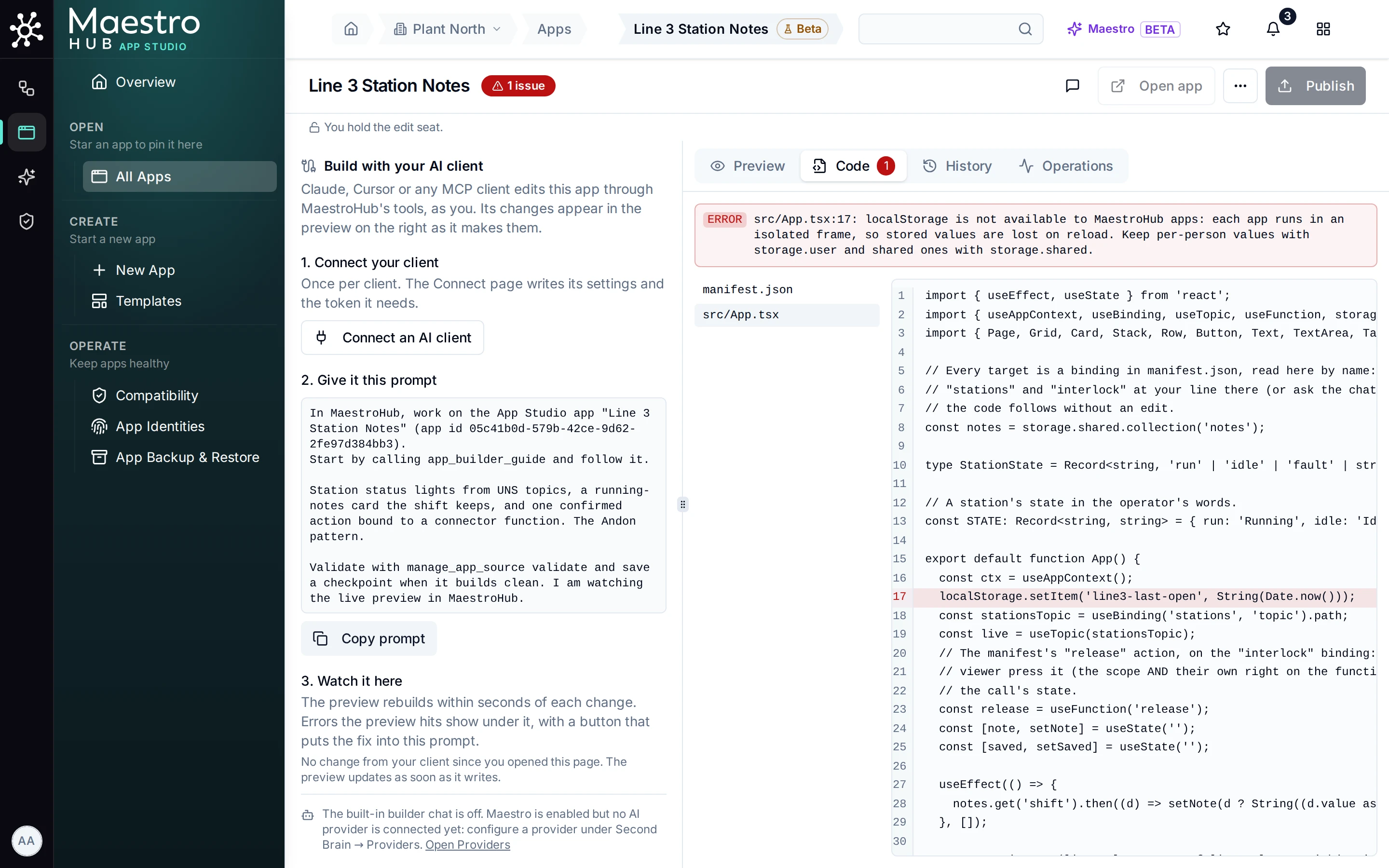
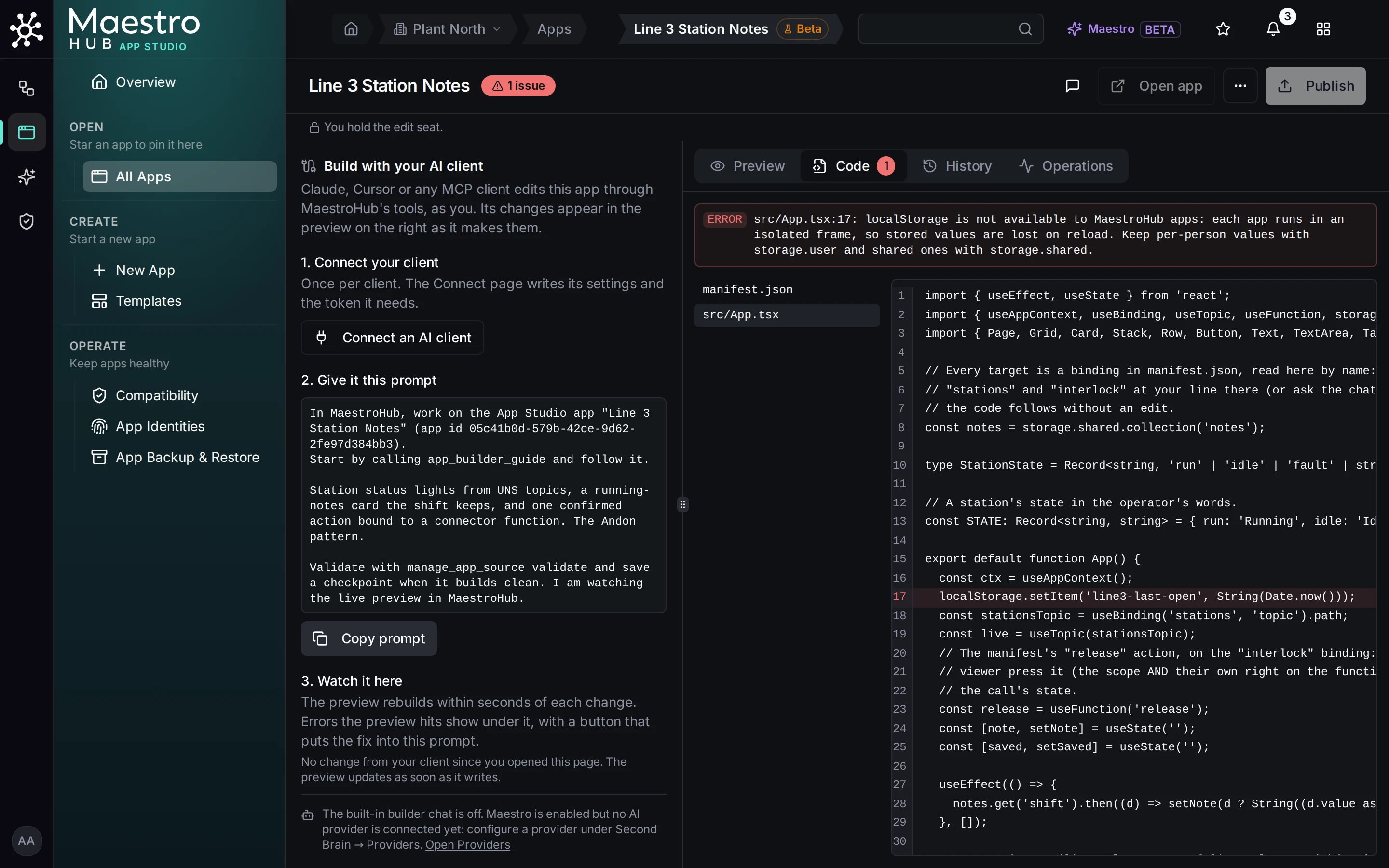
A draft that writes to localStorage: the builder marks the line as an error and names the SDK storage to use
- Do not reload or navigate the app's own page. Validation warns about
location.reload()and other navigations: they end the app's session and MaestroHub restarts it (see the operator). Refresh data with the SDK hooks and keep navigation inside the app. - Only a fixed set of libraries: React, the MaestroHub SDK and UI kit, the 3D scene kit, three.js and three of its add-ons. Nothing is downloaded.
A builder who holds app:publish (Apps Editor does) can publish their own work: Publish opens the release review for them to approve. A release asked for by their AI client waits in a banner until a person approves it.
The approver
Approvers hold app:publish on the app: its owner, Apps Editors, Apps Admins, Data Engineers and workspace administrators. They approve releases, roll back and switch apps back on.
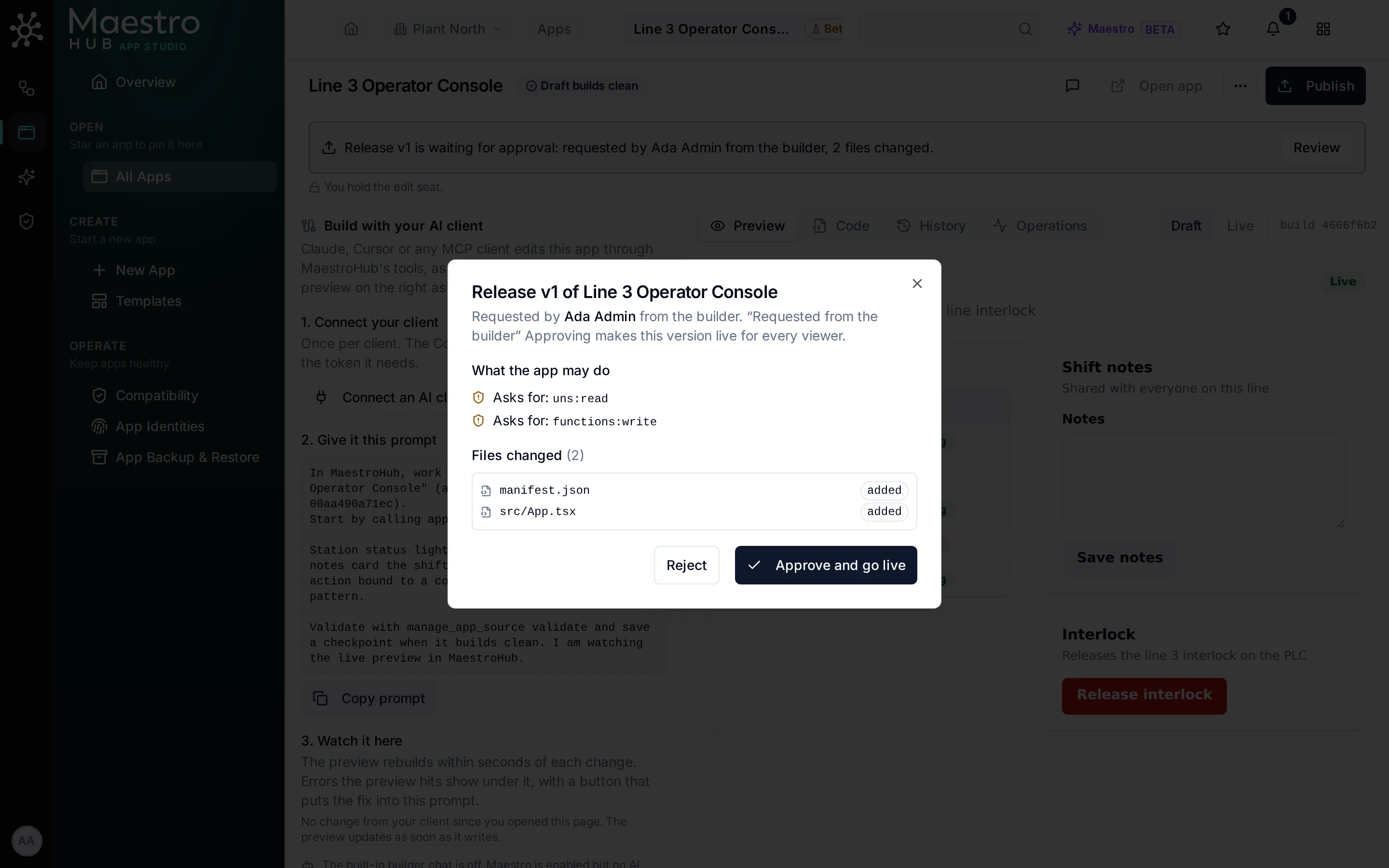
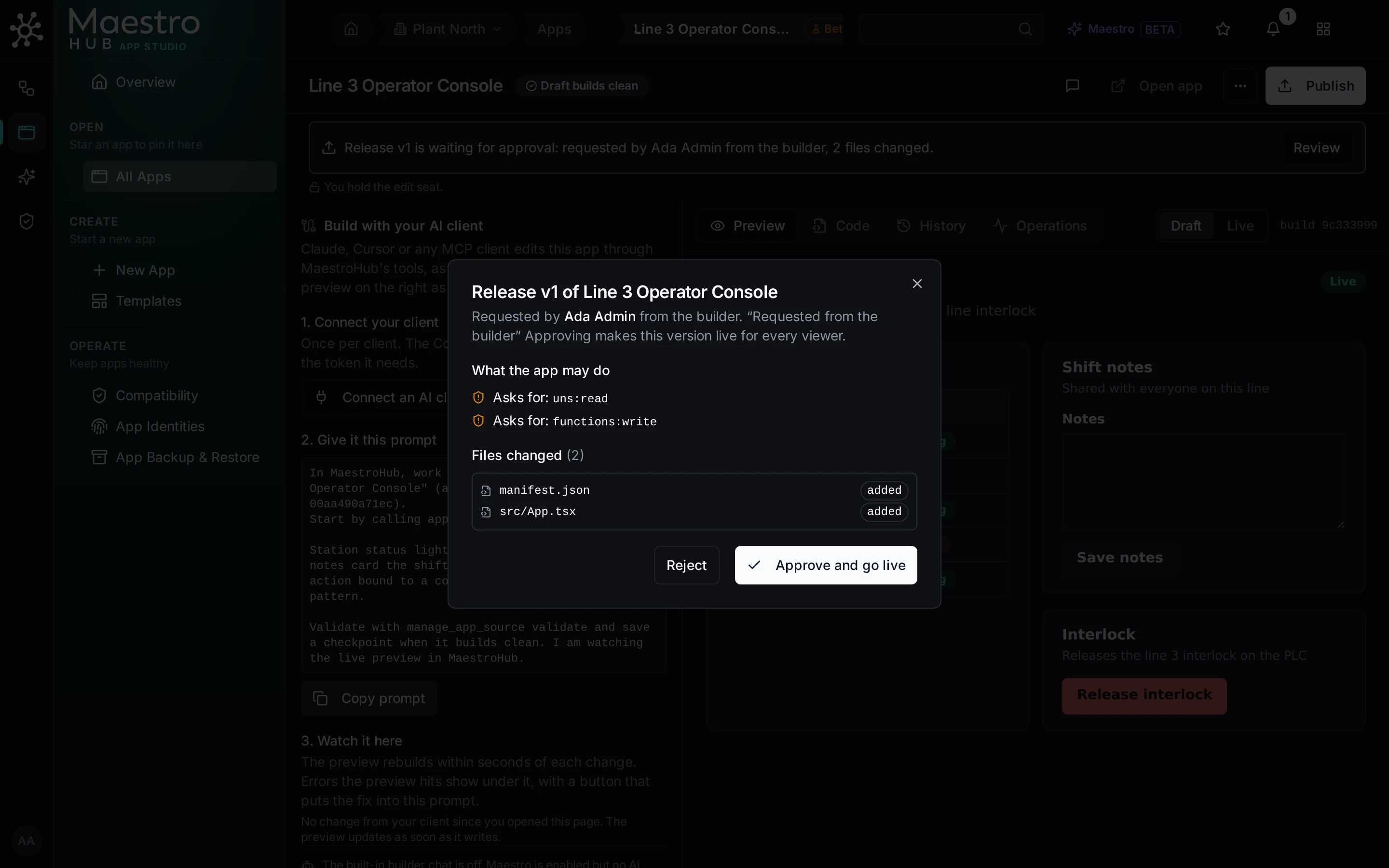
The release review: who asked, from where, what the app may do, and which files changed
The rules they meet:
- They must be signed in as themselves. An approval from a token, an AI client, Maestro or an administrator impersonating someone is refused.
- They may approve their own request. There is no second-approver rule; a plant that wants one keeps
app:publishwith its reviewers and gives builders a custom role without it. - For actions that act as the app itself, they must hold everything those actions do. Otherwise the version does not go live and the refusal names each missing right. The App Identities page shows who approved each live version.
- When an approver leaves. If the person who approved a live version with actions that act as the app itself is deleted or deactivated, the app keeps running and the people who can publish it are told once that the next release needs someone who holds those rights.
- Rollback and switching on are go-live decisions too, through the same check, each recorded once in the audit log as
app.publishedwith the way it went live. - A new version reaches screens already showing the app when their app token is renewed, within about 5 minutes: the frame reloads with the new version's code and bindings together, never the old code with new bindings.
The operator at a signed-in station
Operators open apps from Apps, from a star on their sidebar, or on a station showing the app's Kiosk page with them signed in. The Plant Operator and Analyst roles open and run every published app in the workspace.
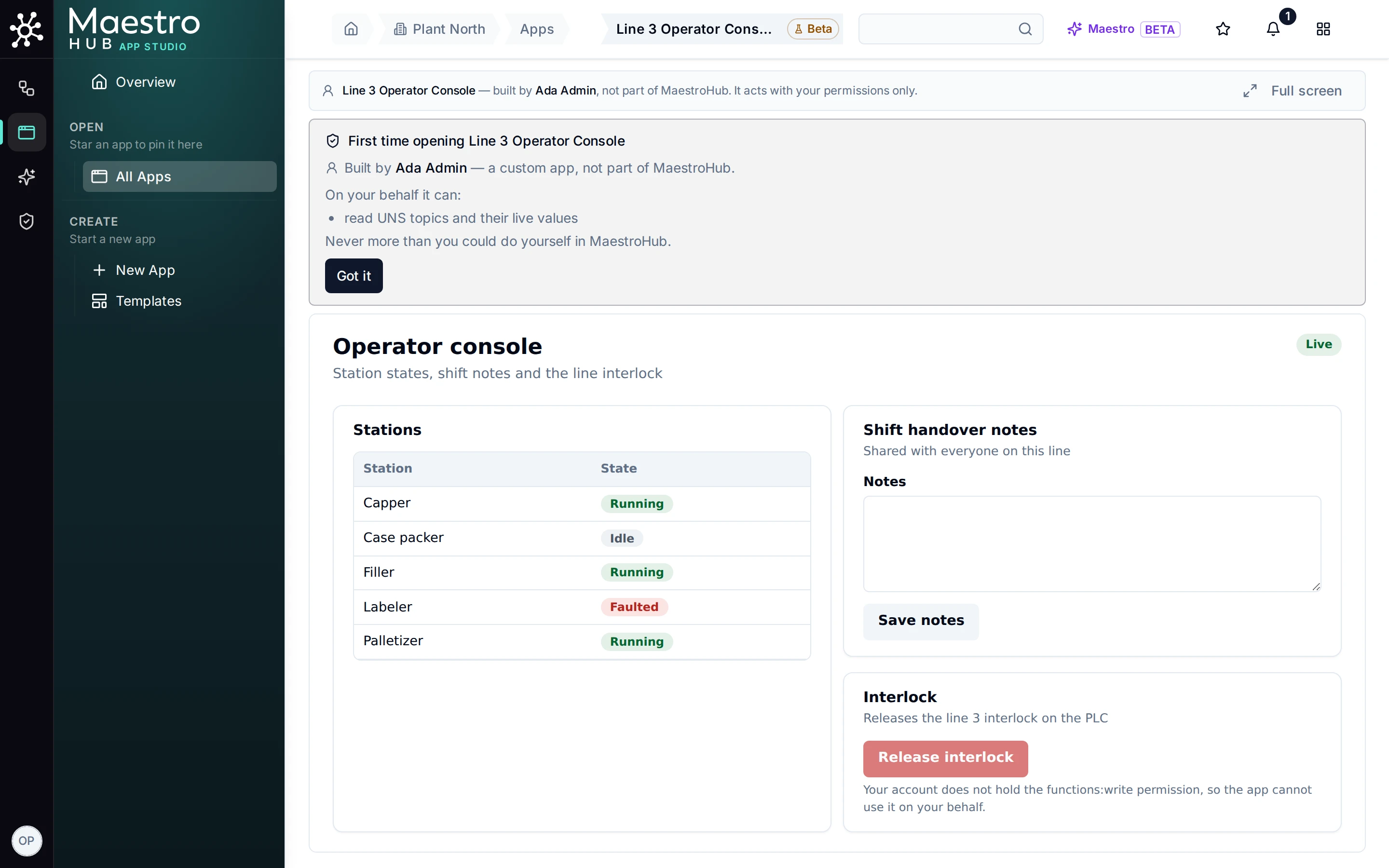
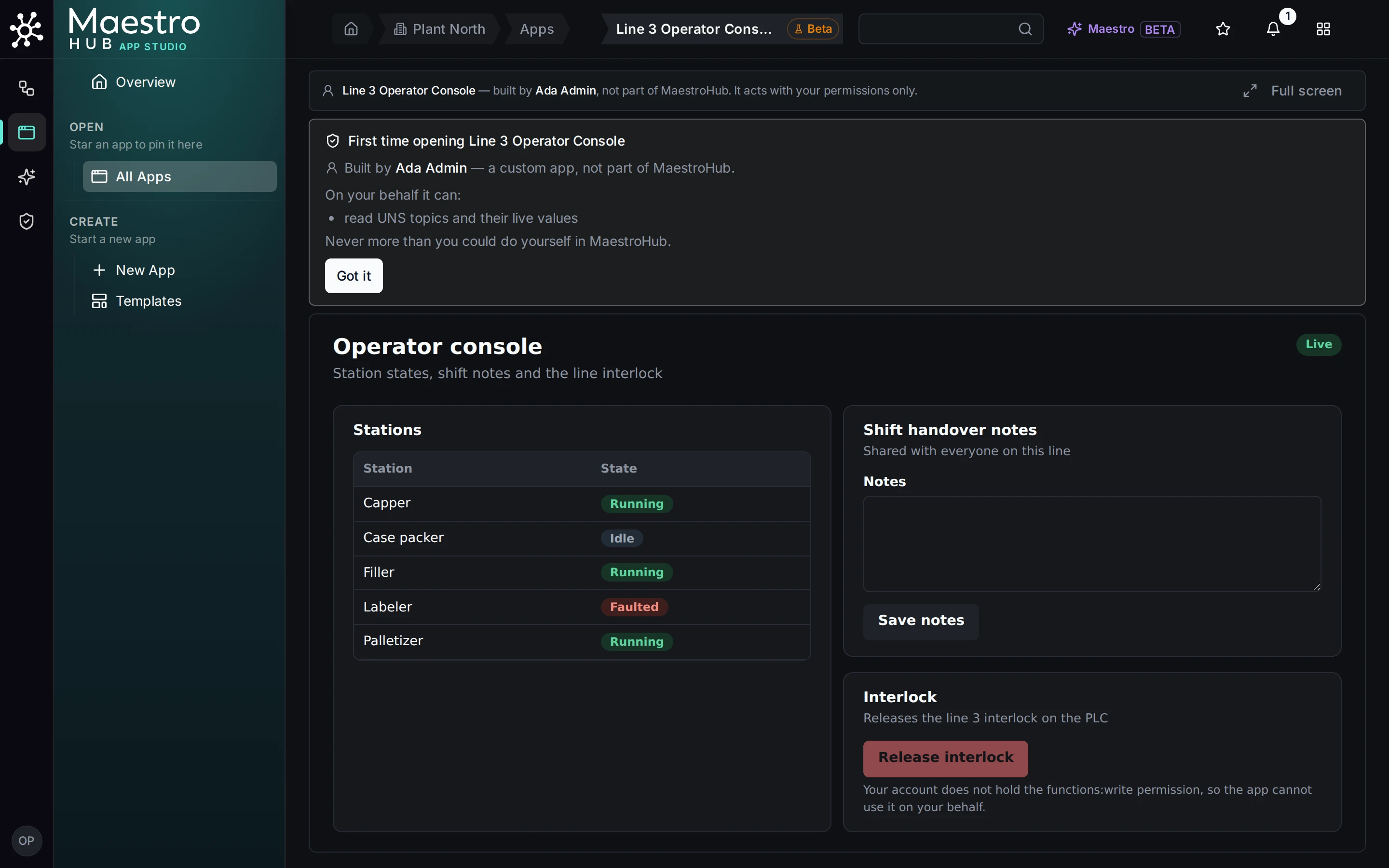
Olga, with the Plant Operator role, opens the console for the first time: a notice names the builder and what the app can do on her behalf, and the interlock button she may not use is disabled with the reason
The rules they meet:
- The app acts with their permissions. The strip above the app says who built it, that it is not part of MaestroHub, and that it acts with the viewer's permissions.
- Writes that matter are confirmed in MaestroHub's own dialog, which shows exactly what will be sent and who is signed in. Cancel has the focus, Confirm becomes active after half a second, and the confirmation is valid once, for 60 seconds, for that exact request (screenshot).
- An app that leaves its page restarts. If an app reloads or navigates its own page, MaestroHub ends its session and starts it again: at once the first time, then after a pause that grows from 60 seconds up to 30 minutes, and resets once the app has stayed up for 10 minutes. From the second time, a panel counts down the pause and offers Reload app now.
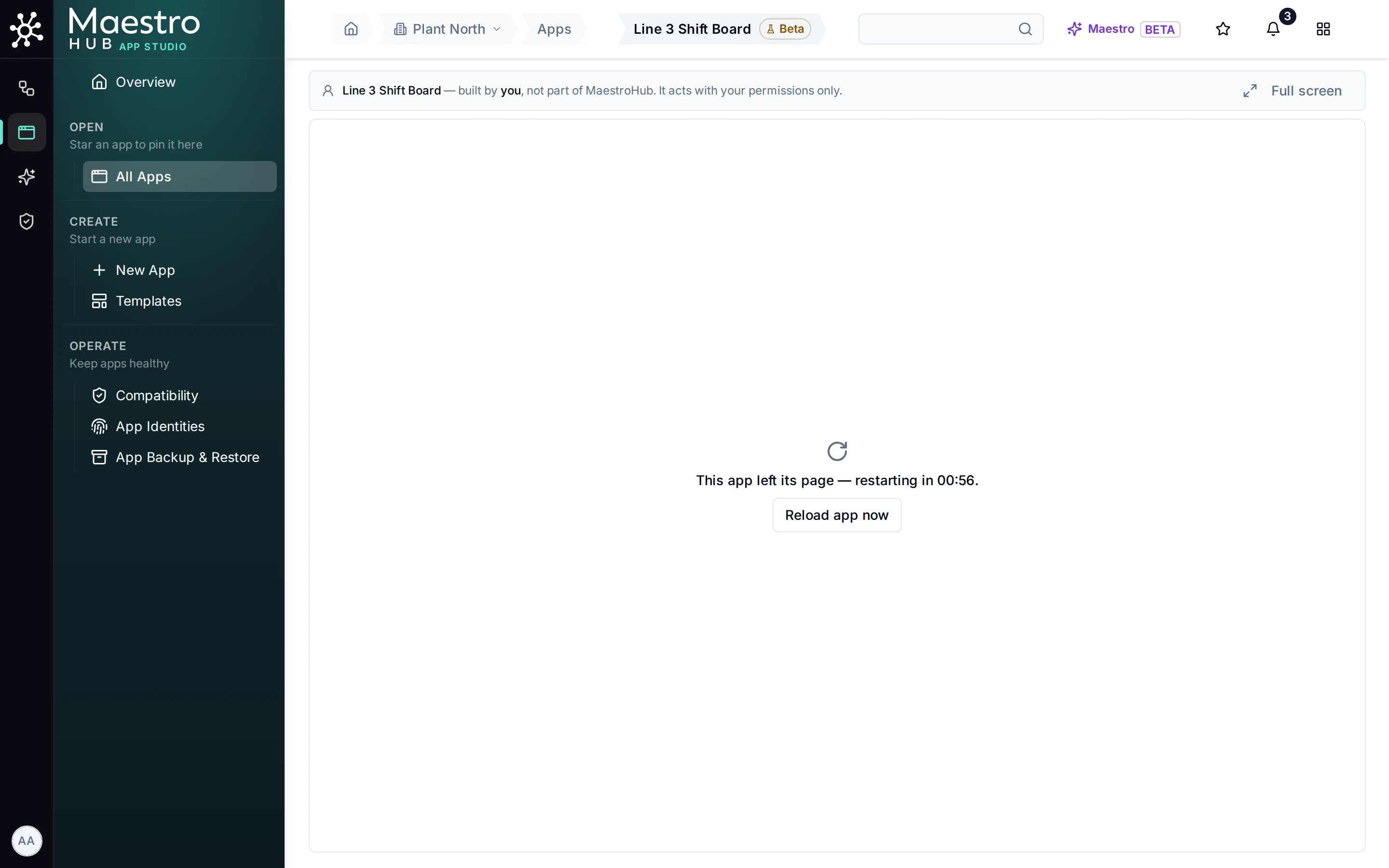
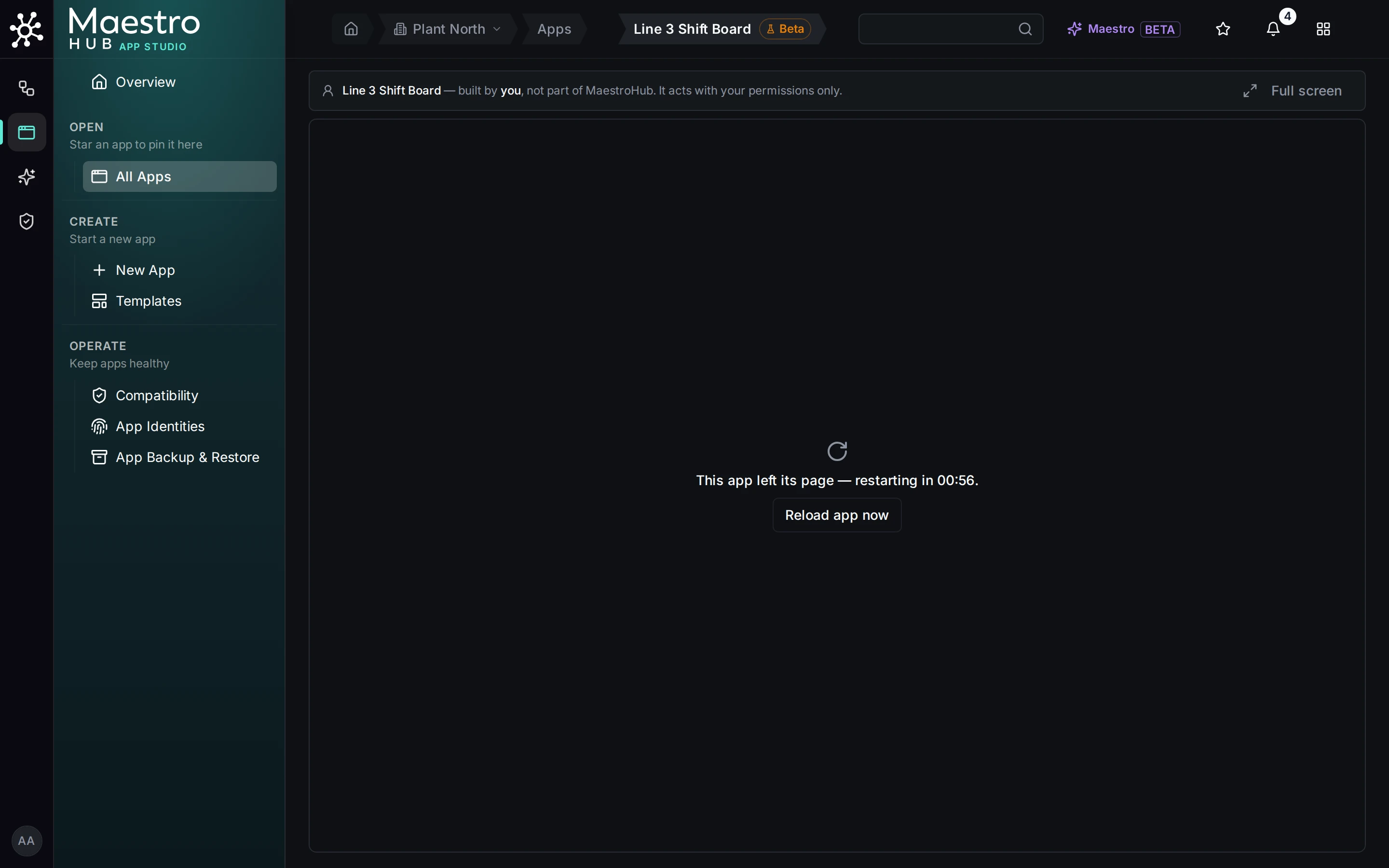
An app that reloaded its own page: MaestroHub restarts it and says so
- A switched-off app says who switched it off, when, why, and who can switch it back on (screenshot).
The wall screen
A paired display is a screen with nobody signed in. It gets its own identity through a pairing code that an administrator approves under Identity & Access → Devices (screenshots).
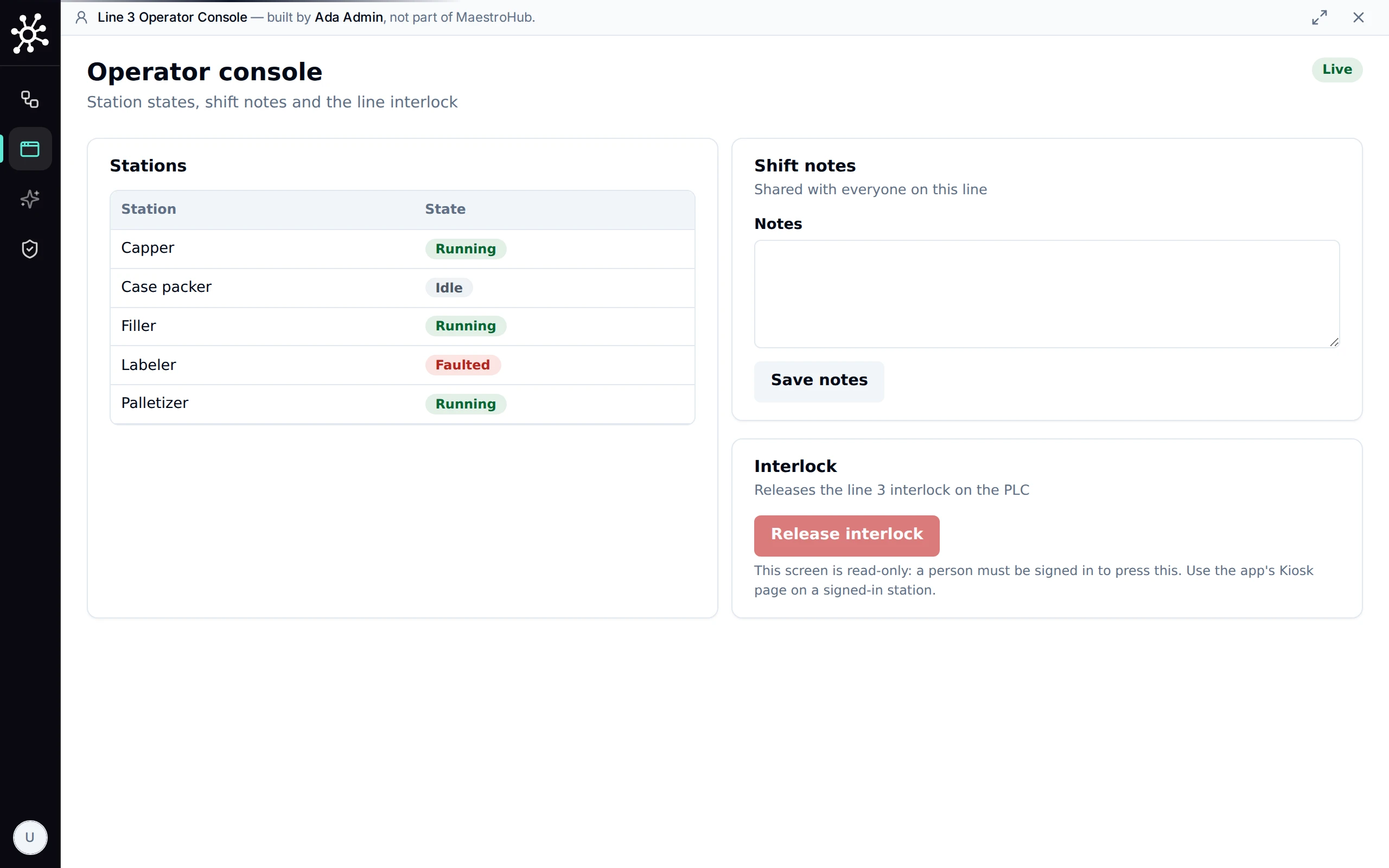
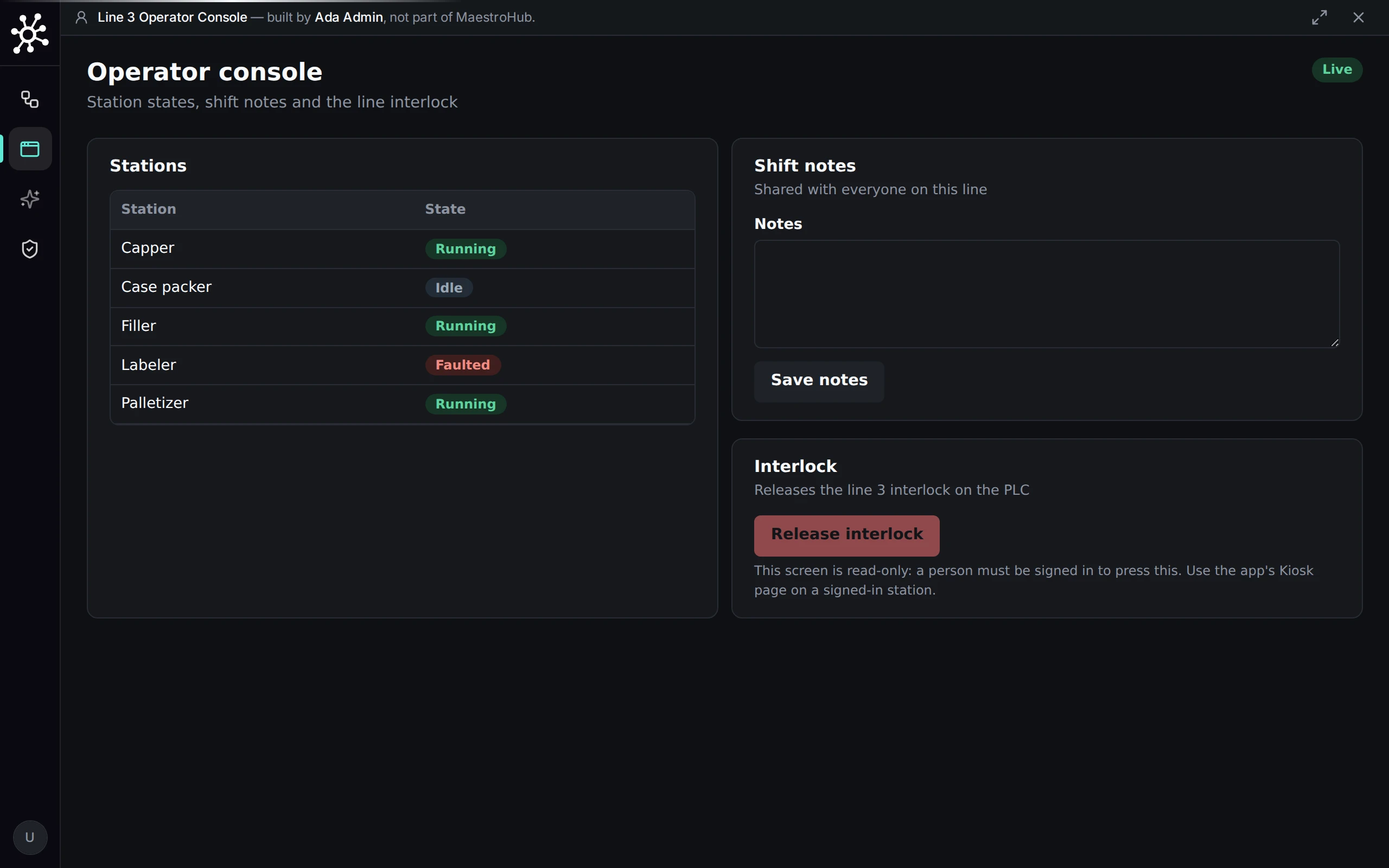
A paired display: live values, and every button that writes disabled with the reason
The rules it meets:
- Read-only, always. Its identity holds no write permission, and every write button shows "This screen is read-only: a person must be signed in to press this. Use the app's Kiosk page on a signed-in station." Reason: the display's identity lasts up to a year and no person stands behind its clicks. A station where operators act is the Kiosk page with a person signed in.
- It looks after itself. It reloads after MaestroHub is updated or rolled back, restarts an app that left its page or stopped answering, and comes back by itself when a switched-off app is switched on again.
- Revoking it under Devices ends its session on its next request.
The workspace administrator
Workspace administrators hold every app:* right in the workspace. Besides building and approving, they decide who opens apps, transfer ownership, switch apps off, and back them up.
- Who opens apps: by role (Apps Viewer, Plant Operator, Analyst) or by sharing one app with a person, group, role, API client or paired display, with a preview of what that audience can reach. Sharing one app needs Advanced Access Control (screenshot).
- Ownership: Operations → Owner → Transfer ownership opens the same transfer dialog as for pipelines and dashboards. It needs
app:transfer, which among the built-in roles only workspace administrators hold; others see the button disabled with that reason. When a person leaves, their apps move to the workspace's designated owner or an administrator, and live apps keep running.
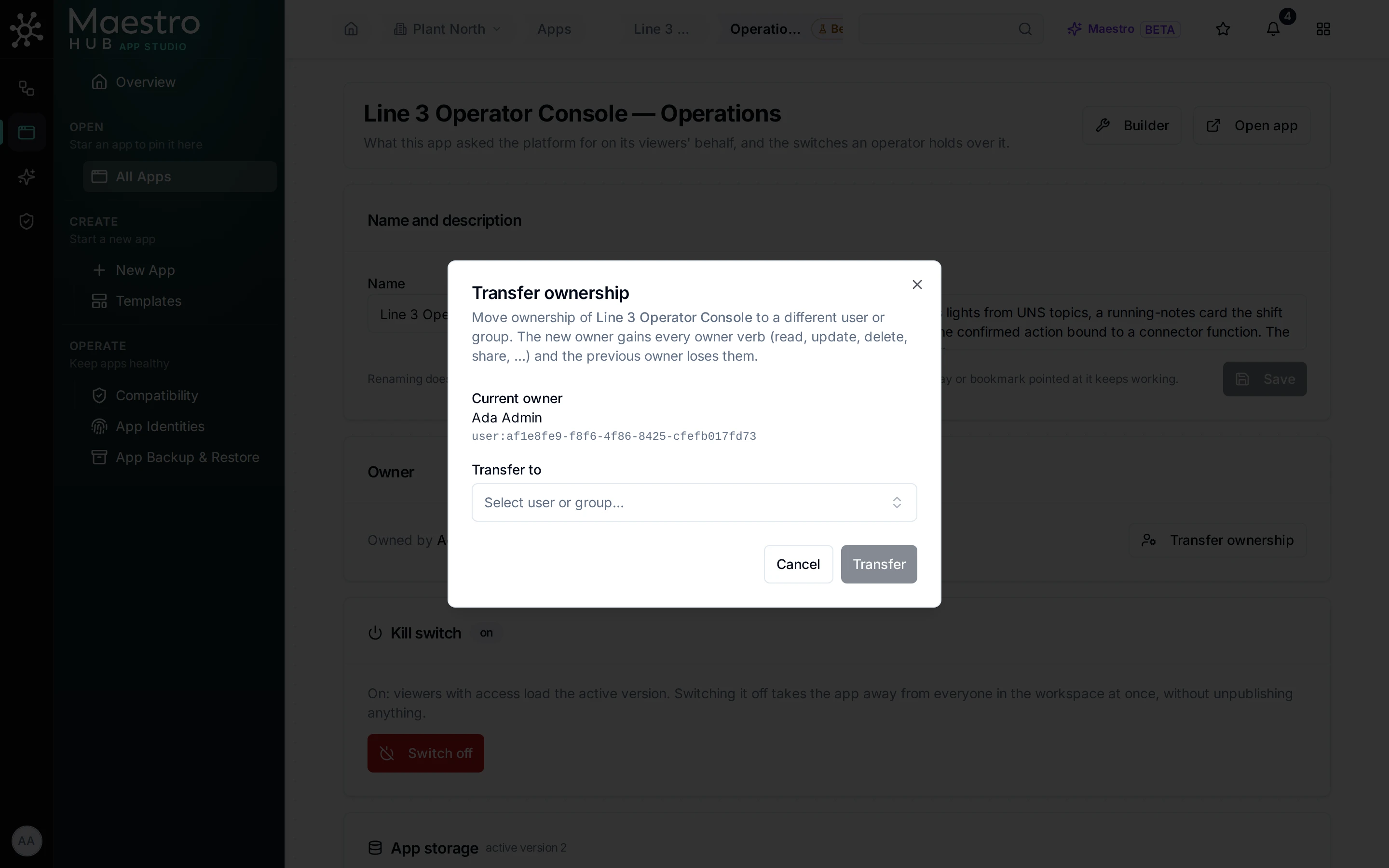
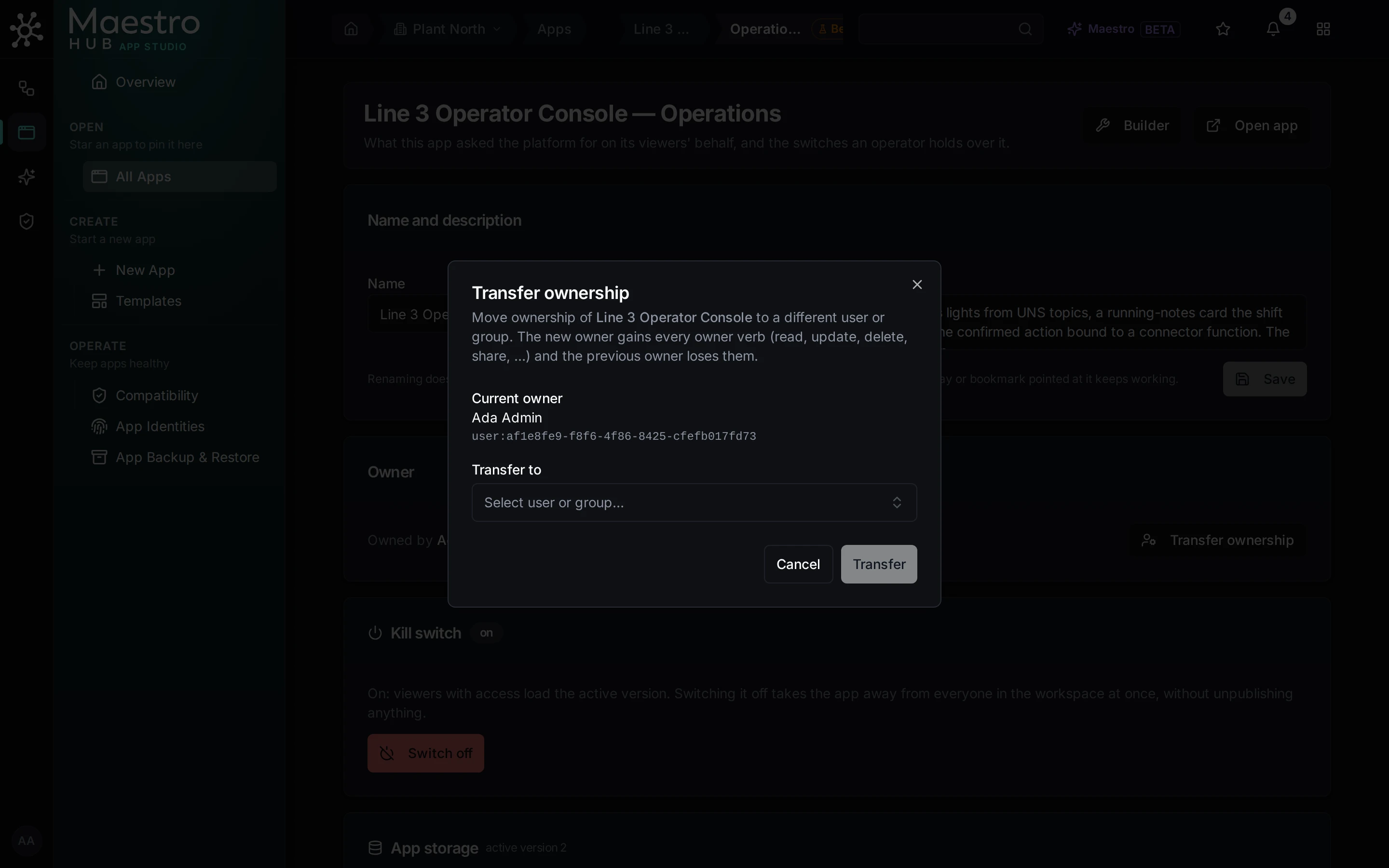
Transfer ownership, from the app's Operations page
- Switching off: anyone who may edit the app (a person, an AI client or a token) can switch it off, with a reason everyone sees; switching it on needs a person who may publish it. The people who can switch it on are notified.
- Watching apps: each app's Operations page shows what the app asked for, per kind of data, and flags an app that keeps leaving its page, which can be a sign that it sends data elsewhere, and an app that keeps stopping. At the third time, the people who can publish it get one lasting notification. The figures start again when MaestroHub restarts.
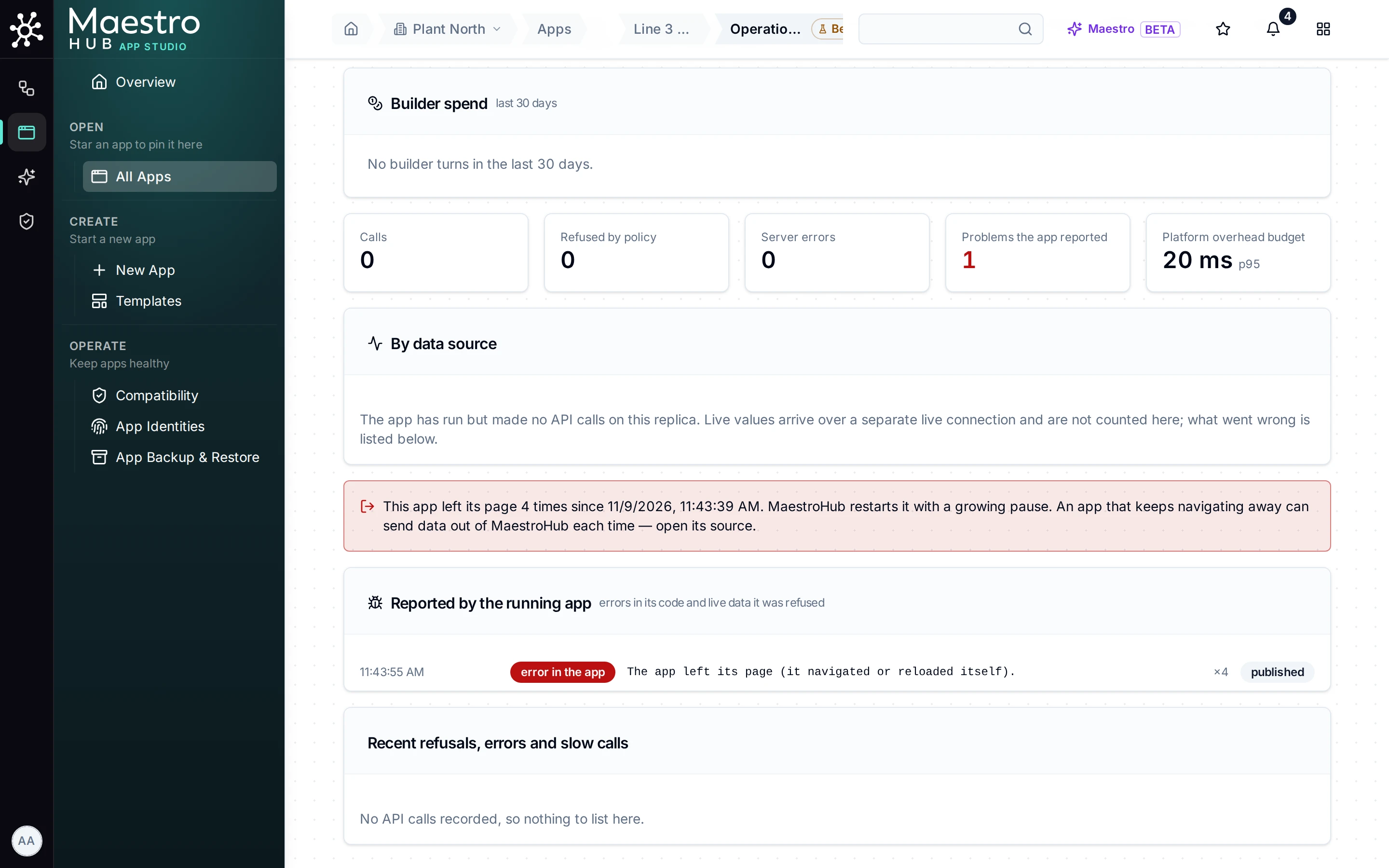
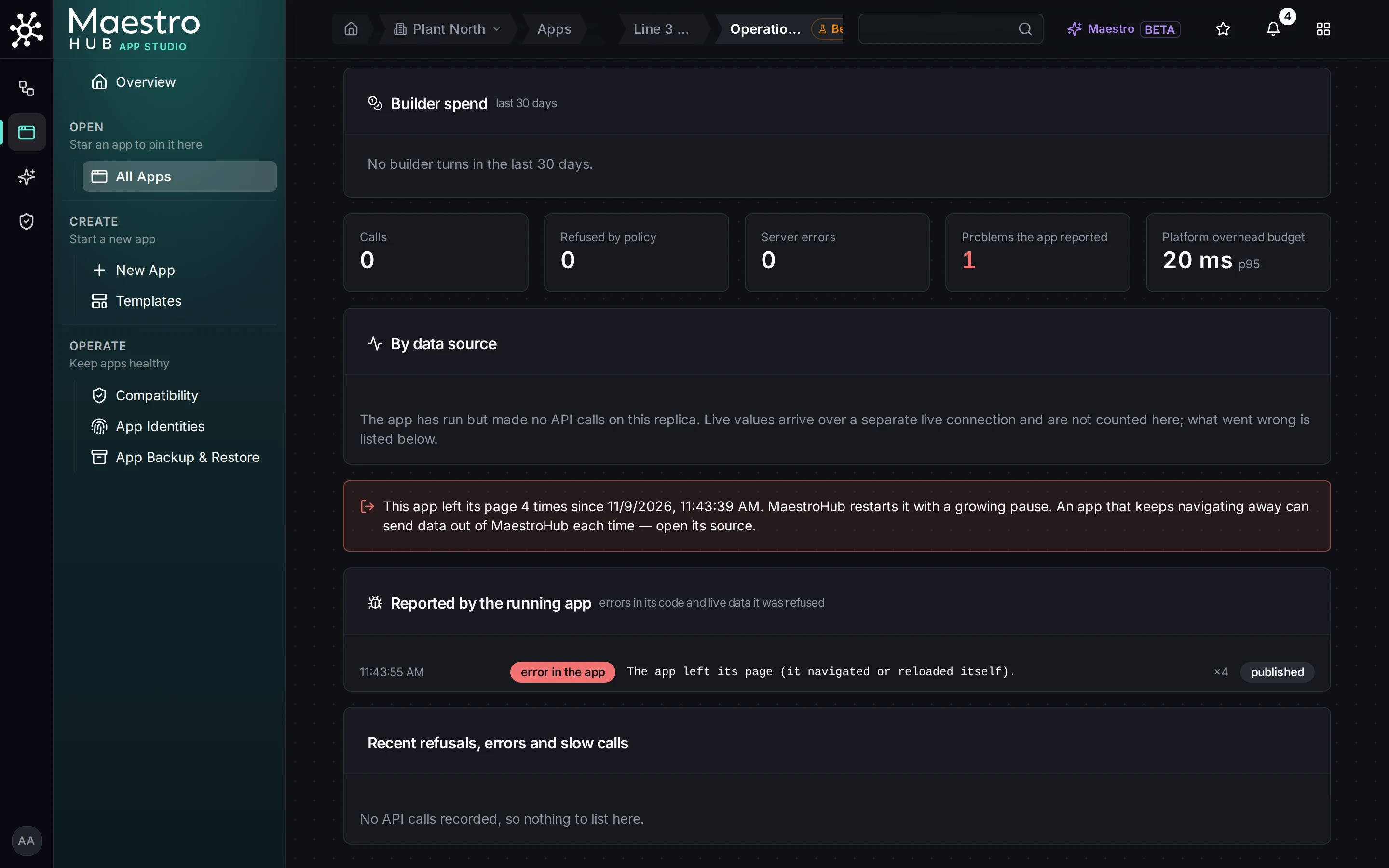
The Operations page flags an app that keeps leaving its page
- Backup and restore: one archive per workspace; restored apps that were live come back switched off (screenshot).
The IT or platform administrator
Nothing beyond MaestroHub itself. Apps are served under /_apps/ on the address people already use, by host name or IP address, over HTTP or HTTPS, at the root or under a sub-path. There is no second host name, no DNS record, no certificate and no App Studio address setting.
A reverse proxy that forwards MaestroHub as a whole needs no App Studio rule. Check that it passes /_apps/ and /appstudio-runtime/, passes the WebSocket upgrade on /api/v1/ws/connect, leaves Content-Security-Policy on /_apps/ as MaestroHub sends it, and does not strip Referer. A single sign-on proxy must let the app paths through. Safari and iPad cannot start apps on an IPv6 literal address or a host name with _. Details: Behind a reverse proxy.
What else is theirs:
- The licence (
app_studio; Advanced Access Control for sharing one app and for actions that act as the app itself) and the published-app limit. - Checks that report themselves. The platform page tests app serving once per page load and reports what it finds (for example, a proxy that removed the security header) on the App Studio Overview and in
GET /health; App Studio exports Prometheus metrics and ships alert rules (Operations). - Settings that do nothing.
sandboxDomainandsandboxOriginare not read; MaestroHub logs one line for each one it finds, and the Helm charts refuse values that set them, with the fix (Removed settings). - Enterprise: App Studio is its own pod, one replica, served under
/_appsoningress.host; back up its database and volume together (Enterprise). - Limits on what an app can do in the browser that isolation does not cover, stated in What isolation does not cover.