Azure IoT Hub Trigger Nodes
Azure IoT Hub provides two trigger node types that automatically start pipeline executions when events arrive from the cloud: C2D Trigger for cloud-to-device messages and Twin Desired Trigger for Device Twin desired property changes.
| Trigger | Event Source | Common Use Cases |
|---|---|---|
| C2D Trigger | Cloud-to-device messages | Remote commands, firmware updates, device reboots |
| Twin Desired Trigger | Device Twin desired property changes | Configuration pushes, set-point adjustments, feature flag updates |
Both triggers share the same configuration structure, reconnection handling, and execution settings.
Core Functionality
What They Do
1. Event-Driven Pipeline Execution Start pipelines automatically when Azure IoT Hub events arrive, without manual intervention or polling. The C2D Trigger responds to cloud-to-device messages, while the Twin Desired Trigger responds to desired property changes.
2. Automatic Subscription Management Subscriptions are created and cleaned up automatically — no manual MQTT subscription management required. The system handles connection lifecycle and resubscription after reconnections.
3. Change Detection (Optional) Both triggers support an onChange mode that suppresses duplicate events. When enabled, the trigger only fires when the incoming payload differs from the last received payload, reducing unnecessary pipeline executions.
Reconnection Handling
MaestroHub automatically handles connection disruptions to ensure reliable event delivery.
Automatic Recovery
When an Azure IoT Hub connection is lost and restored:
- Connection Lost: The system detects the disconnection automatically
- Connection Restored: Subscriptions are automatically re-established within seconds
- SAS Token Renewal: For SAS-based authentication, tokens are renewed automatically at 75% of their TTL
- Transparent Recovery: Pipelines continue to receive events once the connection is restored — no manual intervention required
What This Means for Your Workflows
| Scenario | Behavior |
|---|---|
| Brief network interruption | Automatic resubscription after reconnection |
| SAS token expiry | Token is renewed automatically before expiry via disconnect/reconnect |
| MaestroHub restart | All triggers for enabled pipelines are restored on startup |
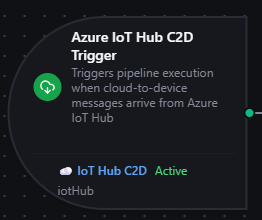
Azure IoT Hub C2D Trigger node
Azure IoT Hub C2D Trigger Node
The C2D Trigger Node automatically initiates pipelines when cloud-to-device messages arrive from Azure IoT Hub. Use this to execute remote commands, handle firmware update notifications, or process any message sent from the cloud to a specific device.
Configuration
Basic Information
| Field | Type | Description |
|---|---|---|
| Node Label | String (Required) | Display name for the node on the pipeline canvas |
| Description | String (Optional) | Explains what this trigger initiates |
Parameters
| Parameter | Type | Default | Required | Constraints | Description |
|---|---|---|---|---|---|
| Connection | Connection ID | "" | Yes | -- | Azure IoT Hub connection profile to use. |
| Function | Function ID | "" | Yes | -- | C2D Receive function within the connection. |
| Trigger Mode | Select | "always" | No | always / onChange | always: Trigger on every C2D message. onChange: Only trigger when payload differs from the last received message. |
| Enabled | Boolean | true | No | -- | Enable or disable the trigger. |
| Dedup Max Keys | Number | 1000 | If onChange | 1--10,000 | Maximum tracked message hashes for change detection. |
The selected function must be a C2D Receive function type (iothub.c2d.receive). D2C Send, Twin Report, and Twin Desired functions cannot be used with C2D Trigger nodes.
Output Data Structure
When a C2D message triggers pipeline execution, the following data is available to downstream nodes.
Output Format
{
  "payload": {
    "command": "reboot",
    "delay": 30
  },
  "_metadata": {
    "nodeId": "trigger.azureiothub.c2d-1",
    "nodeType": "trigger.azureiothub.c2d",
    "type": "azureiothub_c2d_trigger",
    "connection_id": "bf29be94-fc0a-4dc4-8e5c-092f1b74eb4b",
    "function_id": "aef374c3-aa2b-454e-aabc-5657faac5950",
    "topic": "devices/my-device/messages/devicebound/",
    "content_type": "application/json",
    "properties": {
      "commandType": "maintenance"
    },
    "timestamp": "2026-04-03T10:30:45Z"
  }
}
_metadata Fields
| Field | Type | Description |
|---|---|---|
nodeId | string | The trigger node identifier on the canvas |
nodeType | string | Always "trigger.azureiothub.c2d" |
type | string | Always "azureiothub_c2d_trigger" |
connection_id | string | The Azure IoT Hub connection profile ID |
function_id | string | The C2D Receive function ID |
topic | string | MQTT topic the message was received on |
content_type | string | MIME type of the message body |
properties | object | Message application properties extracted from the MQTT topic property bag |
timestamp | string | ISO 8601 timestamp of when the message was received |
payload Fields
The payload contains the parsed C2D message body. The format depends on the Output Format configured on the C2D Receive function:
| Output Format | Payload Type | Description |
|---|---|---|
| json | object | Parsed JSON object |
| text | string | Raw message body as a string |
| base64 | string | Binary message body encoded as base64 |
Referencing in Downstream Nodes
Use expressions to access C2D trigger data in subsequent nodes:
$trigger.payload— the full C2D message content$trigger.payload.command— access a specific field in the message$trigger._metadata.connection_id— connection profile used$trigger._metadata.properties.commandType— access a routing property$trigger._metadata.timestamp— when the message was received
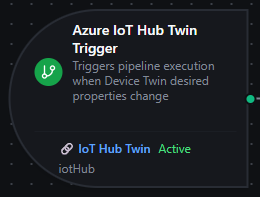
Azure IoT Hub Twin Desired Trigger node
Azure IoT Hub Twin Desired Trigger Node
The Twin Desired Trigger Node automatically initiates pipelines when Device Twin desired property changes arrive from Azure IoT Hub. Use this to react to configuration pushes, set-point adjustments, or feature flag updates sent from the cloud.
Configuration
Basic Information
| Field | Type | Description |
|---|---|---|
| Node Label | String (Required) | Display name for the node on the pipeline canvas |
| Description | String (Optional) | Explains what this trigger initiates |
Parameters
| Parameter | Type | Default | Required | Constraints | Description |
|---|---|---|---|---|---|
| Connection | Connection ID | "" | Yes | -- | Azure IoT Hub connection profile to use. |
| Function | Function ID | "" | Yes | -- | Twin Desired function within the connection. |
| Trigger Mode | Select | "always" | No | always / onChange | always: Trigger on every desired property change. onChange: Only trigger when the version number differs from the last event. |
| Enabled | Boolean | true | No | -- | Enable or disable the trigger. |
| Dedup Max Keys | Number | 1000 | If onChange | 1--10,000 | Maximum tracked version hashes for change detection. |
The selected function must be a Twin Desired function type (iothub.twin.desired). Other function types cannot be used with Twin Desired Trigger nodes.
Output Data Structure
When a desired property change triggers pipeline execution, the following data is available to downstream nodes.
Output Format
{
  "payload": {
    "targetTemperature": 72.5,
    "reportInterval": 30,
    "$version": 5
  },
  "_metadata": {
    "nodeId": "trigger.azureiothub.twin-1",
    "nodeType": "trigger.azureiothub.twin",
    "type": "azureiothub_twin_trigger",
    "connection_id": "bf29be94-fc0a-4dc4-8e5c-092f1b74eb4b",
    "function_id": "aef374c3-aa2b-454e-aabc-5657faac5950",
    "version": "5",
    "source": "desired",
    "is_full_twin": false,
    "timestamp": "2026-04-03T10:30:45Z"
  }
}
_metadata Fields
| Field | Type | Description |
|---|---|---|
nodeId | string | The trigger node identifier on the canvas |
nodeType | string | Always "trigger.azureiothub.twin" |
type | string | Always "azureiothub_twin_trigger" |
connection_id | string | The Azure IoT Hub connection profile ID |
function_id | string | The Twin Desired function ID |
version | string | Version number of the twin desired property update |
source | string | Source indicator for the desired property change |
is_full_twin | boolean | true if this is a full twin document (initial fetch on subscribe), false for incremental updates |
timestamp | string | ISO 8601 timestamp of when the event was received |
payload Fields
The payload contains the desired property change data as a JSON object. This includes:
- All changed desired properties as key-value pairs
$version— the twin version number assigned by Azure IoT Hub
When is_full_twin is true (initial fetch on subscribe), the payload contains the complete desired properties section of the Device Twin.
Property Filtering
If the Twin Desired function has a Property Filter configured, only changes to the specified properties will trigger the pipeline. For example, if the filter is set to ["targetTemperature"], changes to other desired properties will be ignored.
Referencing in Downstream Nodes
Use expressions to access twin trigger data in subsequent nodes:
$trigger.payload— the full desired property change$trigger.payload.targetTemperature— access a specific desired property$trigger.payload.$version— the twin version number$trigger._metadata.version— version number (also in metadata)$trigger._metadata.is_full_twin— whether this is a full twin or incremental update$trigger._metadata.connection_id— connection profile used
Settings Tab (Both Triggers)
Both trigger node types share the same Settings tab:
Description
A free-text area for documenting the node's purpose and behavior. Notes entered here are saved with the pipeline and visible to all team members.
Execution Settings
| Setting | Options | Default | Description |
|---|---|---|---|
| Timeout (seconds) | Number | Pipeline default | Maximum execution time for this node (1--600). Leave empty for pipeline default. |
| Retry on Timeout | Pipeline Default / Enabled / Disabled | Pipeline Default | Whether to retry the node if it times out. |
| Retry on Fail | Pipeline Default / Enabled / Disabled | Pipeline Default | Whether to retry on failure. When Enabled, shows Advanced Retry Configuration. |
| On Error | Pipeline Default / Stop Pipeline / Continue Execution | Pipeline Default | Behavior when node fails after all retries. |
Advanced Retry Configuration (visible when Retry on Fail = Enabled)
| Field | Type | Default | Range | Description |
|---|---|---|---|---|
| Max Attempts | Number | 3 | 1--10 | Maximum retry attempts. |
| Initial Delay (ms) | Number | 1000 | 100--30,000 | Wait before first retry. |
| Max Delay (ms) | Number | 120000 | 1,000--300,000 | Upper bound for backoff delay. |
| Multiplier | Number | 2.0 | 1.0--5.0 | Exponential backoff multiplier. |
| Jitter Factor | Number | 0.1 | 0--0.5 | Random jitter (+-percentage). |
Validation Rules
Parameter Validation (Both Triggers)
Connection ID
- Must be provided and non-empty
- Must reference a valid Azure IoT Hub connection profile
- Error:
"connectionId is required"
Function ID
- Must be provided and non-empty
- Must reference a valid function of the correct type (C2D Receive or Twin Desired)
- Function must belong to the specified connection
- Error:
"functionId is required"
Enabled Flag
- Must be a boolean if provided
- Error:
"enabled must be a boolean"
Usage Examples
Remote Command Execution (C2D Trigger)
Scenario: Execute maintenance commands sent from Azure IoT Hub to edge devices.
Configuration:
- Label: Maintenance Command Handler
- Connection: Factory Edge Gateway
- Function: C2D Receive function (output format: JSON)
- Trigger Mode: always
- Enabled: true
Downstream Processing:
- Parse command type from
$trigger.payload.command - Route via Condition node based on command type
- Execute the action (PLC write, service restart, etc.)
- Report completion via Twin Report node
Dynamic Configuration Updates (Twin Desired Trigger)
Scenario: Adjust device operating parameters when cloud-side desired properties change.
Configuration:
- Label: Device Configuration Sync
- Connection: Production IoT Hub
- Function: Twin Desired function with property filter
["targetTemperature", "reportInterval"] - Trigger Mode: always
- Enabled: true
Downstream Processing:
- Read new values from
$trigger.payload.targetTemperatureand$trigger.payload.reportInterval - Apply configuration to local device via PLC write
- Confirm applied values by reporting twin properties via Twin Report node
Firmware Update Notification (C2D Trigger)
Scenario: Start a firmware update workflow when a C2D command arrives.
Configuration:
- Label: Firmware Update Trigger
- Connection: Device Management Hub
- Function: C2D Receive function (output format: JSON)
- Trigger Mode: onChange (prevent duplicate update triggers)
- Enabled: true
Downstream Processing:
- Extract firmware URL from
$trigger.payload.firmwareUrl - Download firmware via REST HTTP node
- Apply update and report progress via Twin Report node
Best Practices
Designing for Reliability
| Practice | Rationale |
|---|---|
| Use QoS 1 for the connection | Ensures at-least-once delivery of C2D and twin notifications |
| Enable Store & Forward on the connection | Buffers D2C telemetry during outages for reliable acknowledgment flows |
| Keep Fetch Twin on Connect enabled | Ensures the device starts with a current view of desired properties |
| Use Property Filter on Twin Desired functions | Reduces noise from irrelevant property changes |
Error Handling Strategies
For Critical Workflows (e.g., safety commands):
- Set On Error to
Stop Pipeline - Monitor pipeline execution failures
- Implement alerting for stopped pipelines
For Best-Effort Processing (e.g., telemetry configuration):
- Set On Error to
Continue Execution - Log failed executions for later analysis
- Ensure downstream nodes handle partial failures gracefully
onChange Mode
- Use onChange for idempotent operations where reprocessing the same payload is wasteful
- Use always (default) when every event must be processed regardless of content
- The Dedup Max Keys setting controls memory usage for change detection — increase for high-cardinality scenarios