Databricks SQL Integration Guide
Connect to Databricks SQL warehouses to query and execute statements against your lakehouse data. This guide covers connection setup, authentication, function authoring, and pipeline integration.
Overview
The Databricks SQL connector enables you to interact with Databricks SQL warehouses through the SQL Statement Execution API. It supports:
- Query data from tables, views, or custom SQL using SELECT statements
- Execute statements for INSERT, UPDATE, DELETE, CREATE, ALTER, DROP, and MERGE operations
- Use parameterized queries with
((parameterName))syntax for dynamic, reusable operations - Catalog and schema overrides per function for multi-catalog environments
- Two authentication methods: Personal Access Token (PAT) and OAuth machine-to-machine (M2M)
- Connection pooling for high-concurrency workloads
Databricks SQL connects via your workspace URL. No host or port configuration is needed — connections are established through the Databricks SQL Statement Execution API.
Connection Configuration
Creating a Databricks SQL Connection
Navigate to Connections → New Connection → Databricks SQL and configure the following:
Databricks SQL Connection Creation Fields
1. Profile Information
| Field | Default | Description |
|---|---|---|
| Profile Name | - | A descriptive name for this connection profile (required, max 100 characters) |
| Description | - | Optional description for this Databricks SQL connection |
2. Connection Settings
| Field | Default | Description |
|---|---|---|
| Workspace URL | - | Your Databricks workspace URL (required). Must start with https:// (e.g., https://myworkspace.cloud.databricks.com) |
| HTTP Path | - | Optional HTTP path for the SQL warehouse endpoint (e.g., /sql/1.0/warehouses/abc123) |
| Connect Timeout (sec) | 30 | Maximum time to wait for connection establishment (1–600 seconds) |
| Query Timeout (sec) | 120 | Default timeout for query and statement execution (1–3600 seconds) |
3. Authentication
Databricks SQL supports two authentication methods:
| Field | Default | Description |
|---|---|---|
| Auth Type | Personal Access Token | Authentication method: Personal Access Token or OAuth M2M |
Personal Access Token (PAT)
| Field | Default | Description |
|---|---|---|
| Access Token | - | Databricks personal access token (required when using PAT auth) |
OAuth Machine-to-Machine (M2M)
| Field | Default | Description |
|---|---|---|
| Client ID | - | OAuth application client ID (required when using OAuth M2M) |
| Client Secret | - | OAuth application client secret (required when using OAuth M2M) |
In your Databricks workspace, go to User Settings → Developer → Access Tokens → Generate New Token. Copy the token value immediately — it cannot be viewed again after creation.
4. Catalog & Warehouse
| Field | Default | Description |
|---|---|---|
| Catalog | - | Unity Catalog name (optional). Sets the default catalog for all queries |
| Schema | default | Default schema name within the catalog |
| Warehouse ID | - | SQL warehouse ID (required). Found in the warehouse details page under Connection Details |
In the Databricks workspace, navigate to SQL Warehouses, select your warehouse, and find the ID in the Connection Details tab. The warehouse ID is also the last segment of the HTTP path.
5. Connection Pool Settings
| Field | Default | Description |
|---|---|---|
| Max Open Connections | 25 | Maximum number of simultaneous database connections (1–100) |
| Max Idle Connections | 5 | Idle connections kept ready for reuse (0–50, 0 = close idle connections immediately) |
| Connection Max Lifetime (sec) | 300 | Maximum age of a connection before it is recycled (0–86400 seconds) |
| Connection Max Idle Time (sec) | 60 | How long an idle connection may remain unused before being closed (0–86400 seconds) |
6. Retry Configuration
| Field | Default | Description |
|---|---|---|
| Retries | 3 | Number of connection attempts (0–10, 0 = no retry) |
| Retry Delay (ms) | 500 | Delay between retry attempts in milliseconds (0–3600000 ms) |
| Retry Backoff Multiplier | 2 | Exponential factor for retry delay growth (1–10) |
Example Retry Behavior
- With
Retry Delay = 500msandRetry Backoff Multiplier = 2:- 1st retry: wait 500ms
- 2nd retry: wait 1000ms
- 3rd retry: wait 2000ms
7. Connection Labels
| Field | Default | Description |
|---|---|---|
| Labels | - | Key-value pairs to categorize and organize this connection (max 10 labels) |
Example Labels
env: production– Environmentteam: analytics– Responsible teamwarehouse: starter– Warehouse tier
- Required Fields: Workspace URL and Warehouse ID are always required. Authentication credentials depend on the selected auth type.
- Connection Pooling: Manages concurrency with
Max Open Connections, reduces latency withMax Idle Connections, mitigates stale connections viaConnection Max Lifetime, and frees resources usingConnection Max Idle Time. - Retry Logic: Implements exponential backoff — initial connection attempts use the base delay and each retry multiplies the delay by the backoff factor.
- Catalog & Schema: When set at the connection level, these become the default for all functions. Individual functions can override these values.
Function Builder
Creating Databricks SQL Functions
Once you have a connection established, you can create reusable functions:
- Navigate to Functions → New Function
- Select the function type (Query or Execute)
- Choose your Databricks SQL connection
- Configure the function parameters
Query Function
Purpose: Execute SQL SELECT statements against your Databricks SQL warehouse. Run queries to read data from tables, views, or any valid SQL expression.
Configuration Fields
| Field | Type | Required | Default | Description |
|---|---|---|---|---|
| SQL Query | String | Yes | - | SQL SELECT statement to execute. Supports parameterized queries with ((parameterName)) syntax. |
| Catalog | String | No | - | Override the connection-level catalog for this function |
| Schema | String | No | - | Override the connection-level schema for this function |
| Timeout (seconds) | Number | No | 120 | Per-execution timeout in seconds (1–3600). |
Use Cases:
- SELECT data from Delta Lake tables for analytics dashboards
- SELECT with JOINs across multiple catalogs and schemas
- SELECT aggregated metrics for reporting and monitoring
- SELECT time-series data for trend analysis
Using Parameters
The ((parameterName)) syntax creates dynamic, reusable queries. Parameters are automatically detected and can be configured with:
| Configuration | Description | Example |
|---|---|---|
| Type | Data type validation | string, number, boolean, date, array |
| Required | Make parameters mandatory or optional | Required / Optional |
| Default Value | Fallback value if not provided | NOW(), 0, active |
| Description | Help text for users | "Start date for the report" |
Execute Function
Purpose: Execute DML/DDL statements against your Databricks SQL warehouse. Use this for data modifications (INSERT, UPDATE, DELETE, MERGE) and schema changes (CREATE, ALTER, DROP).
Configuration Fields
| Field | Type | Required | Default | Description |
|---|---|---|---|---|
| SQL Statement | String | Yes | - | DML/DDL SQL statement to execute. Supports parameterized queries with ((parameterName)) syntax. |
| Catalog | String | No | - | Override the connection-level catalog for this function |
| Schema | String | No | - | Override the connection-level schema for this function |
| Timeout (seconds) | Number | No | 120 | Per-execution timeout in seconds (1–3600). |
Use Cases:
- INSERT sensor readings or event data into Delta Lake tables
- UPDATE records based on business logic
- DELETE or MERGE data for incremental pipeline loads
- CREATE or ALTER tables and views for schema management
Pipeline Integration
Use the Databricks SQL functions you create here as nodes inside the Pipeline Designer to interact with your lakehouse alongside the rest of your operations stack. Drag a query or execute node onto the canvas, bind its parameters to upstream outputs or constants, and configure connection-level options without leaving the designer.
For end-to-end orchestration ideas, such as combining Databricks queries with MQTT, REST, or analytics steps, explore the Connector Nodes page to see how SQL nodes complement other automation patterns.
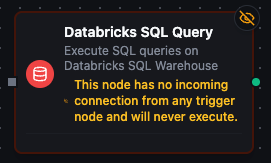
Databricks SQL query node in the pipeline designer with connection, function, and parameter configuration

Databricks SQL execute node for running DML/DDL statements in pipelines