 BigQuery Integration Guide
Connect to Google BigQuery to run SQL analytics and retrieve data from your cloud data warehouse. This guide covers connection setup, function configuration, and pipeline integration.
Overview
The BigQuery connector enables integration with Google BigQuery, a serverless, highly scalable cloud data warehouse. It provides:
- Standard SQL queries against BigQuery datasets with full result retrieval
- Service account authentication using JSON key files for secure, automated access
- Parameterized queries with template syntax for dynamic, reusable data operations
- Job metadata tracking including bytes processed, cache hit status, billing tier, and execution timing
- Per-query overrides for location and timeout settings at the function level
- Secure credential handling with encrypted storage, masked edits, and JSON key file upload
BigQuery is a serverless data warehouse — no infrastructure provisioning is required. Connections are established via the Google Cloud API using a project ID and service account credentials.
Connection Configuration
Creating a BigQuery Connection
Navigate to Connections → New Connection → BigQuery and configure the following:
BigQuery Connection Creation Fields
1. Profile Information
| Field | Default | Description |
|---|---|---|
| Profile Name | - | A descriptive name for this connection profile (required, max 100 characters) |
| Description | - | Optional description for this BigQuery connection |
2. BigQuery Configuration
| Field | Default | Description |
|---|---|---|
| Project ID | - | Google Cloud project ID containing the BigQuery datasets (required) |
| Location | - | Default query execution location (e.g., US, EU, us-central1). Must match the region where the target datasets reside |
| Default Timeout (seconds) | 30 | Default timeout for query execution (1–3600 seconds) |
Your project ID can be found in the Google Cloud Console at the top of the page or by running gcloud config get-value project in the Cloud Shell. It is the unique identifier for your Google Cloud project (e.g., my-analytics-project).
3. Service Account Key
| Field | Default | Description |
|---|---|---|
| Service Account Key JSON | - | JSON key file for a Google Cloud service account with BigQuery access (required) |
You can provide the service account key by either uploading a JSON key file (drag-and-drop or file picker) or pasting the JSON content directly into the field.
To create a service account and generate a key:
Step 1: Create a Service Account
- Open the Google Cloud Console IAM → Service Accounts
- Select your project
- Click + Create Service Account
- Enter a name (e.g.,
maestrohub-bigquery) and optional description - Click Create and Continue
Step 2: Grant BigQuery Permissions
Assign one of the following roles to the service account:
| Role | Permissions | Recommended For |
|---|---|---|
| BigQuery Data Viewer | Read-only access to datasets and tables | Read-only pipelines that only query data |
| BigQuery Data Editor | Read and write access to datasets and tables | Pipelines that need to read and modify data |
| BigQuery Job User | Permission to run query jobs | Required in addition to data roles for running queries |
| BigQuery User | Run queries and list datasets | General-purpose access for most use cases |
For most use cases, assign both BigQuery Data Viewer and BigQuery Job User roles. The Data Viewer role grants read access to datasets, while the Job User role allows the service account to execute queries.
Step 3: Generate a JSON Key
- In the service account list, click on your newly created service account
- Navigate to the Keys tab
- Click Add Key → Create new key
- Select JSON as the key type
- Click Create — the key file will download automatically
The downloaded JSON key file contains credentials that grant access to your BigQuery resources. Store it securely and never commit it to version control. In MaestroHub, the key is encrypted and stored securely.
4. Connection Labels
| Field | Default | Description |
|---|---|---|
| Labels | - | Key-value pairs to categorize and organize this BigQuery connection (max 10 labels) |
Example Labels
env: prod– Environmentteam: data-analytics– Responsible teamproject: sales-reporting– Use case
- Required Fields: Profile Name, Project ID, and Service Account Key JSON must be provided.
- Location: If not specified at the connection level, BigQuery uses the dataset's default location. You can override the location per query in the function configuration.
- Timeout: The default timeout of 30 seconds applies to all queries unless overridden at the function level.
- Security: The service account key is encrypted and stored securely. It is never logged or displayed in plain text. On edit, the key is masked — leave it unchanged to keep the stored value, or upload a new key to replace it.
Function Builder
Creating BigQuery Functions
Once you have a connection established, you can create reusable query functions:
- Navigate to Functions → New Function
- Select the Query function type
- Choose your BigQuery connection
- Configure the function parameters
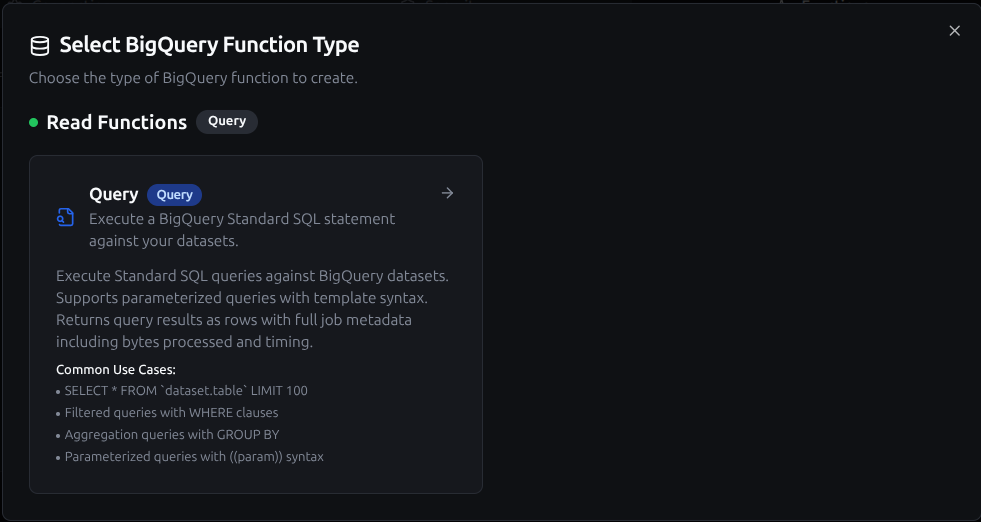
BigQuery query function creation interface with SQL editor and parameter configuration
Query Function
Purpose: Execute BigQuery Standard SQL statements against your datasets. Use this for reading data, running aggregations, and performing analytics queries.
Configuration Fields
| Field | Type | Required | Default | Description |
|---|---|---|---|---|
| SQL Query | String | Yes | - | BigQuery Standard SQL statement to execute. Supports parameterized queries with ((parameterName)) syntax. |
| Location | String | No | - | Override the connection-level location for this query (e.g., US, EU, us-central1). Must match the region where the target dataset resides. |
| Timeout (seconds) | Number | No | 30 | Override the connection-level timeout for this query (1–3600 seconds). |
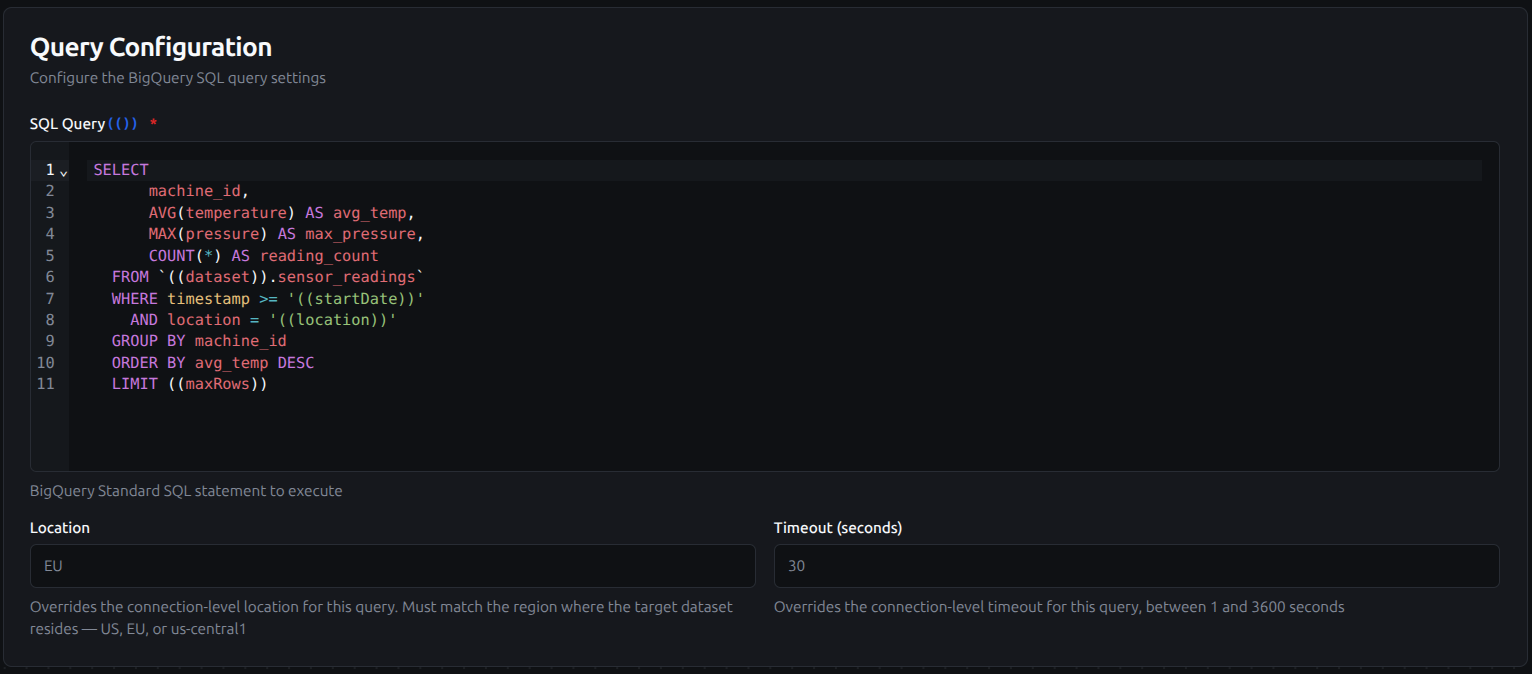
Query configuration with SQL editor, location override, and timeout settings
Query Output
Each query execution returns:
| Field | Description |
|---|---|
rows | Array of result objects |
rowCount | Number of rows returned |
truncated | true if results were truncated at 1,000 rows |
metadata.jobID | BigQuery job identifier |
metadata.totalBytesProcessed | Total bytes scanned by the query |
metadata.cacheHit | Whether results were served from cache |
metadata.billingTier | Billing tier used for the query |
metadata.statementType | SQL statement type (e.g., SELECT) |
Use Cases:
- Query aggregated KPIs from warehouse tables for dashboards
- Retrieve time-series data for trend analysis and reporting
- Run cross-dataset analytics with JOINs
- Execute parameterized queries for dynamic data retrieval
Using Parameters
The ((parameterName)) syntax creates dynamic, reusable queries. Parameters are automatically detected from your SQL and can be configured with:
| Configuration | Description | Example |
|---|---|---|
| Type | Data type validation | string, number, boolean, datetime, json, buffer |
| Required | Make parameters mandatory or optional | Required / Optional |
| Default Value | Fallback value if not provided | US, 100, 2024-01-01 |
| Description | Help text for users | "Start date for the report", "Maximum rows to return" |
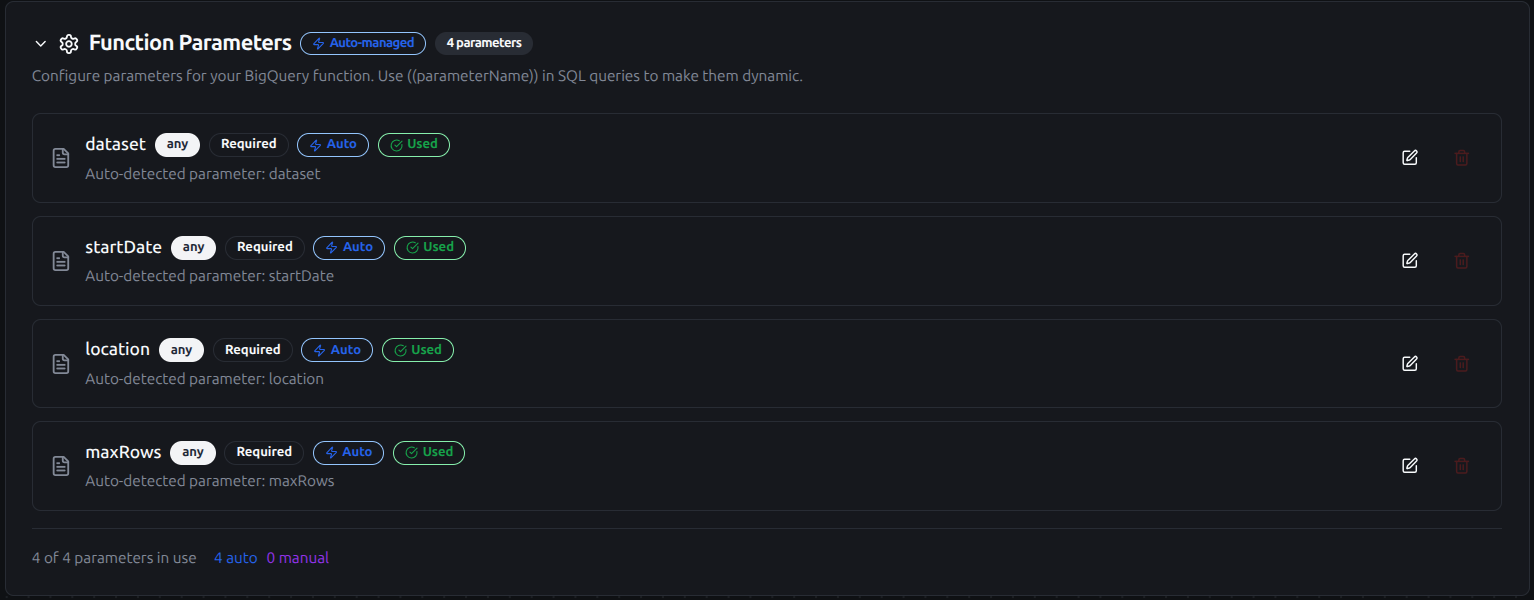
Configure dynamic parameters for BigQuery functions with type validation, defaults, and descriptions
Pipeline Integration
Use the BigQuery functions you create here as nodes inside the Pipeline Designer. Drag the query node onto the canvas, bind its parameters to upstream outputs or constants, and configure error handling as needed.
Common patterns include:
- Collect → Analyze: Gather data from OPC UA, MQTT, or Modbus, store it, and run BigQuery analytics queries for insights
- Query → Transform → Act: Read warehouse data, process it, and send results to dashboards, notifications, or other systems
- Schedule → Report: Use scheduled triggers to periodically run BigQuery analytics and deliver reports via SMTP or MS Teams
- Event → Enrich: React to pipeline events by querying BigQuery for contextual data to enrich the payload
For broader orchestration patterns that combine BigQuery with SQL, REST, MQTT, or other connector steps, see the Connector Nodes page.
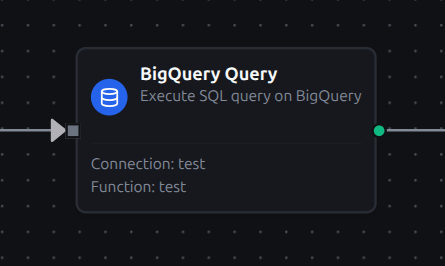
BigQuery query node with connection, function, and parameter bindings in the pipeline designer