AWS Lambda IAM Setup
This guide walks through creating a dedicated AWS IAM user, attaching a least-privilege policy, and generating the access key + secret used by the AWS Lambda connector.
If you already have credentials with lambda:InvokeFunction, lambda:ListFunctions, and lambda:GetAccountSettings, you can skip this guide and head straight to the connection form.
Prerequisites
- An AWS account with at least one Lambda function deployed.
- IAM permission to create policies, users, and access keys (typically a console admin).
1. Create the IAM policy
Open the AWS console → IAM → Policies → Create policy. Switch to the JSON tab and paste:
{
  "Version": "2012-10-17",
  "Statement": [
    {
      "Effect": "Allow",
      "Action": [
        "lambda:InvokeFunction",
        "lambda:GetAccountSettings",
        "lambda:ListFunctions"
      ],
      "Resource": "*"
    }
  ]
}
These three actions cover everything the connector needs:
| Action | Used for |
|---|---|
lambda:GetAccountSettings | Connection health check (Ping) and Test Connection |
lambda:InvokeFunction | Sync invoke, async invoke, and Dry Run |
lambda:ListFunctions | The List Functions smart function |
Resource for productionThe example above grants access to all Lambda functions in the account. For production, replace "Resource": "*" with the specific function ARN(s) you want MaestroHub to invoke, e.g. "arn:aws:lambda:us-east-1:123456789012:function:my-fn". lambda:GetAccountSettings and lambda:ListFunctions are account-level and require "*" — keep them in a separate statement when scoping lambda:InvokeFunction.
Click Next, name the policy MaestroHubLambdaPolicy, then Create policy.
2. Create the IAM user
Go to IAM → Users → Create user. Name the user something memorable like MaestrohubLambdaInvoker and leave "Provide user access to the AWS Management Console" unchecked — this user only needs programmatic access.
3. Attach the policy
On the Set permissions step, choose Attach policies directly:
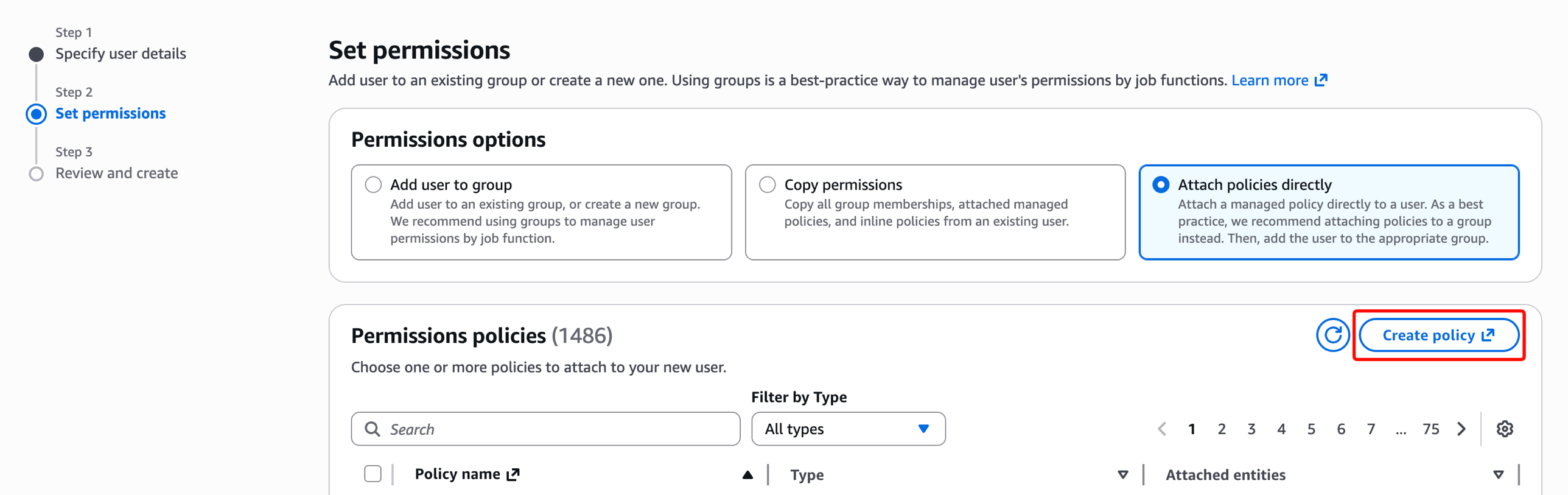
Search for MaestroHub, tick MaestroHubLambdaPolicy, click Next, then Create user.
4. Create the access key
Click into the new user, open the Security credentials tab:
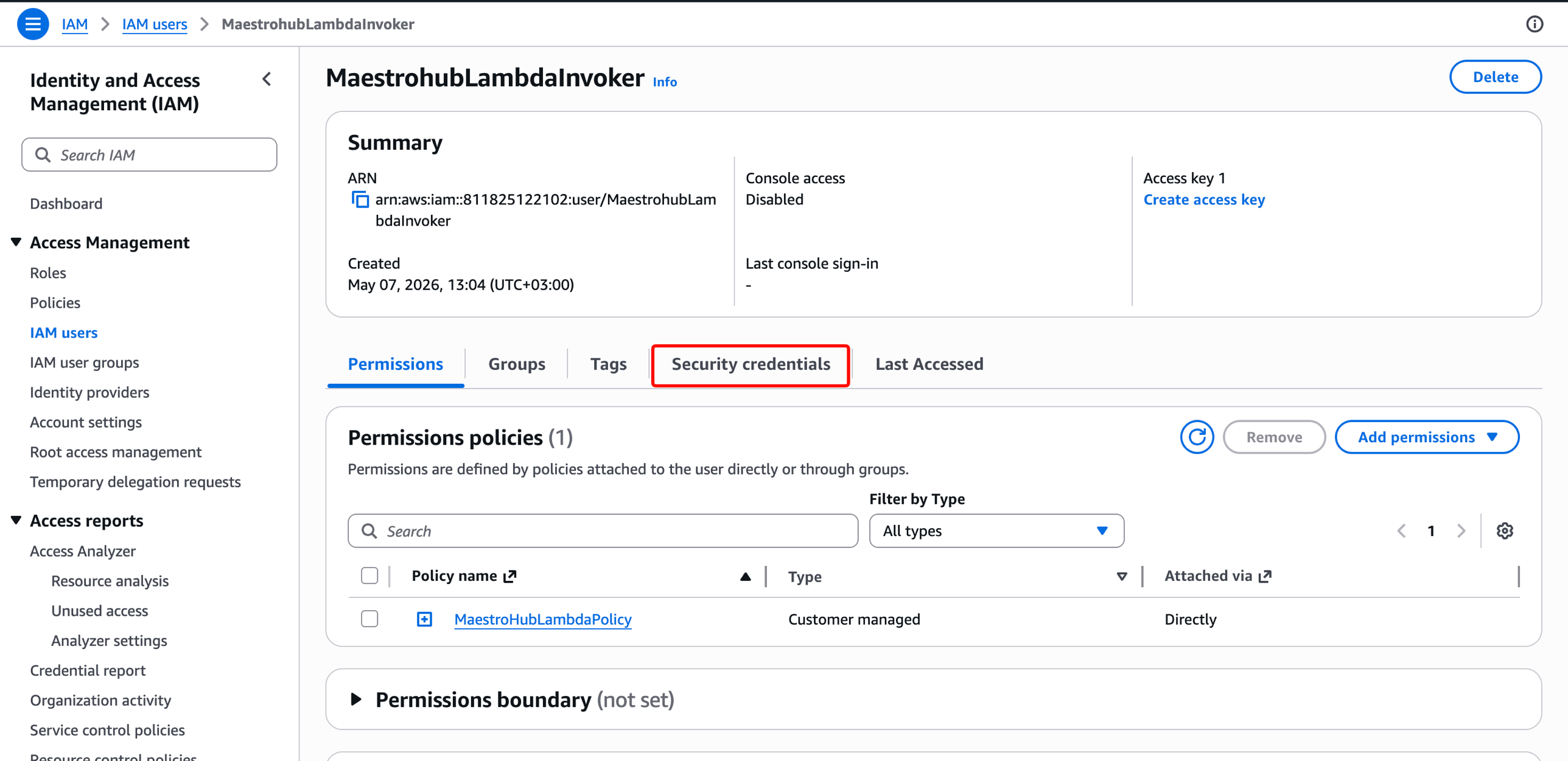
Scroll to Access keys and click Create access key. On the use-case selector, choose Application running outside AWS:
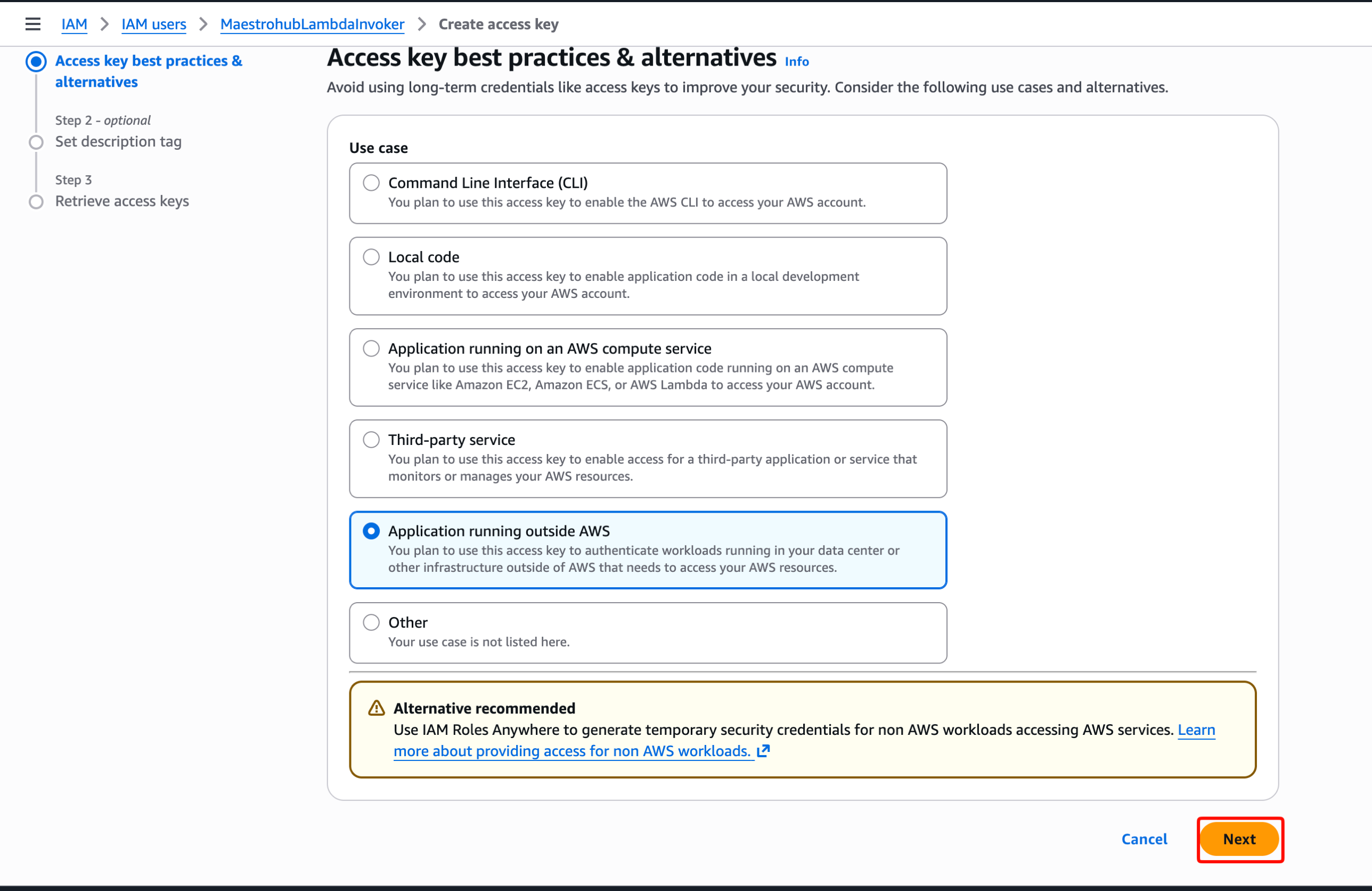
AWS suggests IAM Roles Anywhere for non-AWS workloads. That's a valid hardening path, but for a typical MaestroHub deployment a long-lived access key is the standard choice. If you're running MaestroHub on AWS (EC2/ECS/EKS), prefer attaching an IAM role to the workload and leaving the credential fields empty in MaestroHub — see the default credential chain section.
Click Next through the description tag, then on the final screen copy both the Access Key ID and the Secret Access Key:
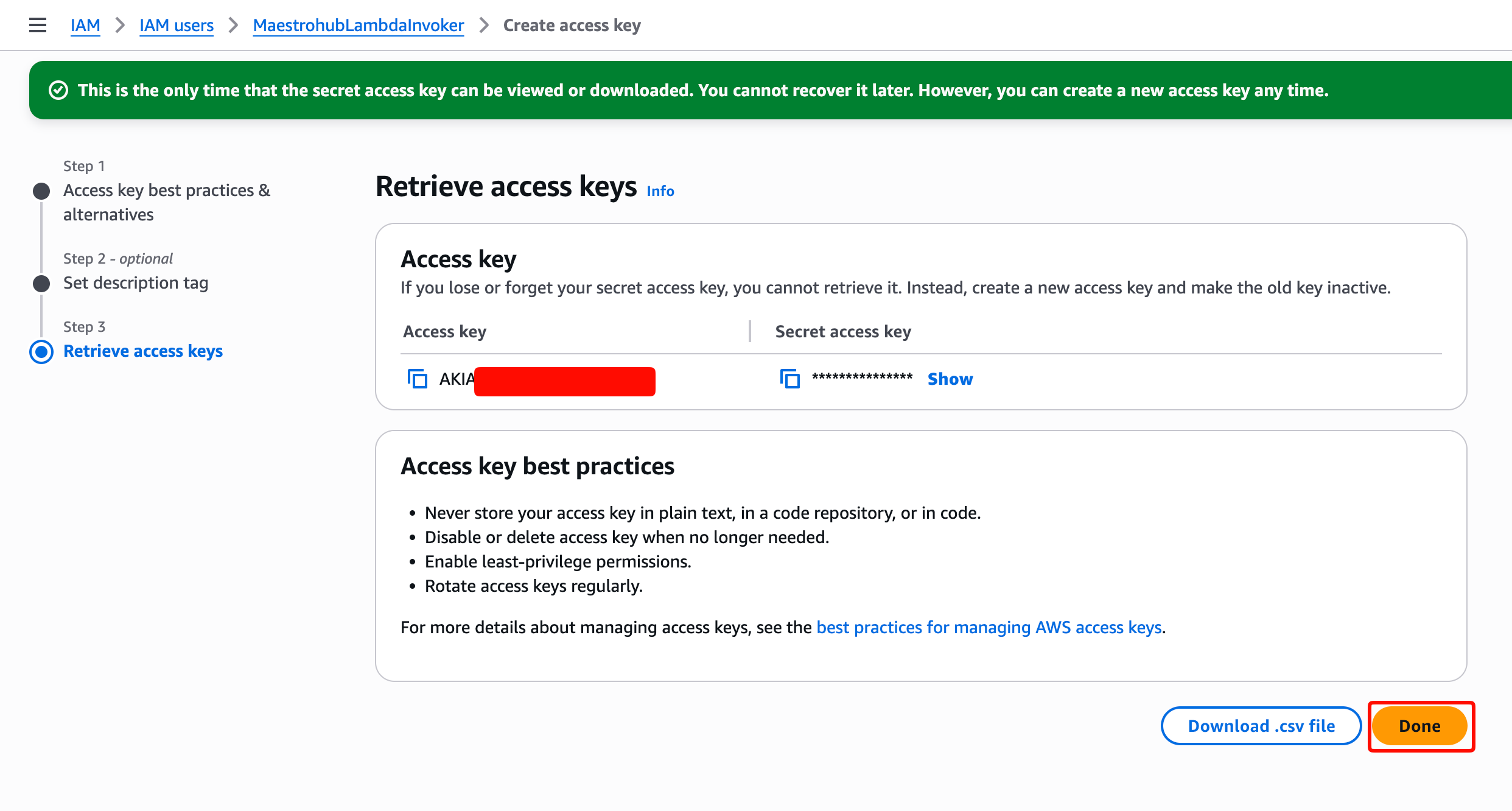
The secret access key is shown only once. If you close this page without copying it, you'll need to create a new access key.
You now have everything you need to fill in the connector form:
- Access Key ID:
AKIA… - Secret Access Key: copy the value before leaving the page
- Region: wherever your Lambda function is deployed (e.g.,
us-east-1)
Next steps
Head to AWS Lambda Connection Configuration to plug these credentials into MaestroHub.