 BACnet/IP Integration Guide
MaestroHub integrates natively with BACnet/IP building automation devices. Browse device objects, read property values in batch, and orchestrate building data acquisition inside your pipelines.
Overview
The BACnet/IP connector provides:
- Direct UDP communication with any ASHRAE Standard 135 compliant device
- Object discovery via device browsing to enumerate all available objects
- Batch property reads using ReadPropertyMultiple for efficient data acquisition
- Auto interface detection to find the correct network interface for reaching the target device
Connection Configuration
Creating a BACnet/IP Connection
Navigate to Connections → New Connection → BACnet/IP and configure the device endpoint with the following fields.
BACnet/IP Connection Creation Fields
1. Profile Information
| Field | Default | Description |
|---|---|---|
| Profile Name | — | A descriptive name for this connection profile (required, max 100 characters) |
| Description | — | Optional description for this BACnet connection |
2. BACnet/IP Settings
| Field | Default | Description |
|---|---|---|
| Device IP Address | — | IPv4 address of the target BACnet device (e.g., 192.168.1.100) — required |
| Port | 47808 | BACnet/IP UDP port on the target device (1–65535) |
| Device ID | — | BACnet Device Instance ID (0–4194302) — required |
| Timeout (ms) | 10000 | Timeout for all BACnet operations including connect, read, and browse (1000–300000 ms) |
3. Connection Labels
| Field | Default | Description |
|---|---|---|
| Labels | — | Key-value pairs to categorize and organize this BACnet connection (max 10 labels) |
Example Labels
building: main-campus— Building namefloor: 2nd— Floor levelsystem: hvac— Building systemlocation: mechanical-room— Physical location
- UDP Protocol: BACnet/IP communicates over UDP. The MaestroHub server must have direct network access to the device on the configured port.
- No Authentication: BACnet/IP has no built-in authentication — security is managed at the network level.
- Device ID: The Device Instance ID uniquely identifies the target device on the BACnet network. It can be found in device documentation, the device's configuration interface, or via a BACnet discovery tool.
- Port 47808: This is the standard BACnet/IP port (
0xBAC0). Only change it if the device uses a non-standard port. - Timeout: The default 10000 ms (10 seconds) works well for local networks. Increase for slower networks or devices with many objects.
- Auto Interface Detection: The connector automatically selects the best local network interface to reach the target device — no manual network configuration is required.
Function Builder
Creating BACnet Functions
Once the connection is saved:
- Go to the Functions tab → New Function
- Choose Read Properties
- Configure the read items with names, object types, and property IDs
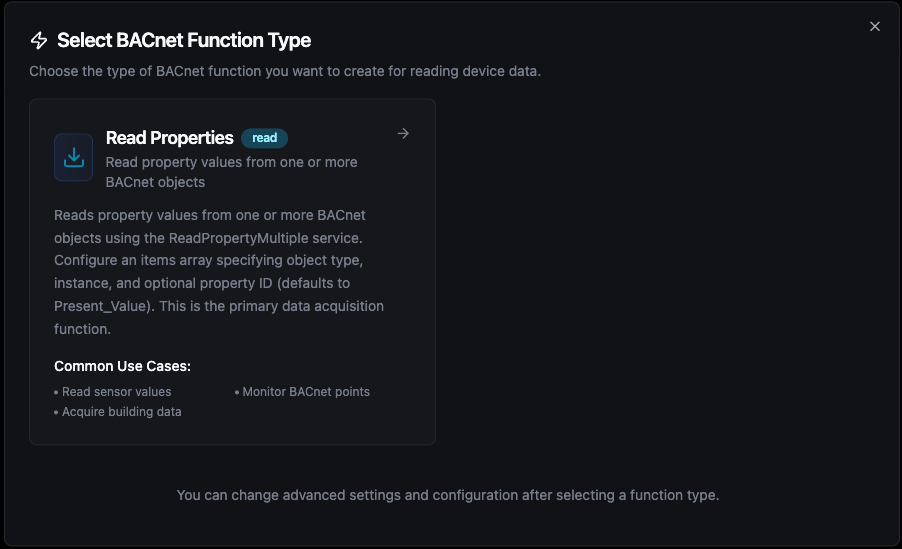
Configure BACnet read functions with named items and the browse panel for object discovery
Read Properties Function
Purpose: Read property values from one or more BACnet objects using ReadPropertyMultiple. Each item is given a unique name that becomes the key in the result output.
Configuration Fields
| Field | Type | Required | Default | Description |
|---|---|---|---|---|
| Function Name | String | Yes | — | A descriptive name for this read function (1–100 characters) |
| Description | String | No | — | Optional description |
| Read Items | Array | Yes | — | List of BACnet objects/properties to read (1–50 items) |
Read Item Fields
| Field | Type | Required | Default | Description |
|---|---|---|---|---|
| Item Name | String | Yes | — | Unique name for this item — used as the key in results |
| Object Type | Selection | Yes | — | BACnet object type (e.g., AnalogInput, BinaryInput, Device) |
| Instance | Number | Yes | — | Object instance number |
| Property ID | Selection | No | 85 (Present_Value) | BACnet property to read |
Supported Object Types
| Code | Name | Typical Use |
|---|---|---|
| 0 | AnalogInput | Temperature sensors, pressure sensors, flow meters |
| 1 | AnalogOutput | Valve positions, damper commands, setpoints |
| 2 | AnalogValue | Internal calculated values, configurable setpoints |
| 3 | BinaryInput | Occupancy sensors, switch states, alarms |
| 4 | BinaryOutput | Relay commands, on/off controls |
| 5 | BinaryValue | Internal binary states, mode flags |
| 8 | Device | The device itself (instance = Device ID) |
| 12 | Loop | PID control loops |
| 13 | MultiStateInput | Multi-position switches, fan speed states |
| 14 | MultiStateOutput | Multi-position actuator commands |
| 17 | Schedule | Weekly schedules |
| 20 | TrendLog | Historical data logs |
Common Property IDs
| ID | Name | Description |
|---|---|---|
| 85 | Present_Value | Current value — the most commonly read property |
| 77 | Object_Name | Human-readable name of the object |
| 28 | Description | Text description of the object |
| 36 | Event_State | Current alarm/event state |
| 103 | Reliability | Reliability status of the object |
| 111 | Status_Flags | Bitmask: in-alarm, fault, overridden, out-of-service |
| 117 | Units | Engineering units (e.g., degrees-Fahrenheit, percent) |
Browse Panel
The function configuration page includes a Browse Device Objects panel on the right side. Click Browse to discover all objects on the connected device. You can then:
- Search/filter objects by name, type, or instance number
- Click an object to add it as a read item with auto-generated name
Testing Functions
Before saving, you can test your configuration:
- Per-item testing: Click the test tube icon on any read item to verify it reads correctly
- Full function test: Click Test Function to execute all items and view results in the test dialog
Pipeline Integration
Use the BACnet Read node inside the Pipeline Designer to incorporate building automation data into your pipelines. Select the connection, choose a read function, and bind parameters to upstream outputs or constants.
For orchestration blueprints that combine BACnet with analytics, SQL, or notification steps, review the Connector Nodes page.
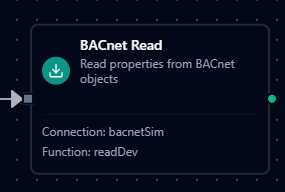
BACnet Read node with connection binding and function selection
Common Use Cases
HVAC Monitoring
Read temperature, humidity, and airflow values from air handling units (AHUs), rooftop units (RTUs), and variable air volume (VAV) boxes, then push results to dashboards or historians.
Energy Management
Acquire meter readings, power consumption, and demand data from BACnet-enabled meters and submeters for energy analytics and reporting.
Alarm Aggregation
Poll event states and status flags from building controllers to aggregate alarms into a central notification system with escalation workflows.
Occupancy Analytics
Read occupancy sensor data and schedule objects to optimize HVAC and lighting based on real-time building usage patterns.