Models
Overview
The Models page in MaestroHub is your command center for defining and managing data structures that power your workflows and data processing pipelines. Think of models as the blueprint for your data—they define the schema, relationships, and validation rules that ensure data consistency across your entire ecosystem.
Well-defined models are the foundation of reliable data operations. They enable type safety, data validation, and seamless integration between different parts of your system.
Navigation Path: Compose > Models
Key Capabilities
The Models page empowers you to:
- Create custom data models from scratch or using predefined templates
- Visualize and filter your model catalog with powerful search capabilities
- Manage versions and track changes over time
- Define relationships between models for complex data structures
- Validate models before deployment to catch errors early
- Control data sensitivity with granular privacy levels
Creating Models
Model Creation Options
You have two paths to create a model:

Model creation interface with template import option
Option A: Start from Scratch
Click the "+ Create Model" button in the top-right corner. This opens a blank form where you'll define every aspect of your model.
Option B: Use a Template
Click the "Import Predefined" button to choose from pre-built templates.
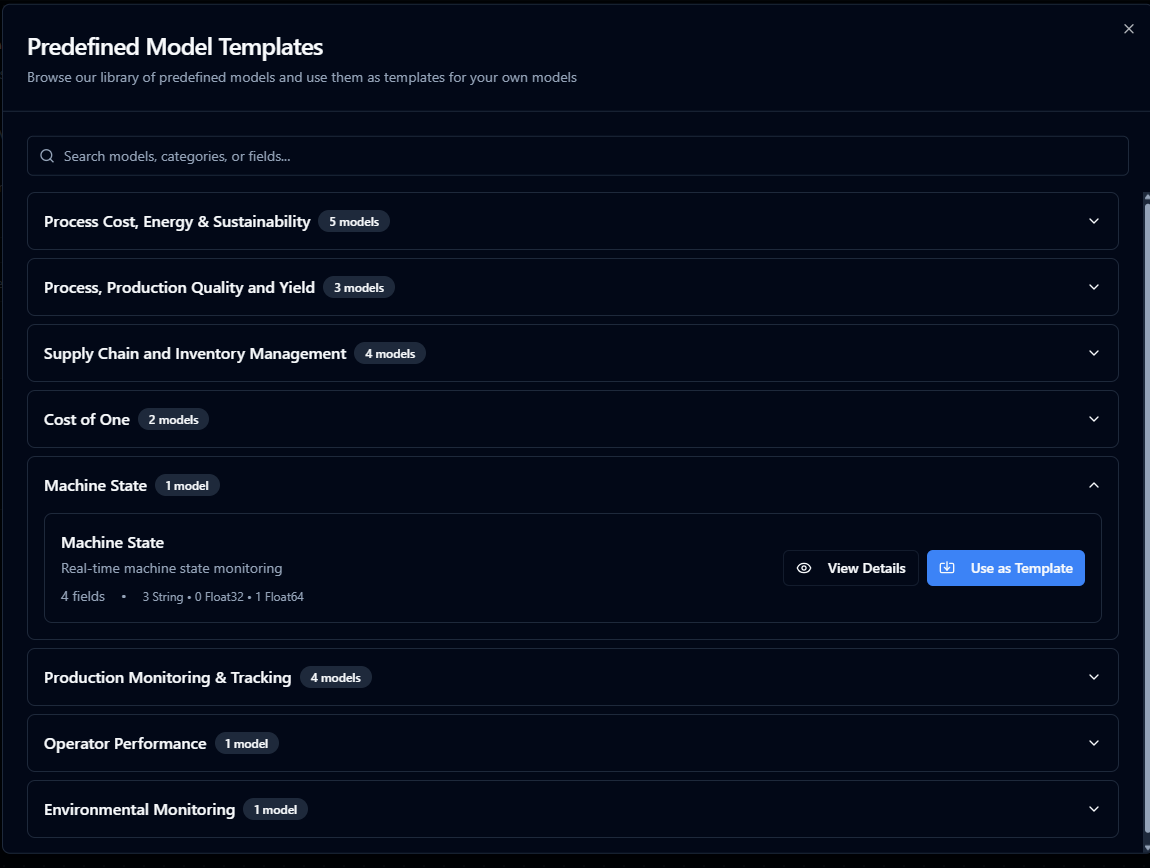
Choose from predefined templates to accelerate model creation
Templates give you a head start! They come pre-configured with fields and best practices, which you can then customize to your needs.
Form Structure
Model creation is organized into three intuitive sections:
Basic Info Tab
Define your model's identity and purpose.
Fields Tab
Build the structure by adding and configuring data fields.
Test & Review Tab
Preview and validate your model before saving.
Basic Info Configuration
| Field | Required | Description |
|---|---|---|
| Model Name | Yes | Unique identifier for your model (2-100 characters). Real-time validation checks availability. Use PascalCase: CustomerProfile, OrderHistory |
| Description | No | Brief explanation of the model's purpose and usage context |
| Labels | No | Key-value pairs for categorization (e.g., environment:production, team:data-engineering). Great for filtering and governance |
Fields Configuration
Each model must have at least one field. Define your data structure using these properties:
| Property | Required | Description |
|---|---|---|
| Field Name | Yes | Unique identifier within the model. |
| Kind | Yes | Choose Primitive (basic types) or Model (reference to another model) |
| Type | Yes | Select data type: String, Boolean, Int32, Int64, Float32, Float64, DateTime, JSON or an existing model |
| Sensitivity | No | Security level 1-5 (default: 1). Use Level 4-5 for PII and financial data |
| Definition | No | Brief description of the field's purpose |
| Required | No | Toggle ON to make field mandatory for validation |
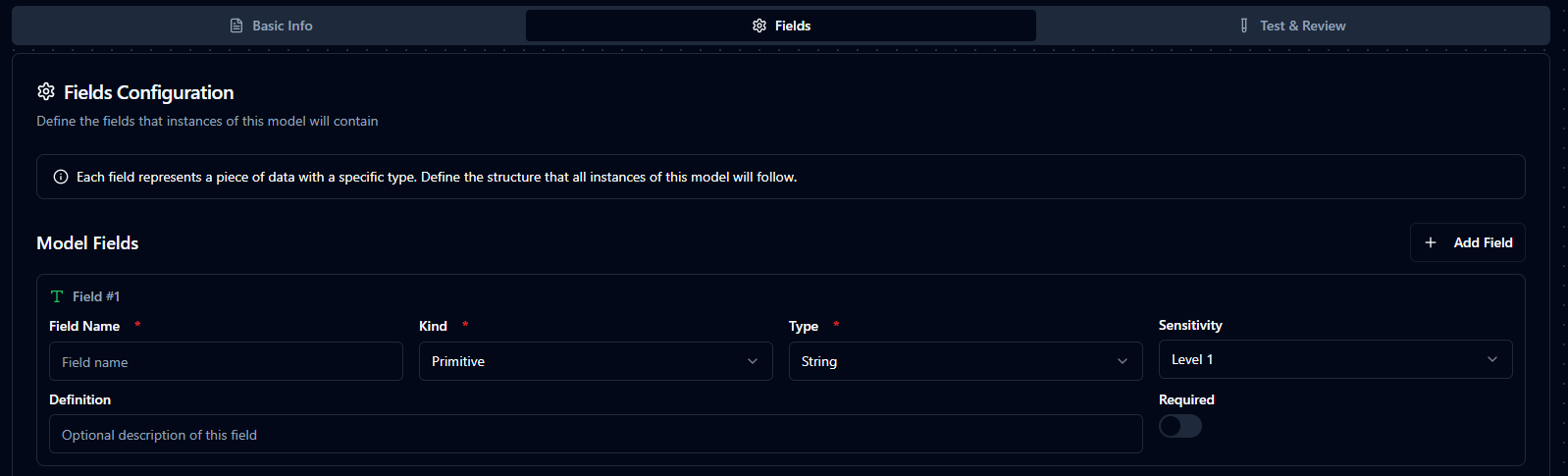
Field configuration with data types, sensitivity levels, and validation options
Available Data Types
Primitive Types: String • Boolean • Int8 • Int16 • Int32 • Int64 • DateTime • Float32 • Float64 • UInt8 • UInt16 • UInt32 • UInt64
Model References: Select any existing model to create relationships between data structures.
Sensitivity Guidelines
| Level | Use For |
|---|---|
| 1-2 | Public data, general information |
| 3 | Email addresses, phone numbers |
| 4-5 | PII, passwords, financial data, health records |
- Field names must be unique within each model
- Use Level 4-5 sensitivity for compliance-critical data
- Model references enable complex data structures (e.g.,
Order→Customer) - Avoid circular references between models
Test & Review
Preview your model and run validation checks before saving.
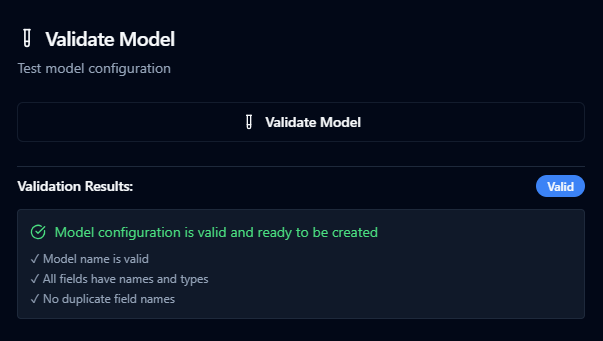
Model preview and validation interface with detailed field information
Left Panel: View model summary, field list with badges, and all labels
Right Panel: Click "Validate Model" to check for:
- Unique model name
- Complete field definitions
- No duplicate field names
- At least one field exists
Validation can be run at any time during model creation. Fix issues before saving to avoid errors.
Saving Your Model
Cancel: Discard changes and return to list (shortcut: ESC)
Create Model: Submit after validation. On success, you'll be redirected to the model list where your new model is immediately available.
Model List Management
Browse and manage your model catalog with a powerful data table.
Key Features:
- Filtering: Search by name, labels, status; include deleted/archived models
- Sorting: Click any column header to sort
- Customization: Adjust page size, hide columns, toggle avatars
- Actions: View details, edit, version history, duplicate, or delete models
Version Management
MaestroHub automatically tracks model changes:
- Initial Version: Every model starts at version 1
- Auto-Increment: Edits create new versions automatically
- History Access: View and compare all past versions
- Rollback: Restore previous versions if needed